

Time & Attendance
Additional Duty
Plan extra duty sessions beside the roster, take them through approval and reconciliation, and turn the worked time into overtime and pay. Covers configuration, policies, every screen and worked examples.
1. Introduction
What Additional Duty is
Additional Duty lets you ask an employee to work an extra, clearly defined period of time on top of their normal roster, and then follow that time all the way to pay. Each extra period is called a session. A session has a date, a start time and an end time, and it sits beside the employee's roster. It never replaces, moves or extends the roster.
For example, an employee rostered 14:00–20:00 can also be given an additional duty session 09:00–11:00 on the same day. Their roster still reads 14:00–20:00 everywhere in WorkHarmony. The 09:00–11:00 session is recorded separately, approved separately, checked against the employee's punches separately, and turned into overtime according to your company's rules.
Additional Duty covers the whole journey:
- Planning: create sessions for one employee or for a whole group, with an automatic check against the roster, leave, rest rules and other duty.
- Approval: send the sessions through your approval workflow before they are given to the employee.
- Communication: the employee is told about the session, can acknowledge it and, if your company allows it, can ask to be excused.
- Attendance: the system matches the employee's punches to the session, tracks whether they turned up, and flags no-shows.
- Reconciliation: a manager confirms what actually happened once the session has ended.
- Overtime and payroll: the worked time becomes overtime according to the overtime method your company chooses, and only approved overtime is paid.
When to use it
Use Additional Duty when the extra work is in addition to the normal roster and you want to keep the roster intact. Typical situations:
- Weekend or rest-day cover. A warehouse needs four people on a Saturday that is normally a rest day for them.
- Before or after a shift. A nurse rostered 14:00–20:00 is asked to attend a 09:00–11:00 training session.
- Special events. A retail chain runs a stock count across several stores on one weekend and needs the same time windows for dozens of employees.
- Emergency or after-hours call-outs. An engineer is called in for an overnight repair, 22:00–02:00.
- Cover at another location. A cashier from one branch works an evening at another branch.
- Authorising work already done. A supervisor stayed back two hours to handle an incident and the time needs to be approved after the fact.
Use other features instead when:
- the employee's working pattern itself should change (use rosters or duty changes);
- the employee is simply working past the end of their shift without any planned extra session (ordinary attendance overtime already covers this);
- the employee is away from the workplace during their duty (that is the separate Away-Time feature).
Note: Additional Duty never cancels approved leave, never changes a roster and never makes time payable on its own. Time becomes payable only through an approved overtime request.
2. Before you start
Nothing happens for any employee until all three of the following are in place. Each one is off by default, so a company that has not set them up sees no change at all in attendance, overtime or payroll.
| Layer | Who sets it | Where | Default |
|---|---|---|---|
| 1. Licence | Your WorkHarmony provider | The company's subscription (Additional Duty is an add-on, not included in any standard plan) | Not licensed |
| 2. Master switch | Your system administrator | Administration › Configurations › Roster & Attendance › "Additional Duty" card | Off |
| 3. Policy | Your HR administrator | Administration › Additional duty policies | Off for everyone |
Licence
Additional Duty is a separately licensed add-on in the "Time" category. It is not part of any standard plan, including the top tier. Ask your WorkHarmony provider to add it to your subscription.
What you see depending on the licence:
- Not licensed: the Additional Duty menus are hidden, the Additional Duty card does not appear in Configurations, and anyone who opens a duty screen directly sees "Additional duty is not in your plan".
- Licensed: the Additional Duty card appears in Configurations so the master switch can be turned on.
The same licence also unlocks the Additional duty policies screen, the Additional duty reports in Report Studio, and the Attendance reconciliation screen.
Master switch
The master switch is the company-wide on/off control. It is described in detail in chapter 3. While it is off, the screens show "Additional duty is switched off. Turn it on in Administration › Configurations › Roster & Attendance."
Policies
The master switch alone does not let anyone be given duty. A policy decides who the feature applies to and how it behaves for them: whether approval is needed, whether rest days and holidays are allowed, how overtime is calculated, and so on. Every policy setting is described in chapter 3.
You can switch the feature on for the whole organisation, or start with a pilot group (one location, division, department, section, unit or even one employee).
Approval workflow
WorkHarmony creates an approval workflow called Additional Duty Approval under Automation › Workflows. By default it has two steps:
- the employee's division, department, section or unit head;
- HR (the Admin role).
You can edit the steps like any other workflow. If no workflow is active for Additional Duty, submitted sessions are approved straight away.
Permissions and roles
Grant permissions in Security › Roles. Console permissions apply across the whole organisation; the lists on each screen can then be narrowed with filters.
| Module (as shown in Roles) | Action | What it allows |
|---|---|---|
| Additional duty | View | Open the Additional duty screens, lists, calendar and session details |
| Additional duty | Create | Create new assignments (individual or bulk), run the conflict check, submit assignments |
| Additional duty | Edit | Edit draft or returned assignments, and edit individual sessions |
| Additional duty | Delete | Delete a draft assignment |
| Additional duty | Cancel | Cancel a session |
| Additional duty | Approve | Approve assignments from the console, and accept or refuse an employee's request to be excused |
| Additional duty | Reject | Reject assignments from the console |
| Additional duty | Reconcile | Reconcile a finished session (confirmed, partial, did not attend) |
| Additional duty | Audit | See the audit trail of assignments and sessions |
| Additional duty | Export | Export lists |
| Additional duty policies | View, Create, Edit, Audit | See and change the Additional duty policies |
| Additional duty reports | View | Use the Additional duty sessions data in Report Studio |
| Overtime requests | Create | Needed together with Additional duty Create to raise duty overtime requests from Overtime Review |
| Attendance reconciliation | View, Recalculate, Resolve | Use the Attendance reconciliation screen, recalculate days and resolve exceptions |
| Configurations | Edit | Turn the master switch on or off |
Suggested role set-up:
- Rostering officers: Additional duty View, Create, Edit, Cancel.
- Supervisors and managers: Additional duty View, Approve, Reject, Reconcile.
- HR administrators: Additional duty policies View, Create, Edit; Additional duty reports View.
- Payroll staff: Additional duty View, Additional duty reports View, Attendance reconciliation View.
Note: On the mobile app, managers need none of these permissions. A manager sees and acts on additional duty only for the people who report to them, and employees see only their own sessions.
Tip: Grant Attendance reconciliation Recalculate with care. It reprocesses attendance for up to 31 days and 500 employees in one run.
Suggested first rollout
- Ask your provider to add the Additional Duty licence.
- Turn on the master switch in Configurations.
- Leave the organisation default policy switched off, and add an override for one department with "Additional duty enabled" ticked.
- Decide the overtime method (separate or combined) with HR and payroll before the first session is reconciled.
- Run the feature in that department for one or two pay periods, comparing the payslips with the Attendance reconciliation screen.
- Widen the scope by enabling the organisation default or adding more overrides.
3. Configuration
Configuration happens in two places:
- the Additional Duty card in Configurations holds the single company-wide master switch;
- the Additional duty policies screen holds every rule, with an organisation default and optional overrides for parts of the organisation.
The Configurations card
Go to Administration › Configurations, open the Roster & Attendance tab and scroll to the card titled Additional Duty. The card appears only when your company is licensed for Additional Duty.

To change the switch:
- Click Edit at the top of the Configurations page. You need the Configurations Edit permission.
- Turn Additional Duty enabled on or off.
- Click Save changes.

| Field | What it does | Values / default | Impact of the choice |
|---|---|---|---|
| Additional Duty enabled | The company-wide master switch for Additional Duty | On or Off. Default Off | On: the Additional duty screens work, sessions can be assigned to employees whose policy is enabled, the background monitor tracks sessions, punches are matched to sessions and overtime follows the policy. Off: nothing is assigned, monitored or recalculated, and attendance and payroll work exactly as they did before the feature existed |
What happens when you turn it on:
- The Additional duty screens under Time & Attendance stop showing "switched off" and start working.
- Sessions can now be created, but only for employees whose policy has "Additional duty enabled" ticked.
- A background monitor starts checking sessions every five minutes: it sends starting-soon reminders, marks sessions in progress, completed or no-show, and raises no-show alerts.
- When attendance is calculated, punches near a session are matched to that session, and the day's overtime is calculated according to the policy's overtime method.
- Employees see Additional duty in the mobile app after their next sign-in or refresh.
What happens when you turn it off:
- The duty screens show "Additional duty is switched off".
- No new sessions can be assigned, and the monitor stops sending reminders and no-show alerts.
- Attendance and overtime go back to the existing rules the next time a day is calculated.
- Nothing is deleted. Assignments, sessions, reconciliations and reports are kept, and overtime requests already raised (pending or approved) stay as they are.
- If you turn it on again later, the existing records are there.
Important: The switch is refused if your company is not licensed. You see a message that the setting requires the Additional Duty module.
Tip: To turn the feature off in an orderly way, first untick "Additional duty enabled" in the policy (a new organisation version, or deactivate the overrides), then turn off the master switch.
The Additional duty policies screen
Go to Administration › Additional duty policies. At the top of the page a card explains the two overtime calculation methods. Below it is the policy editor.
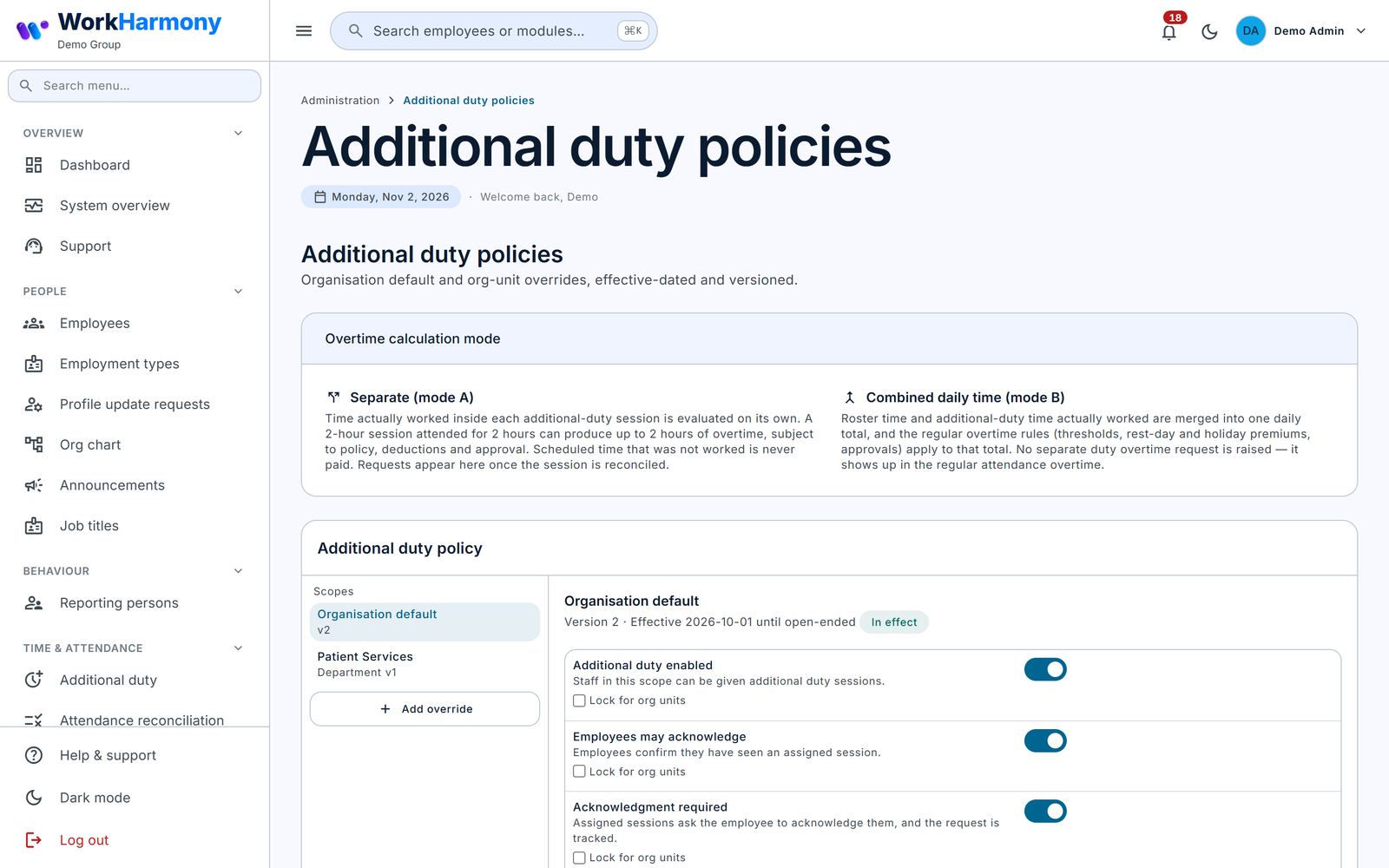
If you have View but not Create or Edit permission, the editor is read-only and says "You can view these policies but not change them."
Scopes: who a policy applies to
The left side of the editor lists the Scopes:
- the Organisation default, which applies to everyone;
- every override, each for one location, division, department, section, unit or employee.
To add an override:
- Click Add override.
- In Applies to, choose Location, Division, Department, Section, Unit or Employee.
- In Which one, choose the specific record.
- Tick Override next to each setting you want to change for this scope, and set its value.
- Set Takes effect and click Create override.
If there are no overrides, the editor says "No org-unit overrides — everyone follows the organisation default."
Precedence: how conflicts between scopes are resolved
Each employee's settings are built in a fixed order, from lowest to highest priority:
- the built-in default of each setting (shown in the tables below);
- the Organisation default policy;
- an override for the employee's location;
- an override for their division;
- an override for their department;
- an override for their section;
- an override for their unit;
- an override for the employee personally.
A higher layer replaces only the settings it overrides. Everything else is inherited from below. For example, if the Organisation default says "Allowed on rest days: Off" and the Warehouse department override says "Allowed on rest days: On", every Warehouse employee may be given rest-day duty, while still inheriting every other setting from the Organisation default.
When two overrides disagree, the more specific one wins. If the employee's location override says "Approval required: On" and their department override says "Approval required: Off", the department override wins, because department comes after location in the order above.
The placement used is the employee's placement on the date of the session, taken from their department change history. If an employee transfers to another department on 1 December, sessions dated from 1 December follow the new department's override.
Two rules always beat overrides:
- Locked settings. On the Organisation default, each setting has a Lock for org units box. When ticked, no override can change that setting. In an override it shows "Locked at organisation level".
- Organisation-only settings. A few settings can only be set on the Organisation default. Below organisation level they show "Not overridable". For Additional Duty these are "Overtime needs approval" and "Payroll".
Tip: Lock "Overtime calculation" on the Organisation default if payroll needs one overtime method across the company.
Versions and effective dates
- A policy is never edited in place. Saving creates a new version starting on the Takes effect date and closes the current version the day before. The button reads Save as new version.
- A new version must start after the current version's start date.
- Version history lists every version with its state: In effect, Scheduled (starts in the future), Superseded or Inactive, and who created it. Older versions open read-only.
- Deactivate (overrides only): choose the Last day in effect. From the next day the scope inherits from above again. The Organisation default cannot be deactivated; to switch the feature off for everyone, save a new version with "Additional duty enabled" unticked.
- Only one override can exist per scope. To change it, save a new version.
- No version can be created, changed or deactivated with a date inside a pay period that is locked for attendance.
Important: Changing a policy does not recalculate days that were already calculated. They keep their figures until new punches arrive for that day, attendance is regenerated (for example by payroll), or someone runs Recalculate on the Attendance reconciliation screen. Sessions also keep the policy that applied when they were created for the overtime method.
Resolve preview
At the bottom of the editor, Resolve preview shows the settings one employee gets on one date. Choose an Employee and a Date, and click Resolve. Each value shows which scope it Comes from, and the Chain shows the scopes that applied. Use it to check an override before relying on it.
Policy settings: enabling and employee interaction
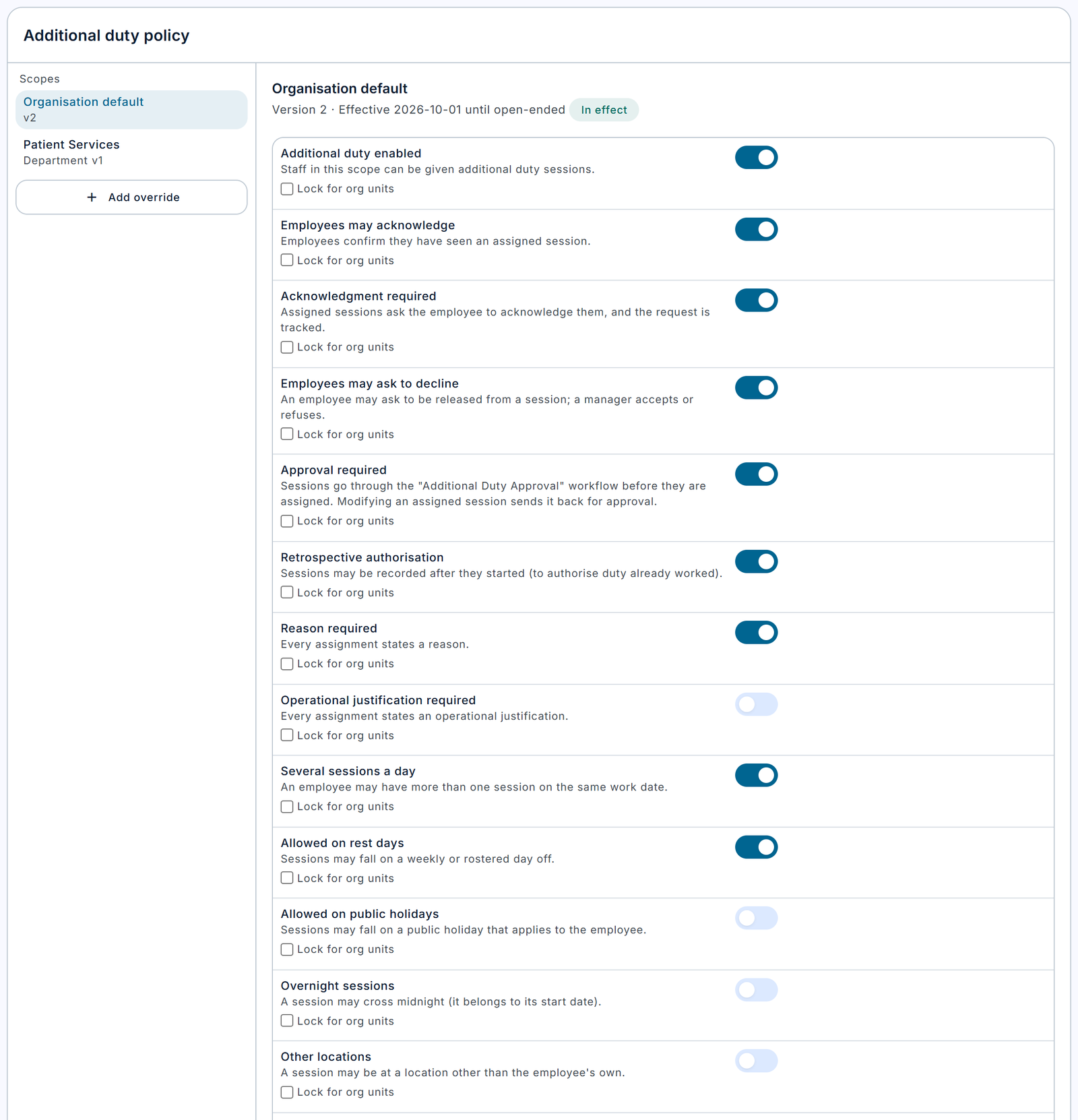
| Field | What it does | Values / default | Impact of the choice |
|---|---|---|---|
| Additional duty enabled | Decides whether employees in this scope can be given additional duty at all | On or Off. Default Off | Off: any attempt to assign duty to these employees is refused with "Additional duty is not enabled for this employee's unit" (in a bulk assignment, only those employees are flagged). On: employees can be given sessions, subject to the other rules |
| Employees may acknowledge | Lets employees press Acknowledge on an assigned session to confirm they have seen it | On or Off. Default On | On: the app shows the Acknowledge action and the manager can track who has acknowledged. Off: the Acknowledge action is hidden and refused, and "Acknowledgment required" has no effect |
| Acknowledgment required | Asks employees to acknowledge every assigned session | On or Off. Default Off | On (with "Employees may acknowledge" also On): the employee gets a "Please acknowledge additional duty" notification, the session shows "Please acknowledge this duty", and managers can filter "Needs acknowledgment". Off: acknowledging is optional. Acknowledgment never blocks the session either way |
| Employees may ask to decline | Lets employees ask to be excused from a session | On or Off. Default Off | On: the app shows "Ask to be excused"; the manager is notified and must accept or refuse. Until the manager decides, the session stays assigned. Off: employees cannot ask; they must contact their manager directly |
| Approval required | Sends assignments through the Additional Duty Approval workflow before they are given to the employee | On or Off. Default On | On: submitted assignments become Pending approval and employees see nothing until approved. Changing the times of an already assigned session sends it back for approval. Off: submitted sessions are assigned at once and the employee is notified immediately; time changes take effect at once |
Note: If one assignment contains sessions for several employees and any of them has "Approval required" on, the whole assignment goes for approval.
Policy settings: reasons and timing rules
| Field | What it does | Values / default | Impact of the choice |
|---|---|---|---|
| Retrospective authorisation | Allows sessions whose start time is already in the past | On or Off. Default Off | Off: a session that starts before now is blocked with "The session starts in the past and retrospective authorisation is not allowed." On: you can record and approve duty already worked, for example yesterday's incident cover |
| Reason required | Every assignment must state a reason | On or Off. Default On | On: saving without a reason is refused with "A reason is required." Off: the server accepts no reason, but the web form still asks for one (see the note below) |
| Operational justification required | Every assignment must state an operational justification | On or Off. Default Off | On: saving without a justification is refused with "An operational justification is required." Use this where extra hours need a business case, for example for budget control |
| Several sessions a day | Allows more than one session for the same employee on the same date | On or Off. Default On | Off: a second session on the same date is blocked with "The employee already has additional duty on this date." This also applies to two sessions in the same new assignment |
| Allowed on rest days | Allows sessions on the employee's weekly or rostered day off | On or Off. Default Off | Off: a session on a rest day is blocked with "The date is a rest day for this employee." On: weekend and day-off cover is possible. In overtime terms, every minute worked on a rest day counts, because there is no daily threshold on a day off |
| Allowed on public holidays | Allows sessions on a public holiday that applies to the employee | On or Off. Default Off | Off: blocked with "The date is a public holiday for this employee." On: holiday cover is possible, paid at your holiday overtime rate |
| Overnight sessions | Allows a session to cross midnight | On or Off. Default Off | Off: a session such as 22:00–02:00 is blocked with "Overnight sessions are not allowed by the policy." On: overnight sessions are allowed and belong to the date they start on. A session ending exactly at 00:00 is not counted as overnight |
| Other locations | Allows a session at a location other than the employee's own | On or Off. Default Off | Off: choosing a different work location is blocked with "The session is at another location and the policy does not allow it." On: cross-location cover is allowed. Leaving the work location empty always uses the employee's own location |
| Minimum duration (minutes) | The shortest session allowed | 1 to 1440. Default 30 | Sessions shorter than this are blocked with "The session lasts N minutes; the policy allows X–Y." Raise it to stop very short sessions being created for tiny overtime amounts |
| Maximum duration (minutes) | The longest session allowed | 1 to 1440. Default 720 (12 hours) | Longer sessions are blocked. For example, with 480 a 09:00–18:00 session (540 minutes) is refused |
Note: The rest-day rule uses the employee's roster for that date. A date on which the employee has no rostered shift at all is treated as a rest day. If your rosters are not built for future dates, sessions on those dates will be blocked as rest days unless "Allowed on rest days" is on.
Note: The web form always asks for a reason, even when "Reason required" is off. The mobile form also asks for one. In practice every assignment has a reason.
Policy settings: conflict detection and rest
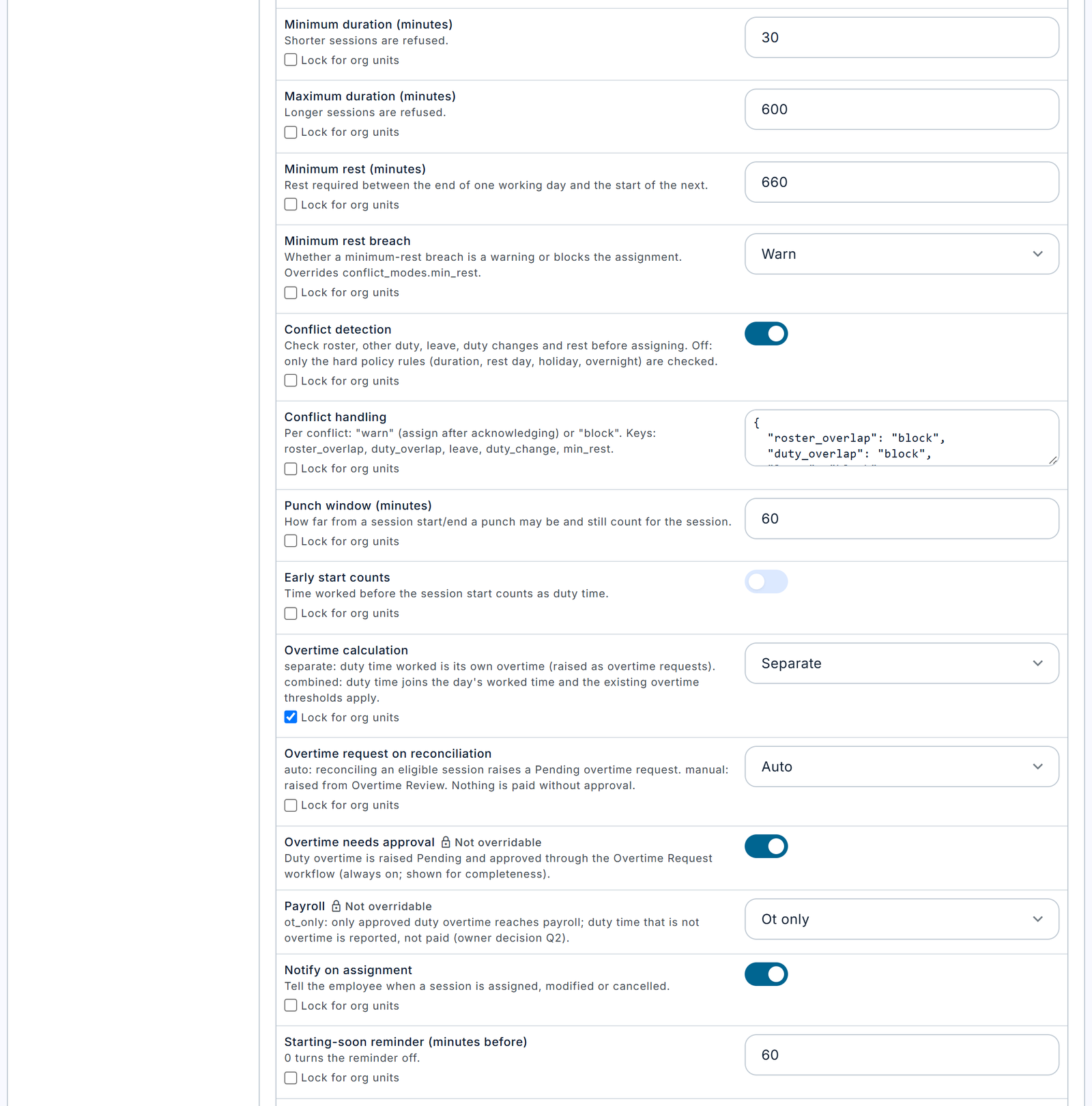
| Field | What it does | Values / default | Impact of the choice |
|---|---|---|---|
| Minimum rest (minutes) | The rest required between the end of one working day and the start of the next | 0 to 1440. Default 660 (11 hours) | A session that leaves less rest than this before or after a neighbouring working day raises a "Minimum rest" conflict, for example "Only 540 minutes of rest after the previous working day (minimum 660)." 0 turns the check off |
| Minimum rest breach | Whether a minimum-rest breach warns or blocks | warn or block. Default warn | warn: the assigner sees the conflict and can continue after ticking the acknowledgement. block: the session cannot be saved until the times change |
| Conflict detection | Turns the soft conflict checks on or off | On or Off. Default On | On: each session is checked against the roster, other duty, approved leave, approved duty changes and minimum rest. Off: only the hard rules are checked (duration, overnight, rest day, public holiday, other location, several a day, retrospective, and whether the employee is employed). Turning it off means sessions can overlap the roster or approved leave without any message |
| Conflict handling | Sets, per conflict type, whether it warns or blocks | A small text box with five entries, each "warn" or "block". Default: roster_overlap block, duty_overlap block, leave block, duty_change warn, min_rest warn | See the table below. Any value other than "warn" counts as block |
The five entries of Conflict handling are:
| Entry | Conflict | Default | Impact of warn | Impact of block |
|---|---|---|---|---|
| roster_overlap | The session overlaps a rostered shift (including split shifts and an overnight shift from the day before) | block | The session can be saved after acknowledgement. Minutes shared with the roster count only once, as roster time, so they never produce duty overtime | The session must be moved so that it does not overlap the shift |
| duty_overlap | The session overlaps another additional duty session of the same employee | block | Overlapping sessions can coexist; shared minutes are counted only once | Overlapping sessions are refused |
| leave | The employee is on approved leave that day | block | Duty can be assigned on a leave day after acknowledgement. The leave is not cancelled | Duty cannot be assigned on a leave day |
| duty_change | An approved duty change already moved that day's roster | warn | The assigner is reminded that the day was already changed | The day cannot be given additional duty |
| min_rest | Minimum rest breach | warn | Not used: the "Minimum rest breach" setting decides this (see the note) | Not used |
Note: "Minimum rest breach" always decides how a minimum-rest conflict is handled, so the min_rest entry in Conflict handling has no effect. Use "Minimum rest breach" to change it.
Important: When you override Conflict handling in an org-unit override, the override replaces the whole set of entries. Any entry you leave out falls back to the built-in default shown above, not to the Organisation default's value. Always type all five entries in an override, for example: {"roster_overlap": "warn", "duty_overlap": "block", "leave": "block", "duty_change": "warn", "min_rest": "warn"}.
These rules always block, whatever Conflict handling says: duration, overnight, rest day, public holiday, other location, several sessions a day, retrospective start, and an employee who is not employed on the date (before their joining date or after their leaving date).
Policy settings: attendance matching
| Field | What it does | Values / default | Impact of the choice |
|---|---|---|---|
| Punch window (minutes) | How far from a session's start or end a punch can be and still count for that session | 5 to 240. Default 60 | Larger: a punch further from the start or end is still matched, which helps when employees arrive early or leave late, but makes mix-ups with nearby roster punches more likely. Smaller: stricter matching; punches outside the window are ignored for the session, and the session may show a missing in or out. The same window is used to decide whether the employee attended at all (for no-show and completion) |
| Early start counts | Counts time worked before the session start as duty time | On or Off. Default Off | Off: duty time is counted from the session start even if the employee punched in earlier. For a 09:00 session and an 08:40 punch, time counts from 09:00. On: time counts from the actual punch, up to the punch window before the start. With the 60-minute default, an 08:40 punch counts from 08:40, adding 20 minutes |
Time worked after the session end is never counted as duty time, whatever these settings say. A punch is matched to a session only when it is clearly closer to the session's start or end than to any roster start or end that day. If it is exactly as close to both, nothing is matched and an "ambiguous punch" exception is raised for review.
Policy settings: overtime and payroll
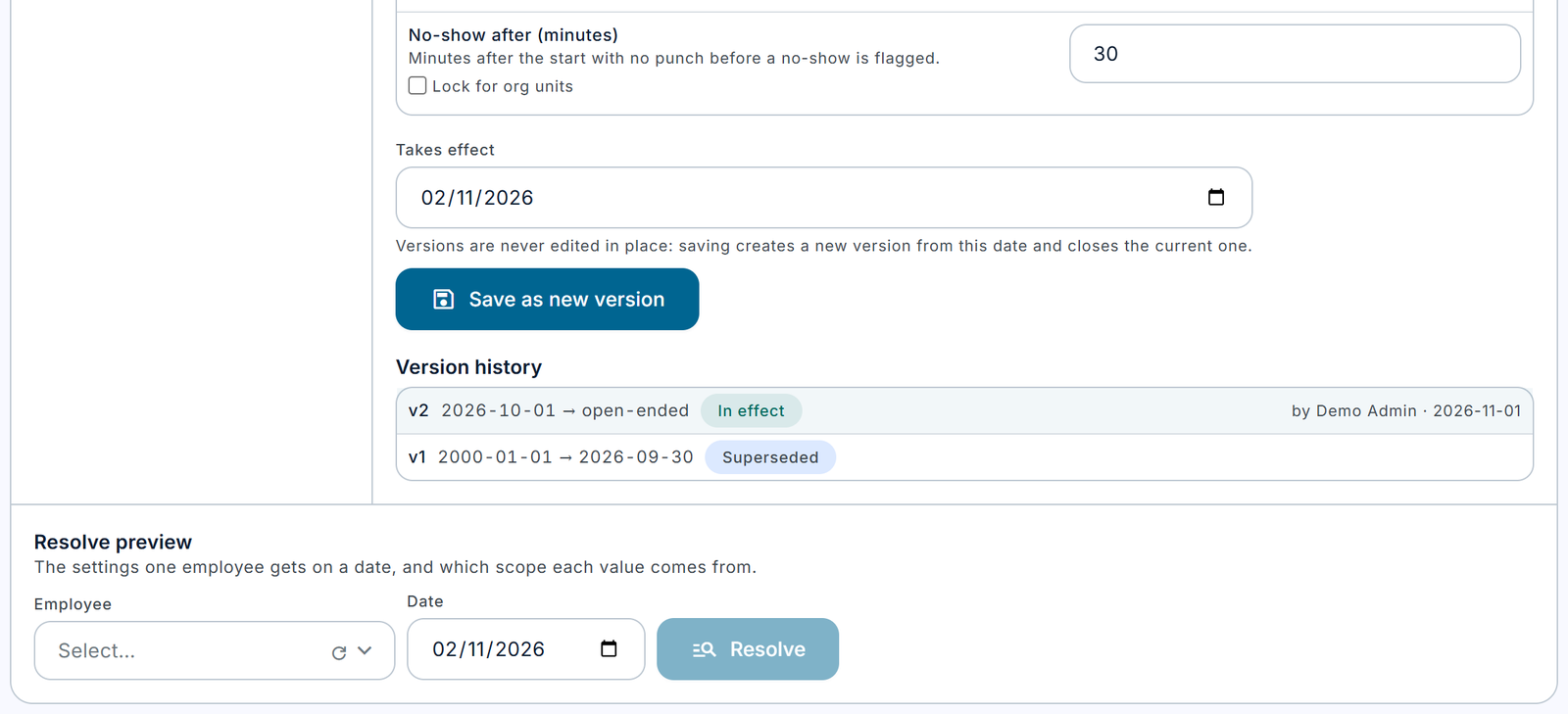
| Field | What it does | Values / default | Impact of the choice |
|---|---|---|---|
| Overtime calculation | How duty time turns into overtime | separate or combined. Default separate | separate (mode A): time actually worked in each overtime-eligible session is overtime in its own right, regardless of the employee's daily hours, and is raised as a separate overtime request after reconciliation. combined (mode B): duty time is added to the day's roster time, and overtime applies only to the part of the whole day above the employee's daily work hours, through the normal attendance overtime. See the examples below |
| Overtime request on reconciliation | When the duty overtime request is raised in separate mode | auto or manual. Default auto | auto: reconciling an eligible session raises a Pending overtime request at once. manual: no request is raised at reconciliation; someone raises it later from Overtime Review. Has no effect in combined mode. The reconcile screens on the web and in the app have their own "raise an overtime request" option, on by default, which takes precedence (see chapter 5, The Reconcile window) |
| Overtime needs approval | Duty overtime always goes through the Overtime Request approval workflow | Always On. Organisation-only | Shown for completeness; it cannot be turned off. Nothing is paid without approval |
| Payroll | How duty time reaches payroll | ot_only (the only option). Organisation-only | Only approved duty overtime is paid. Duty time that is not overtime (for example a session marked not eligible for overtime) is reported but not paid as ordinary hours |
Choosing between separate and combined. Consider an employee whose daily work hours are 8, rostered 14:00–20:00 (6 hours), who also works an overtime-eligible duty session 09:00–11:00 (2 hours) in full:
| Method | Calculation | Overtime |
|---|---|---|
| separate | Roster 360 minutes is below the 480-minute threshold, so no regular overtime. The duty session is assessed on its own | 120 minutes of duty overtime, raised as a Pending request when the session is reconciled |
| combined | Roster 360 plus duty 120 = 480 minutes, exactly the 480-minute threshold | 0 minutes. The duty simply completes the employee's normal daily hours |
If the same employee's daily work hours were 6, combined mode would give 480 − 360 = 120 minutes of attendance overtime. Separate mode pays duty as overtime whatever the employee's contract hours; combined mode pays it only to the extent that the whole day exceeds them.
On a rest day or public holiday there is no daily threshold, so in both methods every worked minute counts as overtime.
Important: Decide the overtime method with payroll before go-live. Each session records the method in force when it was created, and that method is used when it is reconciled.
Note: The company's existing "minimum overtime minutes" setting applies only to regular attendance overtime. It is never applied to duty overtime in separate mode. In combined mode it applies once, to the whole day.
If your company also uses the Away-Time feature, the Away-time policy can make some away time deductible. In that case deductible away time that falls inside a duty session reduces that session's duty overtime. The same minute is never deducted twice.
Policy settings: notifications and no-show
| Field | What it does | Values / default | Impact of the choice |
|---|---|---|---|
| Notify on assignment | Tells the employee when a session is assigned, changed or cancelled | On or Off. Default On | Off: employees get no "assigned", "changed" or "cancelled" notices, and no acknowledgment request. Only use Off if duty is communicated another way |
| Starting-soon reminder (minutes before) | Sends the employee a reminder before the session starts | 0 to 1440. Default 60 | 60: a reminder one hour before. 0: no reminder. The reminder is sent once per session |
| No-show after (minutes) | How long after the start, with no punch, before a no-show is flagged | 5 to 480. Default 30 | 30: if nothing is punched within 30 minutes of the start, the employee and their manager receive a no-show notice and an exception is raised. Shorter: earlier alerts but more false alarms for late arrivals. Longer: fewer alarms, later reaction |
All notifications respect each person's own notification preferences.
4. How it works, end to end
The journey of a session
- Assignment. A rostering officer or manager creates an assignment in the web console (New additional duty or Bulk assignment) or a manager uses the mobile app. An assignment holds one or more sessions, with a shared reason and justification.
- Conflict check. Before anything is saved, every session is checked against the policy and against the employee's roster, other duty, leave, duty changes and rest. Blocking conflicts must be fixed. Warnings must be acknowledged.
- Draft or submit. In the web console the assignment can be saved as a draft (nothing is sent to anyone) or submitted.
- Approval. If approval is required and a workflow is active, the assignment goes to the Additional Duty Approval workflow. Approvers can approve, reject or return it for correction. If approval is not required, or no workflow is active, the sessions are assigned at once.
- Assigned. Approved sessions become Assigned. The employee is notified and, if required, asked to acknowledge. The employee may ask to be excused if your policy allows it.
- Reminder. Before the start, the employee receives a starting-soon reminder.
- In progress. At the start time the session becomes In progress. If no punch is seen within the no-show time, a no-show alert is raised.
- Completed or No-show. After the end time the session becomes Completed if attendance was found (an allocated punch, or any punch within the punch window), or No-show if not.
- Attendance matching. Whenever the day's attendance is calculated, the employee's in and out punches are matched to the session, and the actual start, actual end and worked minutes are filled in. If only one punch is found, or the time worked is more than 5 minutes short of the session, an exception is raised.
- Reconciliation. A manager reconciles the session: confirmed as recorded, partially attended (with manual times) or did not attend. The session becomes Reconciled and is frozen.
- Overtime. In separate mode, reconciling an eligible session raises a Pending overtime request (automatically or later from Overtime Review). In combined mode, the duty time is already part of the day's attendance overtime.
- Approval of overtime. The overtime request is approved on the normal Overtime Requests screen, where its Source shows "Additional duty".
- Payroll. Approved duty overtime appears on the payslip as Additional duty overtime (category Overtime), at the same workday or off-day overtime rates as other overtime.
Note: The background monitor runs every five minutes, so changes such as In progress, Completed and No-show can appear up to five minutes after the actual time.
Lifecycle states
Both an assignment and each of its sessions carry a lifecycle state. The session's state is what matters day to day.
| State | Meaning | What can happen next |
|---|---|---|
| Draft | Saved but not submitted. Nobody is notified | Edit, submit or delete the assignment; cancel a session |
| Pending approval | Submitted and waiting for the approval workflow | Approve, reject, return for correction; edit or cancel a session |
| Approved | A brief internal step at the moment of approval; immediately followed by Assigned | Assigned |
| Assigned | Approved and given to the employee, who has been notified | Employee acknowledges or asks to be excused; edit or cancel; becomes In progress at the start time |
| Acknowledged | The employee has confirmed they have seen the session | Employee may still ask to be excused; edit (which resets the acknowledgment if times change) or cancel; becomes In progress at the start |
| In progress | The start time has passed and the end time has not | Becomes Completed or No-show after the end time |
| Completed | The session has ended and attendance was found | Reconcile |
| No-show | The session has ended and no attendance was found | Reconcile (usually as Did not attend, or Partially attended if the employee worked but did not punch) |
| Reconciled | A manager has confirmed what happened. Final | Nothing. The session is frozen. Overtime follows |
| Rejected | The approval was refused. Final | Nothing. Create a new assignment if needed |
| Cancelled | The session was cancelled with a reason. Final | Nothing |
| Declined | The manager accepted the employee's request to be excused. Final | Nothing |
| Pending correction | The approver returned the assignment for correction | Edit and submit again |
Sessions that are Rejected, Cancelled or Declined no longer occupy the employee's time, so they do not cause conflicts for new sessions. Every other state does.
What the roster sees
The roster is never changed. Every screen that shows a session also shows the Original roster for that day separately, with the note "Unchanged by the additional duty." The day is also labelled Working day, Rest day, Public holiday or On leave.
How attendance is counted
When a day is calculated, WorkHarmony works with time intervals, not just totals, so that no minute is ever counted twice:
- Roster time is counted first.
- Duty time is the part of each session's matched attendance that falls outside the roster and outside any earlier session.
- The day's attendance is the union of the two.
- Overtime is then worked out according to the overtime method (separate or combined), and in combined mode the minimum overtime is applied once to the whole day.
The full step-by-step calculation, with every figure, is shown on the Attendance reconciliation screen under "How the figures were reached".
Pay periods and payroll
- A session dated in a pay period that is locked for attendance cannot be reconciled, and a duty overtime request cannot be raised for it.
- Days in a locked period are never recalculated in place. If late data arrives, an exception "late data for a closed period" is raised instead.
- If a recalculation finds that a day in an already-finalised payroll period should pay differently, the payslip is not changed. Instead a Pending payroll adjustment is created in the next open pay period, which goes through the normal payroll adjustment approval.
- Payroll pays duty overtime only when the overtime request has been approved and the line has not been rejected or cancelled. It never pays more than the session's eligible minutes as calculated for that day.
5. Screens and tasks
Where things are
| Menu | Screen |
|---|---|
| Time & Attendance › Additional duty | The Additional duty page, with seven tabs and the New additional duty and Bulk assignment buttons |
| Time & Attendance › Attendance reconciliation | One employee's day, end to end, with exceptions and Recalculate |
| Requests & Approvals › Overtime requests | Where duty overtime requests are approved |
| Administration › Additional duty policies | The policy editor |
| Administration › Configurations | The master switch |
| Automation › Workflows | The Additional Duty Approval workflow |
| Insight › Additional duty reports | Additional duty data in Report Studio |
The Additional duty page has the subtitle "Extra duty sessions on top of the original roster — planned, approved, attended and reconciled without changing the roster itself." Its tabs are Planner, Calendar, Assignments, Approval queue, Reconciliation, Overtime review and History. The buttons Bulk assignment and New additional duty appear at the top right for users with the Create permission.
The shared filters and session table
Most tabs share the same filter row and the same session table.
| Filter | What it does |
|---|---|
| From | The first date to include |
| To | The last date to include |
| Employee | Show one employee only. Empty means All employees |
| Department | Show one department only. Empty means All departments |
The session table has these columns:
| Column | What it shows |
|---|---|
| Employee | The employee's name, photo and department |
| Date | The session's work date (the start date for an overnight session) |
| Original roster | The roster for that day, for example "14:00–20:00", "Rest day" or "On leave" |
| Additional duty | The session window, for example "09:00–11:00", with "(+1 day)" and a moon icon for overnight sessions |
| Duration | Scheduled length of the session |
| Worked | Worked minutes (Reconciliation and History tabs only) |
| Overtime | "No" if not eligible; otherwise the overtime request status, or "Eligible" if none yet |
| Lifecycle | The session's current state |
Click a row to open the Session detail page. If more rows exist than are shown, a message says "Showing N of M — narrow the filters to see the rest."
Planner
Purpose: see the additional duty coming up and what needs attention.
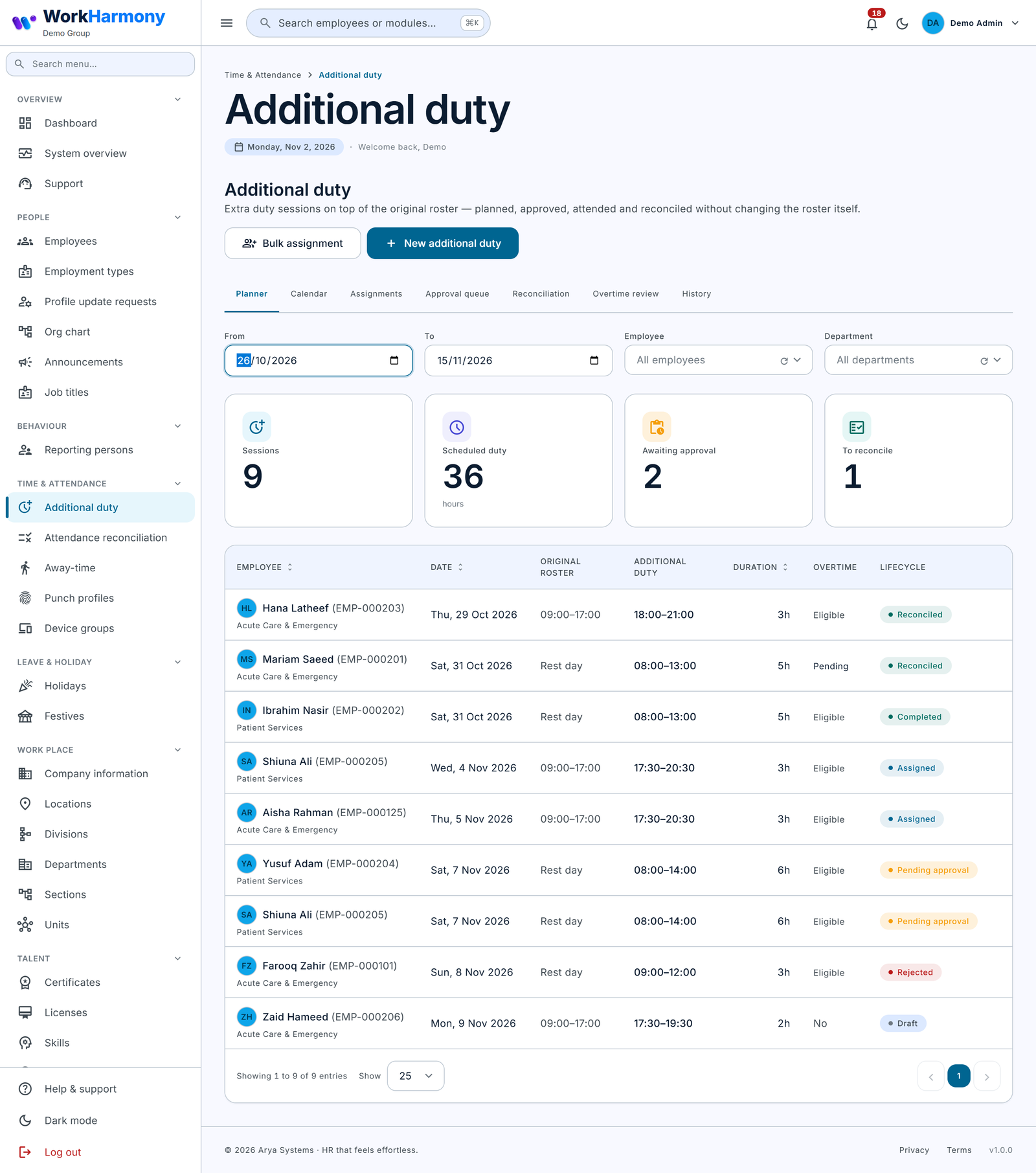
The Planner opens on today plus the next 13 days. Four tiles sum up the period:
| Tile | What it counts |
|---|---|
| Sessions | All sessions in the period |
| Scheduled duty | Total scheduled duty, in hours |
| Awaiting approval | Sessions in Pending approval |
| To reconcile | Sessions in Completed or No-show |
Below the tiles is the session table.
Tasks:
- Change From and To to plan a different period.
- Use Employee or Department to focus on one person or team.
- Click a session to open its details.
Calendar
Purpose: see sessions on a month or day calendar.
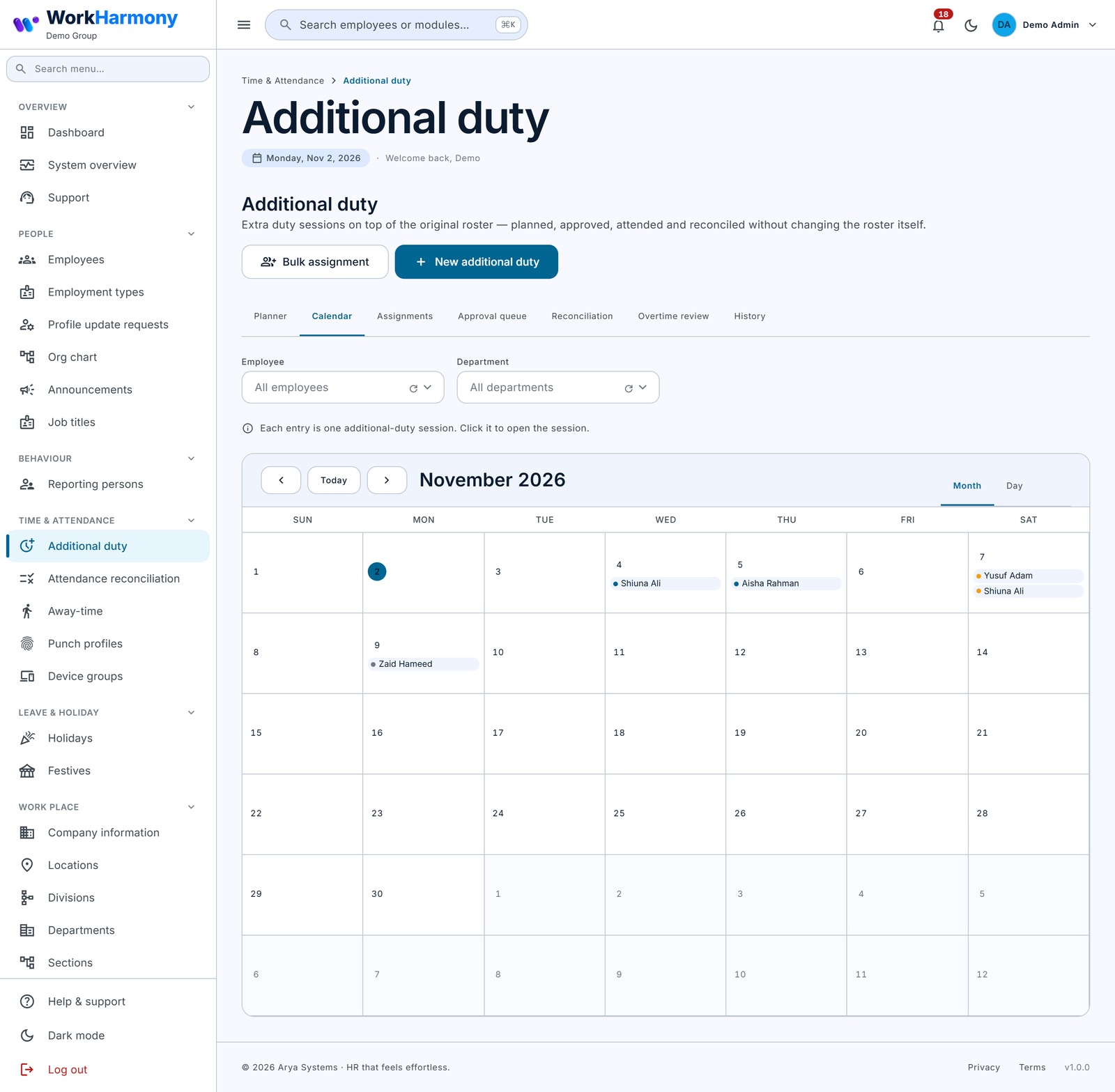
Each entry is one session, showing the employee's name and "09:00–11:00 · Assigned". Entries are coloured by lifecycle state; cancelled, rejected and declined sessions are dimmed. The calendar shows up to 62 days at a time.
Tasks:
- Switch between month and day view.
- Filter by Employee or Department.
- Click an entry to open the session.
Assignments
Purpose: list assignments (the requests that group sessions together) and open one.
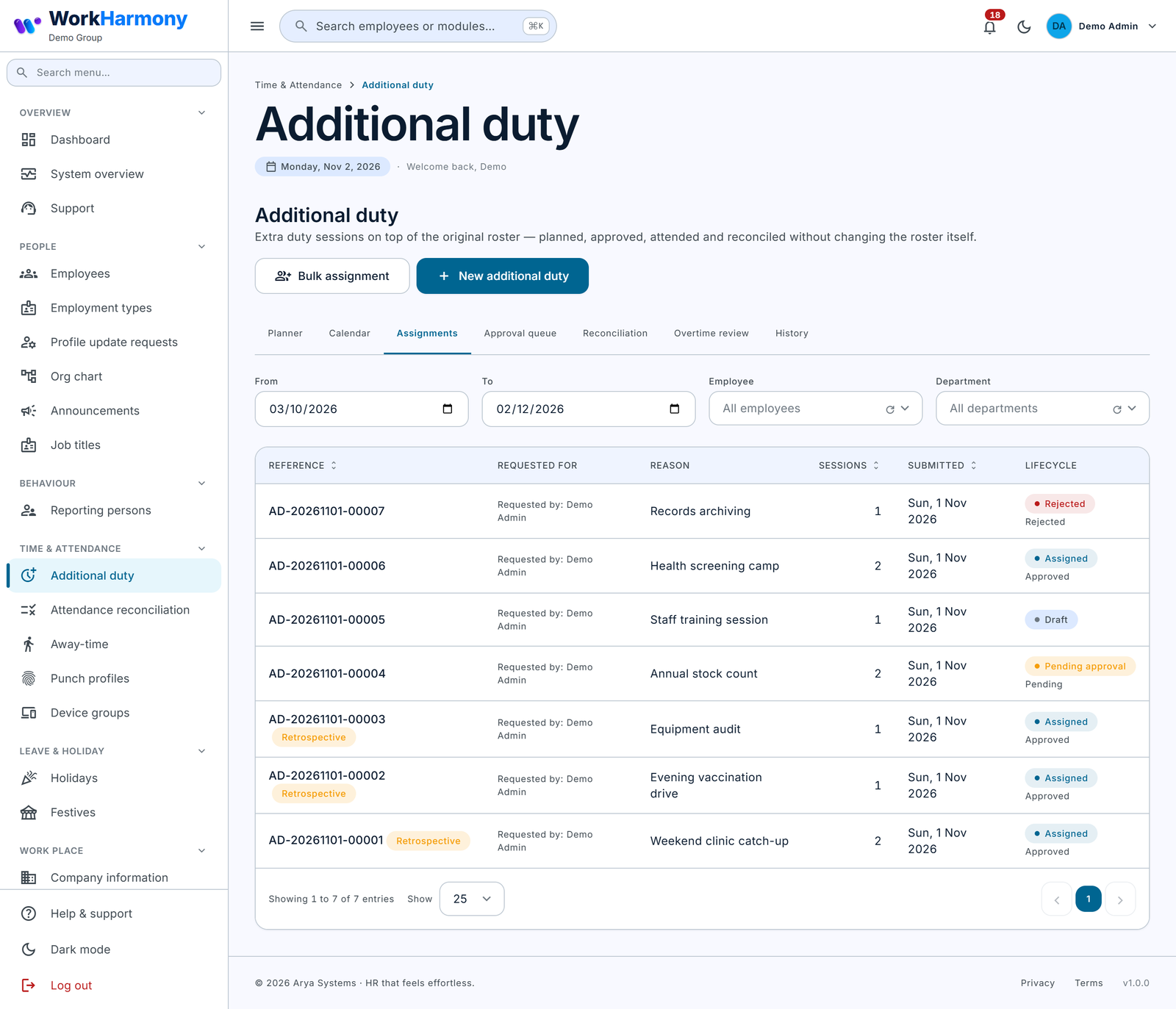
The tab opens on 30 days back to 30 days ahead.
| Column | What it shows |
|---|---|
| Reference | The assignment reference, for example AD-20261102-00042, with a "Bulk" tag for bulk assignments and a "Retrospective" tag when marked as retrospective |
| Requested for | The employee recorded as requester of the assignment, with "Requested by" (the user who created it) underneath |
| Reason | The assignment's reason |
| Sessions | The number of sessions |
| Submitted | When it was submitted (or created, for drafts) |
| Lifecycle | The assignment's lifecycle state, with its approval status underneath |
Click a row to open the Assignment detail page.
Approval queue
Purpose: approve or reject assignments waiting for approval.
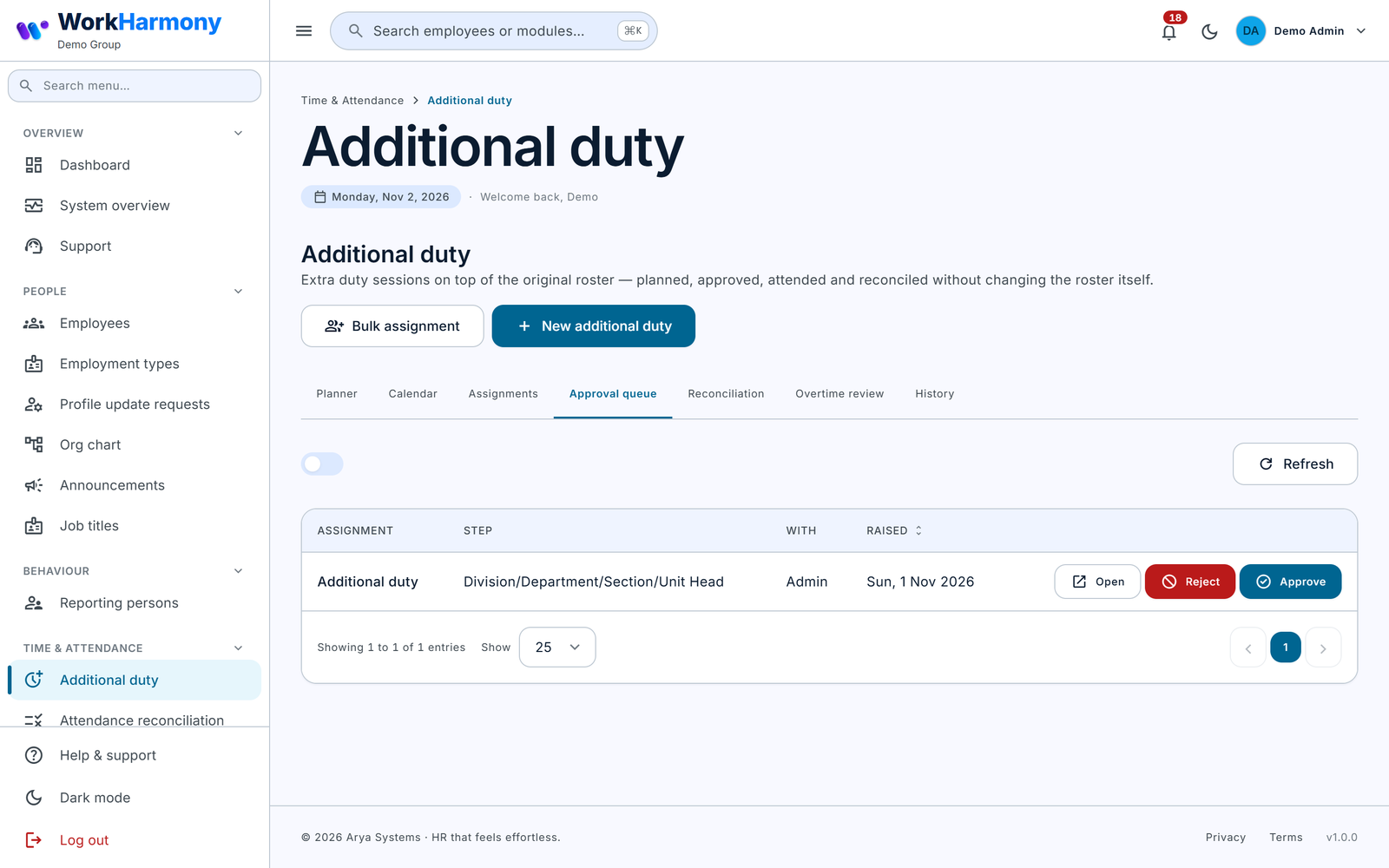
| Column | What it shows |
|---|---|
| Assignment | The assignment, with the employee's name and code |
| Step | The workflow step it is waiting at |
| With | The person or role the step is assigned to |
| Raised | When the step was raised |
To approve or reject from the queue:
- Tick Assigned to me only to see just the items waiting for you, or leave it off to see all.
- Click Open to review the assignment first, if needed.
- Click Approve or Reject.
- In the confirmation window, add a comment. A comment is optional when approving and required when rejecting ("Why is this being rejected?").
- Confirm.
When you approve from the console, you act as an authorised override: if later workflow steps are still waiting, the confirmation warns "Approving now overrides … ; those steps will be marked as overridden." On approval, the sessions become Assigned and the employees are notified. On rejection, the requester is notified.
Approvers can also act from the normal approvals inbox, including on the mobile app. Returning an assignment for correction is done from the approvals inbox; it puts the assignment into Pending correction.
Note: Rejecting from the console needs a comment. The approvals inbox does not require one.
Reconciliation
Purpose: confirm what actually happened for sessions that have ended.
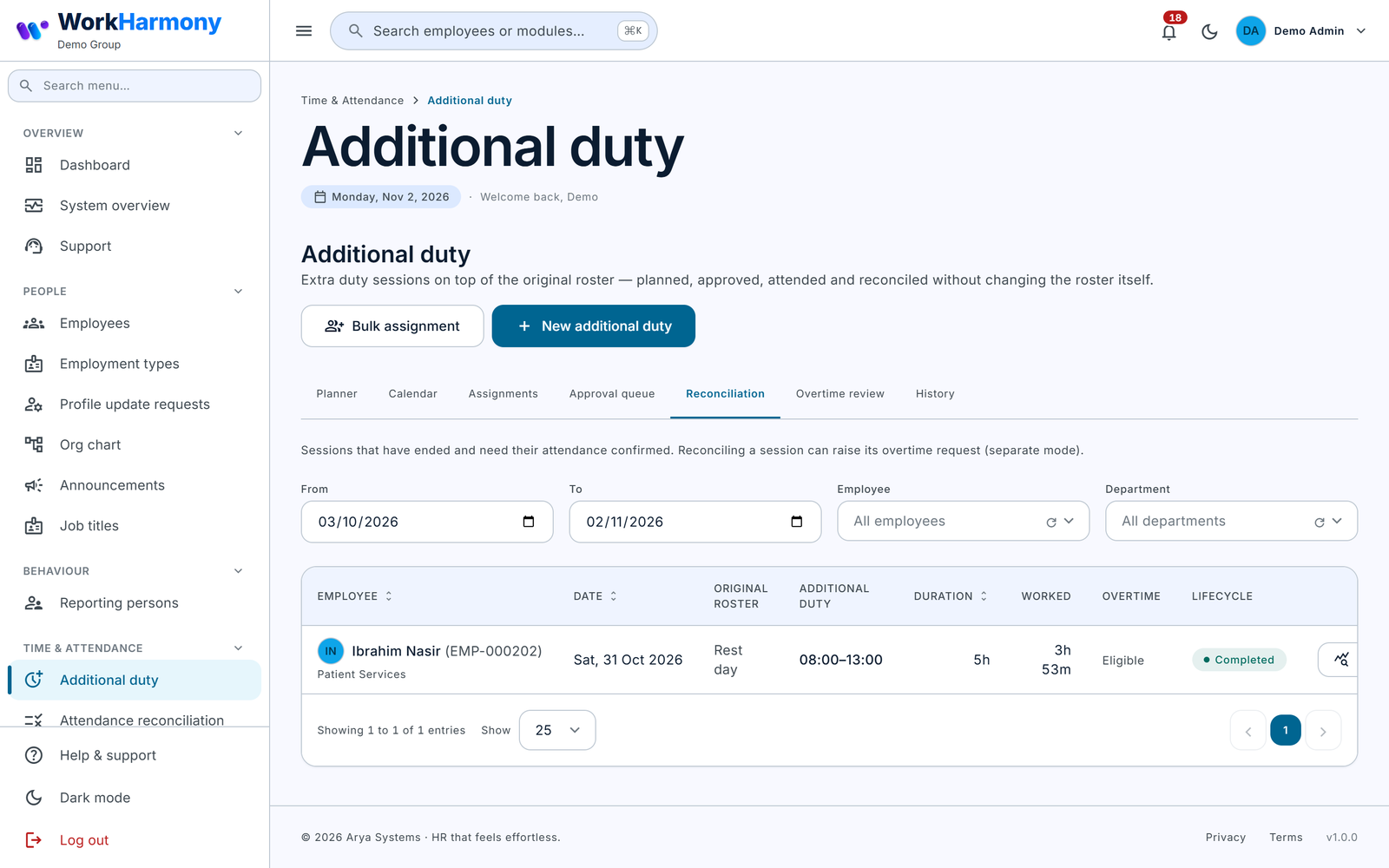
The tab lists sessions in Completed or No-show from the last 30 days, with the roster, the duty and the worked time side by side. Each row has a Daily reconciliation button that opens the Attendance reconciliation screen for that employee and day, and a Reconcile button.
To reconcile a session:
- Check the Worked column and, if in doubt, open Daily reconciliation to see the punches.
- Click Reconcile and complete the Reconcile window (described below).
- The session leaves the list and the message "Session reconciled." appears.
Tip: Reconcile sessions soon after they end. In separate mode, duty overtime requests are raised only after reconciliation.
Overtime review
Purpose: see the overtime state of finished sessions and raise duty overtime requests in bulk.
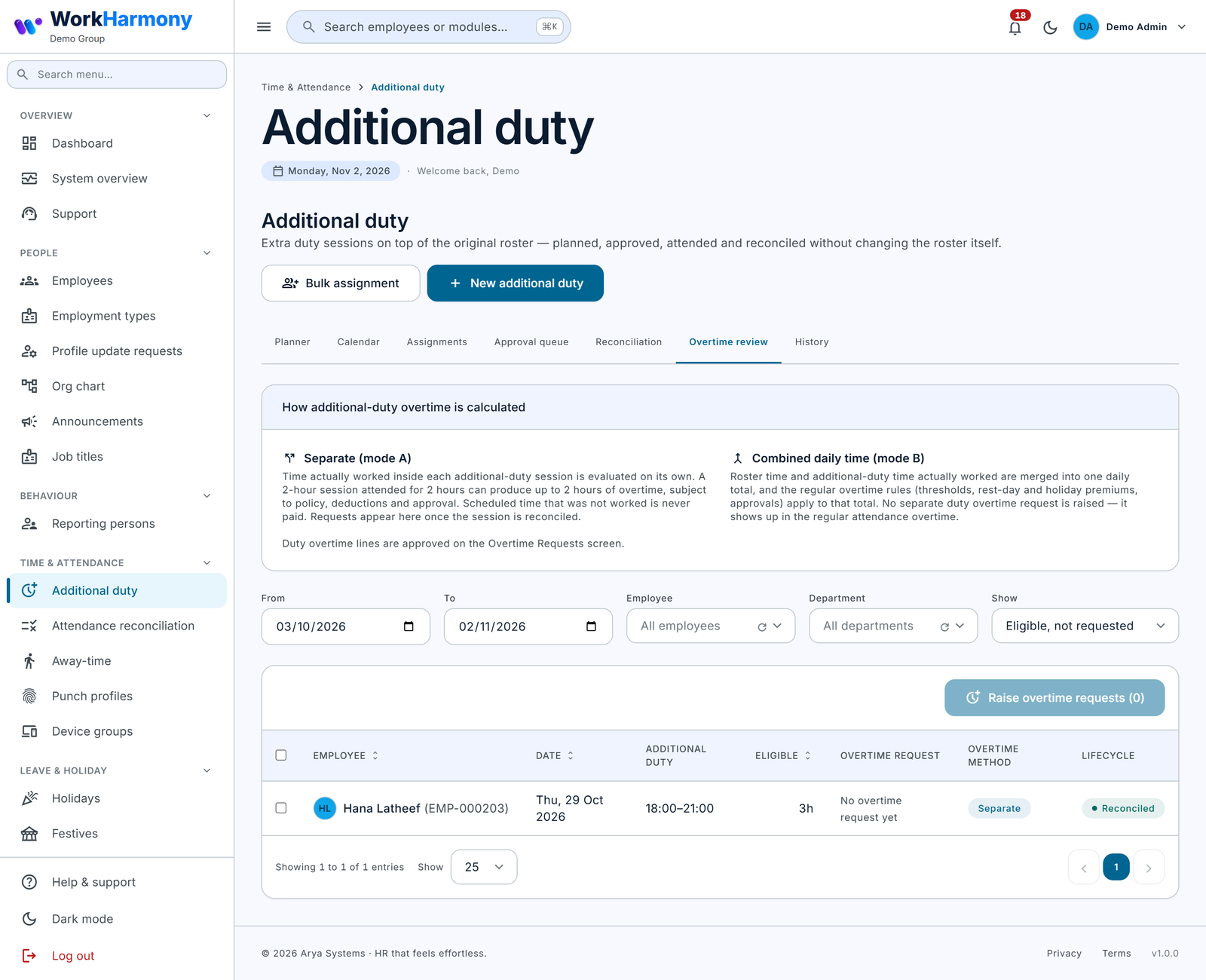
A card at the top explains the two methods: Separate (mode A) and Combined daily time (mode B), and reminds you that "Duty overtime lines are approved on the Overtime Requests screen."
The Show filter selects the overtime state:
| State | Meaning |
|---|---|
| Eligible, not requested | The session has eligible minutes and no request yet |
| Requested | A request exists and is not yet approved |
| Approved | The request has approved minutes |
| Nothing eligible | No eligible minutes (not eligible, combined mode, did not attend, or not reconciled yet) |
The list opens on the last 30 days and the "Eligible, not requested" state.
| Column | What it shows |
|---|---|
| Employee | The employee |
| Date | The session's date |
| Additional duty | The session window |
| Eligible | The eligible overtime minutes recorded at reconciliation |
| Overtime request | The request status with requested and approved minutes; "No overtime request yet"; or, in combined mode, "Included in regular attendance overtime" |
| Overtime method | Separate or Combined |
| Lifecycle | The session state |
To raise overtime requests:
- Tick the sessions to raise requests for. You need both the Additional duty Create and the Overtime requests Create permissions; otherwise the screen says "Raising duty overtime needs both additional-duty and overtime-request create permissions."
- Click Raise overtime requests (N).
- Optionally enter a reason and confirm.
- The result says how many were raised and how many were skipped.
A session is skipped if it is not reconciled, not eligible for overtime, in combined mode, has no eligible minutes, or already has a request. Each raised request is Pending and goes through the normal Overtime Request approval workflow. Only one active duty overtime request can exist per session.
History
Purpose: review past sessions.
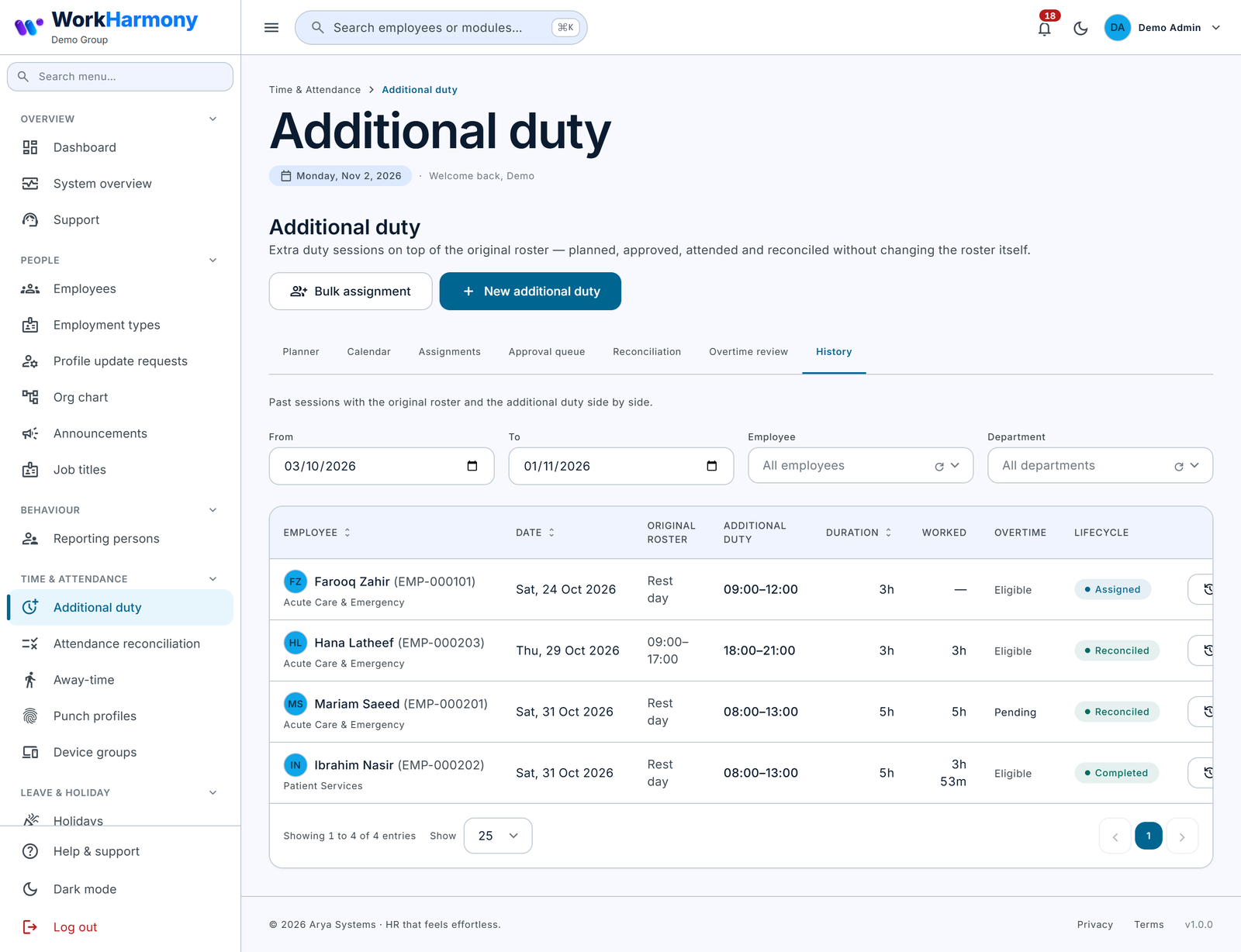
The tab opens on the last 30 days up to yesterday and shows sessions in every state, with the original roster, the duty and the worked time side by side. Users with the Audit permission see an audit button on each row that opens the session's audit trail.
New additional duty
Purpose: give one employee one or more sessions.
Open it with New additional duty on the Additional duty page. The subtitle reads "Assign one employee one or more extra sessions. The original roster stays exactly as it is; the duty is recorded beside it."
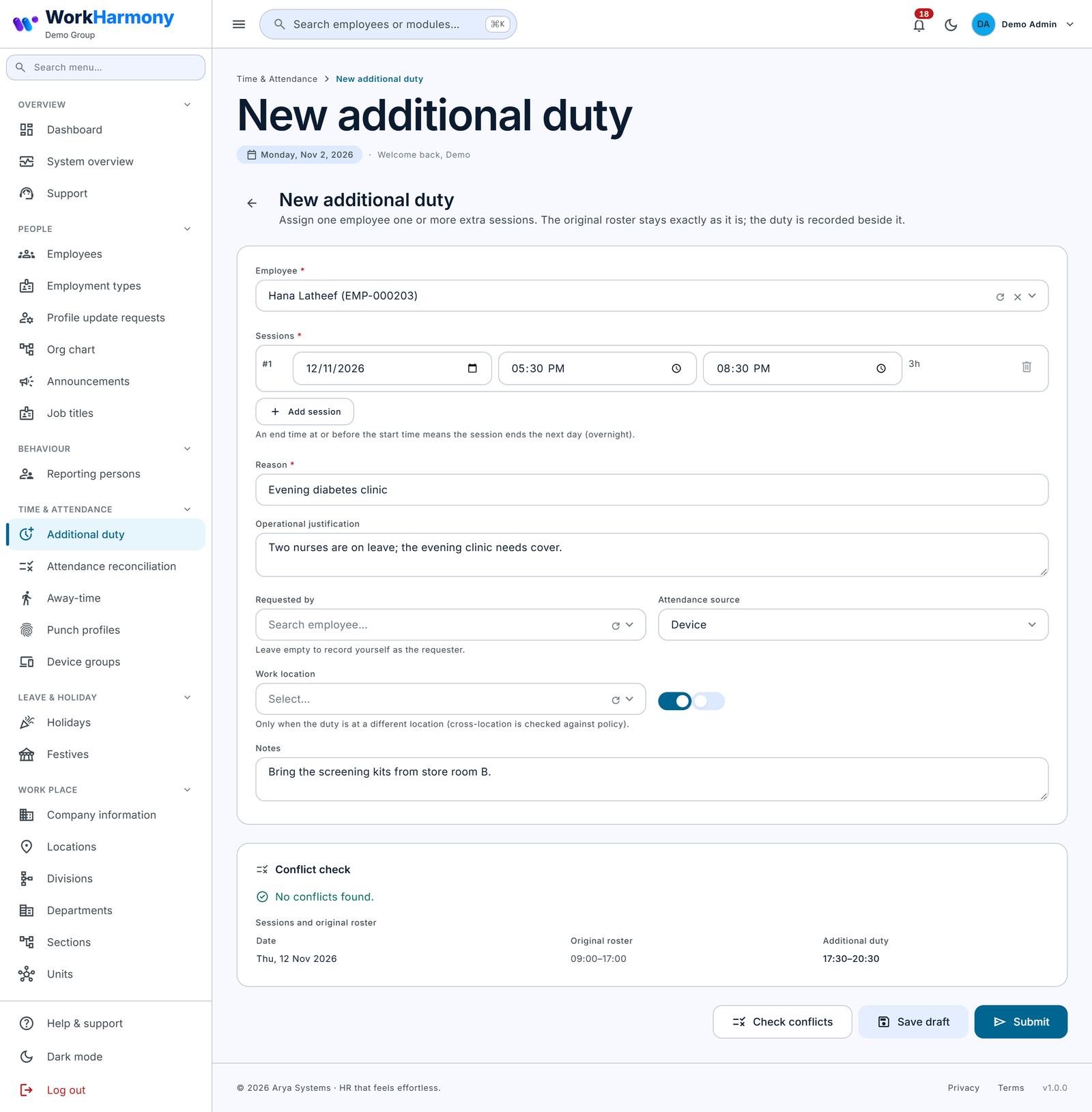
Step by step:
- Choose the Employee.
- Under Sessions, enter the Date, Start and End of the first session. Click Add session for more. An end time at or before the start time means the session ends the next day (overnight).
- Enter the Reason, and the Operational justification if your policy requires one.
- Optionally choose Requested by, the Attendance source, a Work location and Notes.
- Set Eligible for overtime and, if appropriate, Retrospective authorisation.
- Click Check conflicts. Review the results (see below).
- Click Save draft to keep it without sending it, or Submit to send it for approval (or assign it straight away when no approval is needed).
| Field | What it does | Rules |
|---|---|---|
| Employee | The employee who will work the duty | Required. Must be employed on each session date |
| Sessions: Date | The date the session starts on | Required. An overnight session belongs to this date |
| Sessions: Start | Start time | Required |
| Sessions: End | End time. At or before the start means next day | Required. Cannot equal the start. Sessions in one assignment must not overlap each other ("Overlaps session N.") |
| Reason | Why the duty is needed. Shown to the employee and approvers | Required on the form. Up to 500 characters |
| Operational justification | The business case for the extra hours | Required only when the policy says so |
| Requested by | The employee recorded as having requested the duty | Optional. Leave empty to record yourself as the requester |
| Attendance source | Where the session's attendance is expected to come from: Device, Mobile or Manual | Default Device. Informational: punches from any source are matched the same way |
| Work location | The location where the duty takes place | Optional. Only set it when the duty is at a different location from the employee's own; checked against the "Other locations" rule |
| Eligible for overtime | Whether worked time in this session can become overtime | Default On. Off: the time is reported but never paid |
| Retrospective authorisation | Marks the assignment as authorising duty already worked, and tags it "Retrospective" | Optional. A session that starts in the past is accepted only if the policy allows retrospective authorisation, whether or not this is ticked |
| Notes | Free notes for the employee and managers | Optional |
Note: Ticking "Retrospective authorisation" is a label for reporting. What decides whether a past start is allowed is the policy setting "Retrospective authorisation".
The conflict check
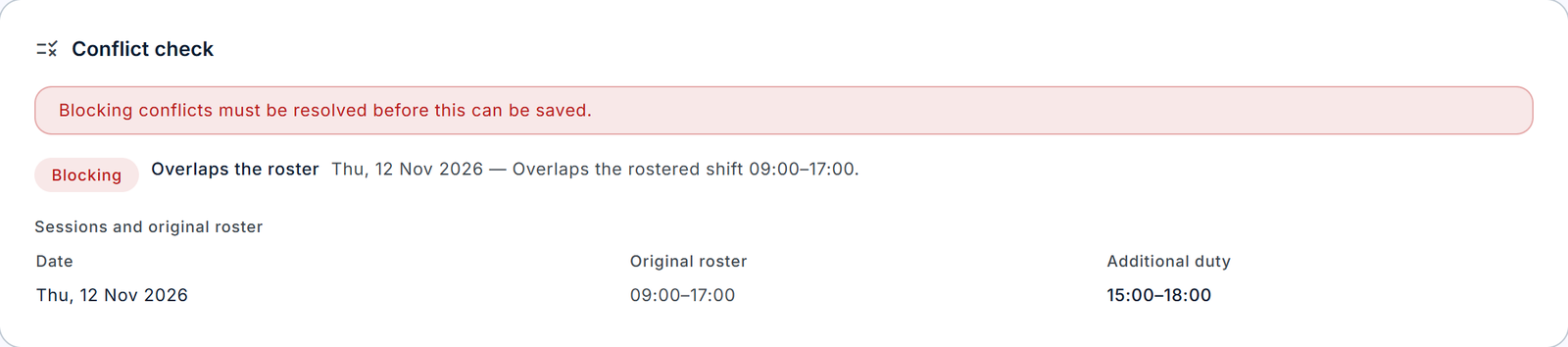
The conflict check runs when you click Check conflicts, and again automatically when you save. Its panel, Conflict check, shows:
- "No conflicts found." in green; or
- Blocking items in red, with the note "Blocking conflicts must be resolved before this can be saved."; and/or
- Warning items in amber. When there are only warnings, a box "Warnings do not stop the assignment, but they must be acknowledged. I have reviewed the warnings above and want to continue." must be ticked before saving.
Below the conflicts, Sessions and original roster lists each proposed session beside the employee's roster for that day.
| Conflict | Example message | Severity |
|---|---|---|
| Overlaps the roster | "Overlaps the rostered shift 14:00–20:00." | Per Conflict handling (default block) |
| Overlaps other additional duty | "Overlaps another additional duty session." | Per Conflict handling (default block) |
| Approved leave | "The employee is on approved leave on this date." | Per Conflict handling (default block) |
| Approved duty change | "An approved duty change already moved this day's roster." | Per Conflict handling (default warn) |
| Minimum rest | "Only 540 minutes of rest after the previous working day (minimum 660)." | Per Minimum rest breach (default warn) |
| Rest day | "The date is a rest day for this employee." | Always block unless allowed |
| Public holiday | "The date is a public holiday for this employee." | Always block unless allowed |
| Overnight | "Overnight sessions are not allowed by the policy." | Always block unless allowed |
| Duration | "The session lasts 20 minutes; the policy allows 30–720." | Always block |
| Cross-location | "The session is at another location and the policy does not allow it." | Always block unless allowed |
| Multiple sessions in a day | "The employee already has additional duty on this date." | Always block unless allowed |
| Retrospective | "The session starts in the past and retrospective authorisation is not allowed." | Always block unless allowed |
| Not employed | "The employee is not employed on this date." | Always block |
| Feature off | "Additional duty is not enabled for this employee's unit." | Always block |
If anything changes between your check and the save (for example, someone approves leave in the meantime), the save re-runs the check and shows the new result.
Bulk assignment
Purpose: give the same time windows to several employees at once, for example for an event.
Open it with Bulk assignment. The subtitle reads "Assign the same time windows to several employees, picked by name or by organisation unit."
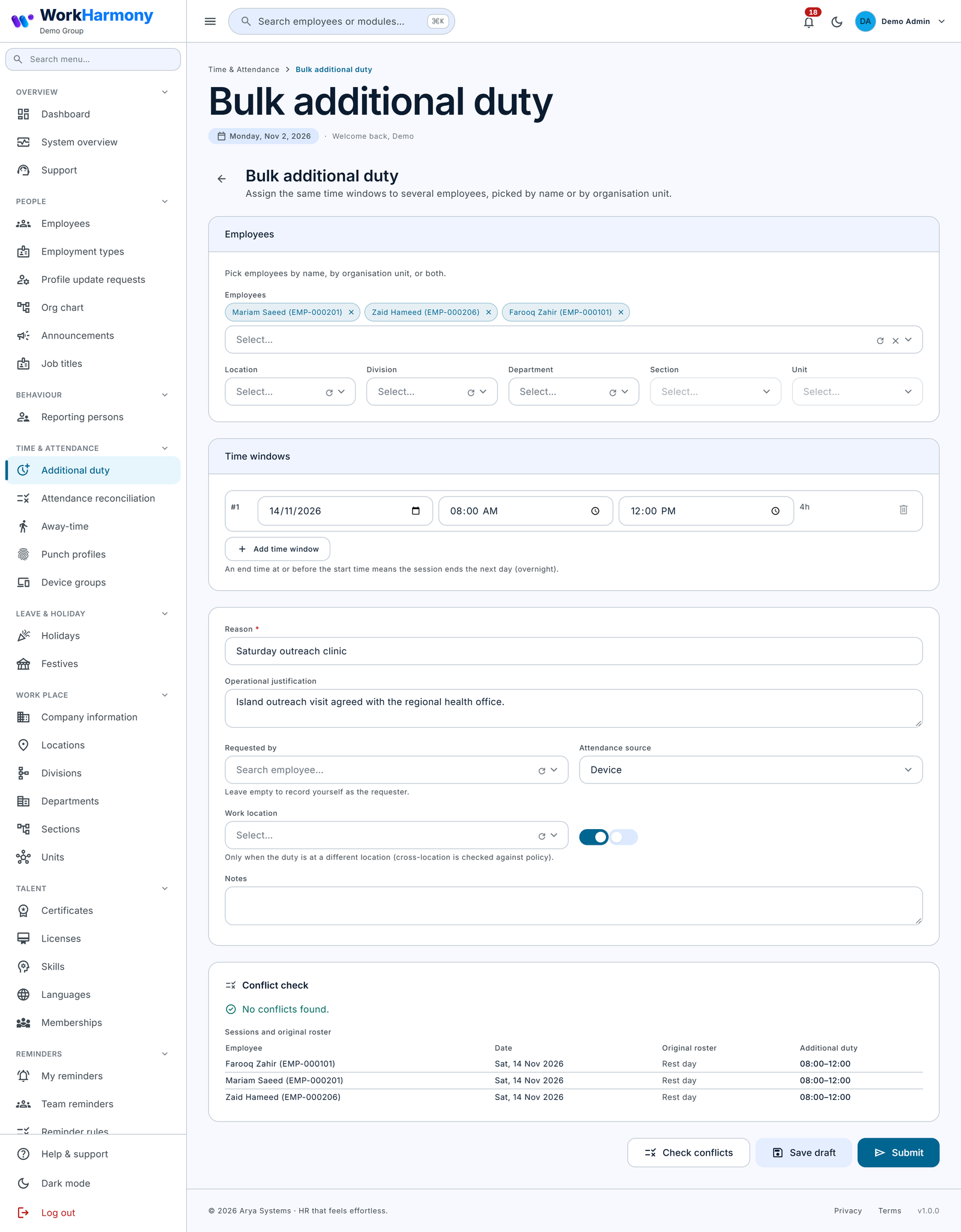
Step by step:
- Under Employees, pick employees by name, and/or choose an organisation unit (Location, Division, Department, Section, Unit).
- Under Time windows, enter each window's Date, Start and End. Click Add time window for more.
- Fill in the shared fields (Reason, Operational justification, Requested by, Attendance source, Work location, Eligible for overtime, Retrospective authorisation, Notes), exactly as for an individual assignment.
- Click Check conflicts. The results are grouped by employee.
- Click Save draft or Submit.
Every selected employee gets every window, so 20 employees and 2 windows make 40 sessions, all in one assignment that is approved as a whole.
| Field | Rules |
|---|---|
| Employees | Pick at least one employee or one organisation unit ("Choose at least one employee or an organisation unit.") |
| Location, Division, Department, Section, Unit | Section can be chosen only after a department, and Unit only after a section. Only employees active today are included, up to 500 |
| Time windows | At least one, up to 31. Same rules as sessions |
Important: If you pick employees by name and choose an organisation unit, only the named employees who are also in that unit are included. To add a whole department plus a few people from elsewhere, create two bulk assignments.
Tip: One employee with a blocking conflict stops the whole bulk assignment from being saved. To leave that person out, pick the employees by name instead of by unit, without them.
Assignment detail
Purpose: review one assignment, its approval and all its sessions, and act on it.
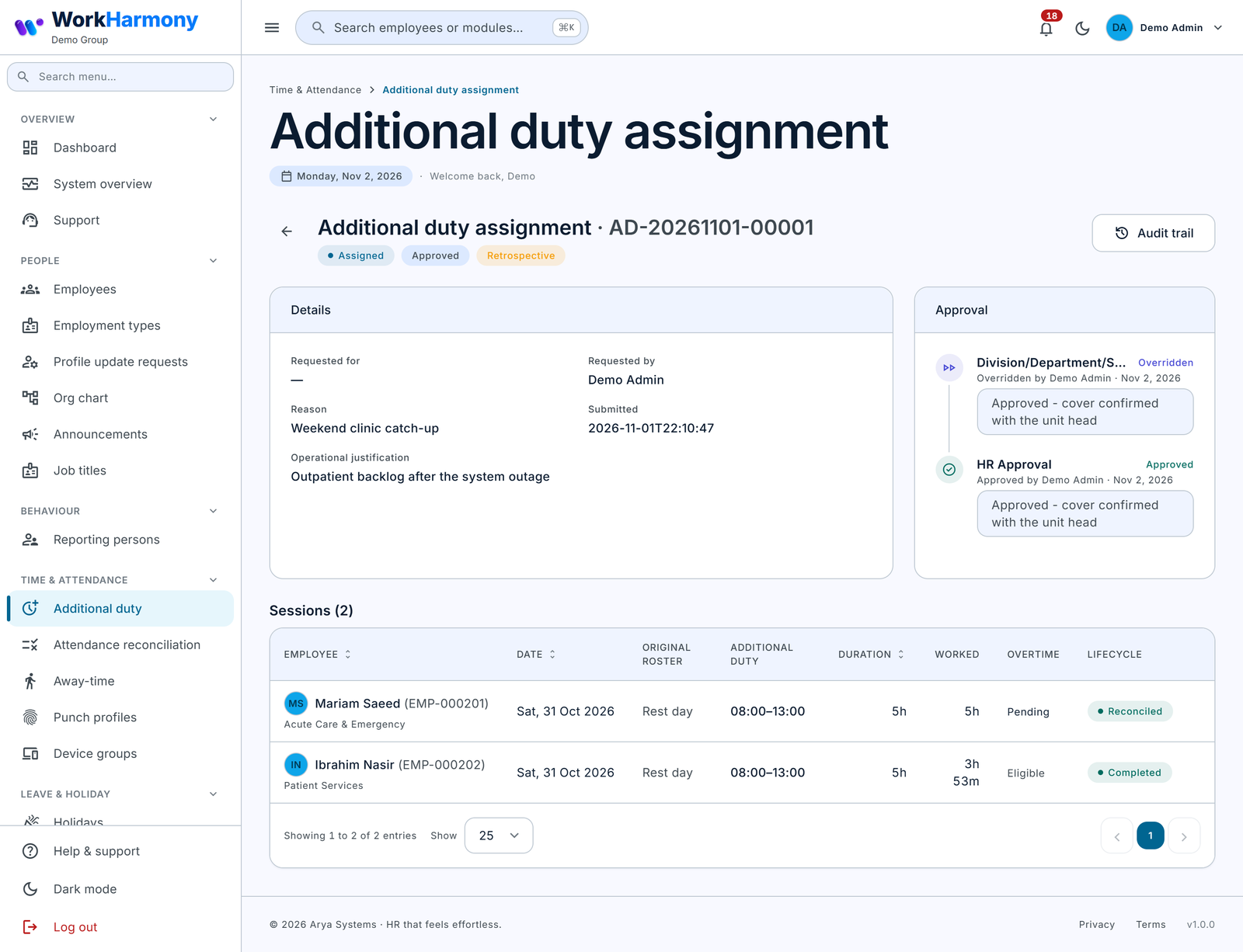
The header shows the reference, the lifecycle state, the approval status, and the "Bulk" and "Retrospective" tags where relevant.
| Section | Contents |
|---|---|
| Details | Requested for, Requested by, Reason, Submitted, Operational justification |
| Approval | The approval timeline: each workflow step, who acted, when and with what comment |
| Sessions | The session table for every session in the assignment |
| Button | When it shows | What it does |
|---|---|---|
| Edit | Draft or Pending correction, with Edit permission | Opens the form to change the assignment and its sessions |
| Delete draft | Draft only, with Delete permission | Removes the draft and its sessions after confirmation. Cannot be undone |
| Submit | Draft or Pending correction, with Create permission | Submits it (for approval, or straight to Assigned) |
| Approve | Pending approval, with Approve permission | As in the Approval queue |
| Reject | Pending approval, with Reject permission | As in the Approval queue. A reason is required |
| Audit trail | With Audit permission | The full change history of the assignment |
Only a draft can be deleted. Once an assignment has been submitted, cancel its sessions individually instead. When every session of an assignment is cancelled, the assignment itself becomes Cancelled and any open approval steps are closed.
Session detail
Purpose: follow one session from assignment to overtime.
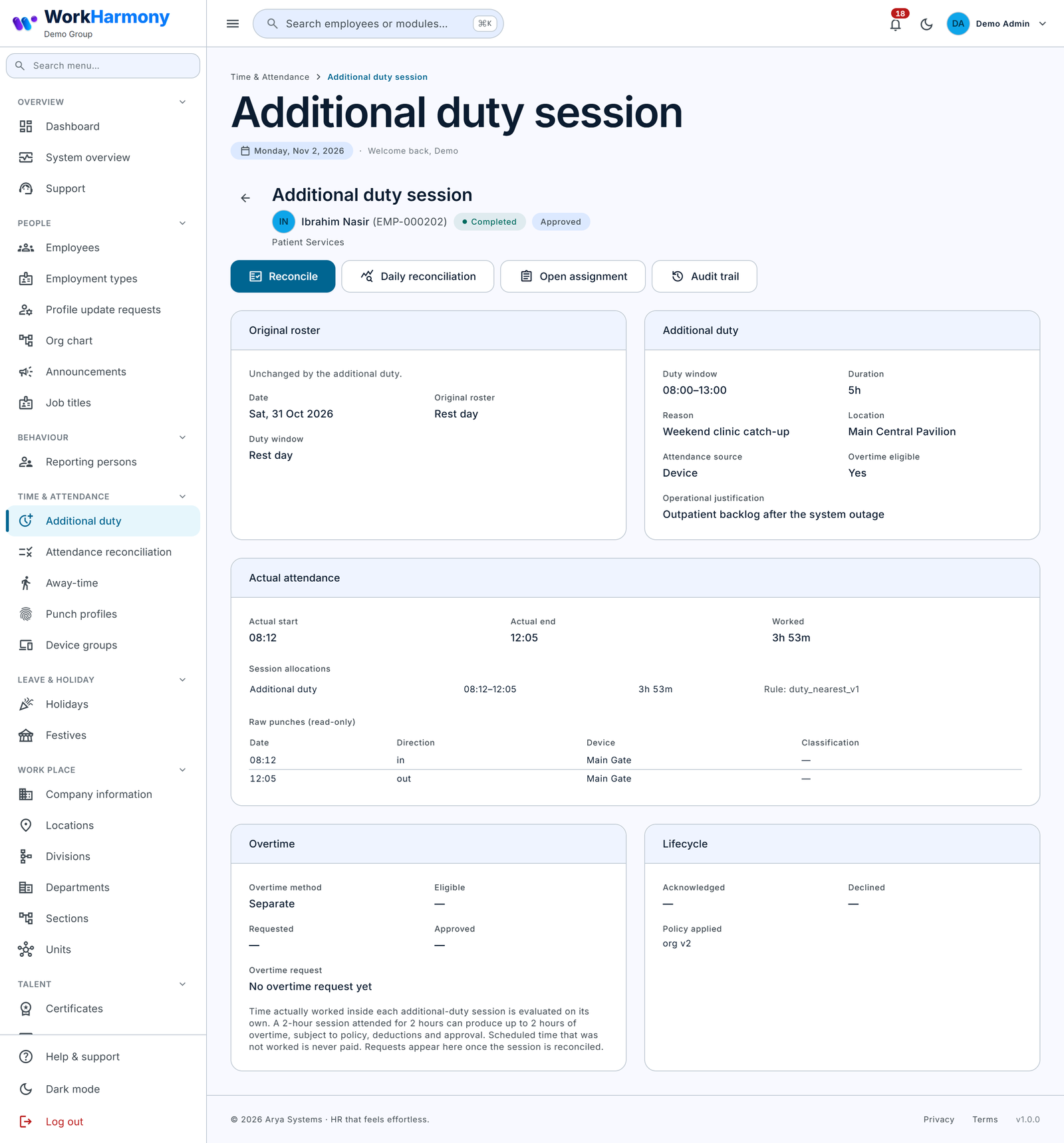
| Card | Contents |
|---|---|
| Original roster | The date, the day type (Working day, Rest day, Public holiday, On leave) and the rostered shift, with the note "Unchanged by the additional duty." |
| Additional duty | Duty window, Duration, Reason, Location, Attendance source, Overtime eligible, Operational justification, Notes |
| Actual attendance | Actual start, Actual end and Worked; the Session allocations (how attendance was assigned to the session, and by which rule: matched from punches or set manually at reconciliation); and the Raw punches of the day (read-only), with direction (marked "inferred" where guessed) and device |
| Overtime | Overtime method, Eligible, Requested and Approved minutes, the Overtime request status, and an explanation of the method |
| Lifecycle | Acknowledged, Declined, Decline reason, Decline decision, Cancelled, Cancellation reason, Reconciled (when and by whom), Reconciliation note, and the Policy applied (the chain of scopes and versions) |
| Conflicts at last validation | The conflicts found the last time the session was checked, if any |
| Button | When it shows | What it does |
|---|---|---|
| Edit session | Draft, Pending approval, Pending correction, Assigned or Acknowledged, with Edit permission | Opens the Session edit window |
| Accept decline | The employee has asked to be excused, with Approve permission | After confirmation (comment optional), the session becomes Declined and is no longer expected |
| Refuse decline | As above | After confirmation (comment optional), the session stays assigned and the employee is still expected |
| Reconcile | Completed or No-show, with Reconcile permission | Opens the Reconcile window |
| Cancel session | Draft, Pending approval, Pending correction, Assigned or Acknowledged, with Cancel permission | Asks "Cancel this session?" with a required Cancellation reason. The employee is notified if they had already been told about the session. The roster is not affected |
| Daily reconciliation | Always | Opens the Attendance reconciliation screen for that employee and day |
| Open assignment | Always | Opens the assignment the session belongs to |
| Audit trail | With Audit permission | The full change history of the session |
If someone else changed the session at the same time as you, you see "Someone else changed this session. The latest version has been loaded — review it and try again."
The Session edit window
Purpose: change one session without touching the others in its assignment.
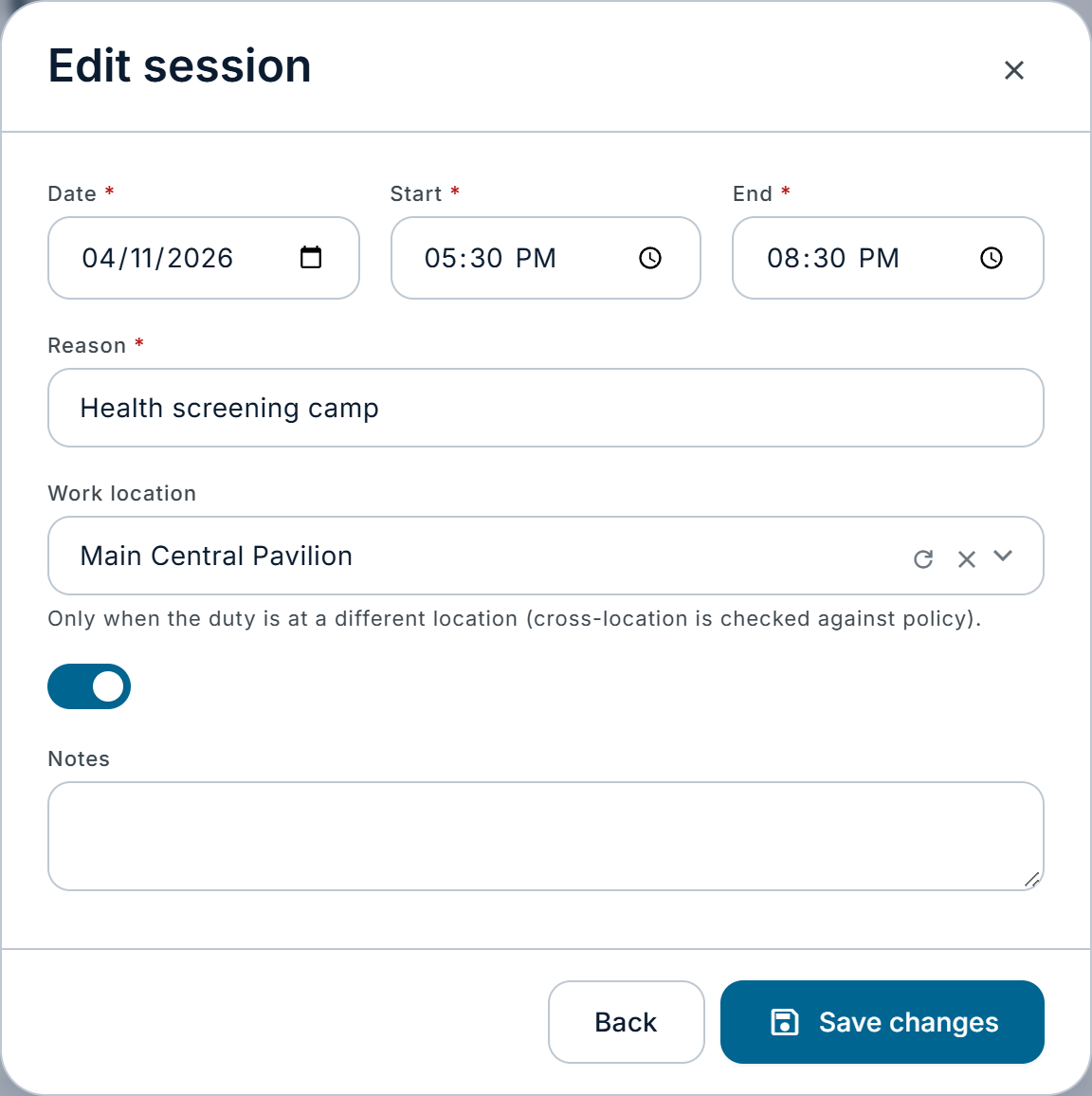
| Field | What it does | Rules |
|---|---|---|
| Date | The date the session starts on | Required |
| Start | Start time | Required |
| End | End time. At or before the start means next day; the window then shows "Overnight (+1 day)" | Required. Cannot equal the start |
| Reason | The reason | Required. This is the reason of the whole assignment, so changing it here changes it for every session of the assignment |
| Work location | Where the duty takes place | Optional. Checked against "Other locations" |
| Eligible for overtime | Whether the session can produce overtime | Toggle |
| Notes | Notes for this session | Optional |
Click Save changes. What happens next:
- The conflict check runs again. Blocking conflicts stop the save and appear in the window. Warnings do not stop it and do not need acknowledging here.
- If the session was Assigned or Acknowledged, its times changed and the policy requires approval, the session and its assignment go back to Pending approval and the workflow starts again. The employee is notified once it is approved again.
- If approval is not required, the change takes effect at once and the employee receives "Additional duty changed".
- If the employee had acknowledged the session and the times change, the acknowledgment is cleared and they need to acknowledge again.
- Changing only the location, eligibility or notes does not send the session back for approval.
Important: If a re-approval after a time change is rejected, the session ends Rejected with the new times. The previously approved times are not restored. Create a new assignment if the original session is still needed.
The Reconcile window
Purpose: confirm what actually happened in a finished session.
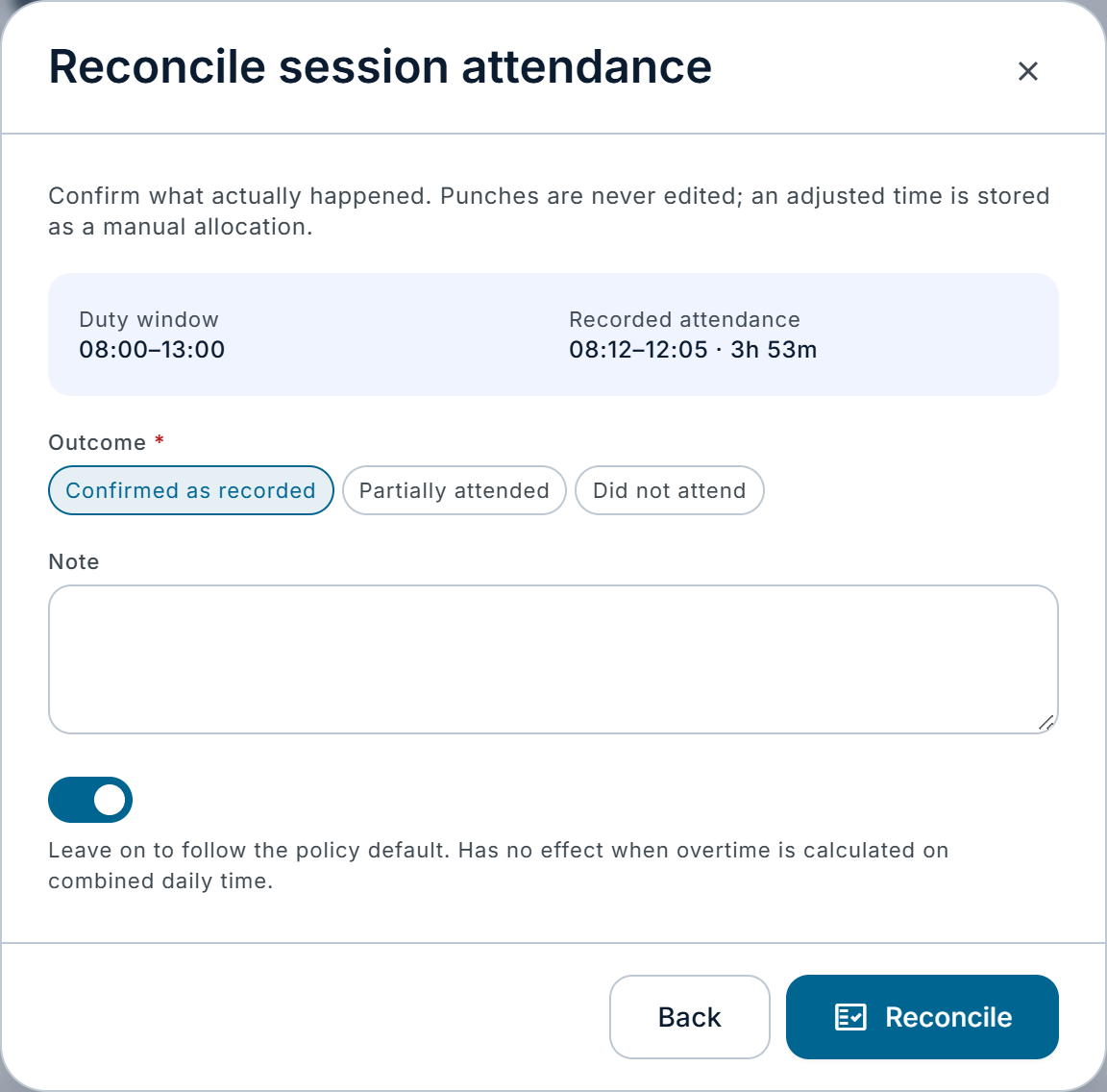
The window is titled "Reconcile session attendance" and says "Confirm what actually happened. Punches are never edited; an adjusted time is stored as a manual allocation." It shows the Duty window and the Recorded attendance (matched times and minutes).
| Field | What it does | Rules |
|---|---|---|
| Outcome | Confirmed as recorded, Partially attended or Did not attend | Required |
| Actual start | When the employee really started (Partially attended only) | Required for Partially attended |
| Actual end | When the employee really finished (Partially attended only) | Required for Partially attended; must be after the actual start |
| Note | What happened | Required unless the outcome is Confirmed as recorded |
| Raise an overtime request for the eligible time | Raise the duty overtime request now | Shown only for overtime-eligible sessions in separate mode, and not for Did not attend. On by default |
What each outcome does:
| Outcome | Worked minutes | Effect |
|---|---|---|
| Confirmed as recorded | The minutes matched from the punches | Accepts the matched attendance as it stands |
| Partially attended | From the actual start (or the session start, if later, unless "Early start counts" is on) to the actual end (or the session end, if earlier) | Stored as a manual allocation. Punches are never edited |
| Did not attend | 0 | Clears any matched attendance; no overtime |
After you click Reconcile:
- the session becomes Reconciled and is frozen;
- open duty exceptions for that session (missing in, missing out, partial, no-show, ambiguous punch) are closed automatically;
- in separate mode, the eligible minutes are the worked minutes; in combined mode, they are 0 because the time is already in the day's attendance overtime;
- if the overtime toggle is on and there are eligible minutes, a Pending overtime request is raised.
Important: In both the web console and the mobile app the overtime option is on by default and is sent with the reconciliation, so it takes precedence over the policy's "Overtime request on reconciliation" setting. If your policy is set to manual and you want to raise the request later from Overtime Review, switch the option off before reconciling.
Note: A session dated in a pay period locked for attendance cannot be reconciled. If punches change after a session is reconciled, nothing is overwritten; a "reconciled session changed" exception is raised for review instead.
Attendance reconciliation
Purpose: see one employee's day end to end, including the roster, duty, punches and the overtime calculation.
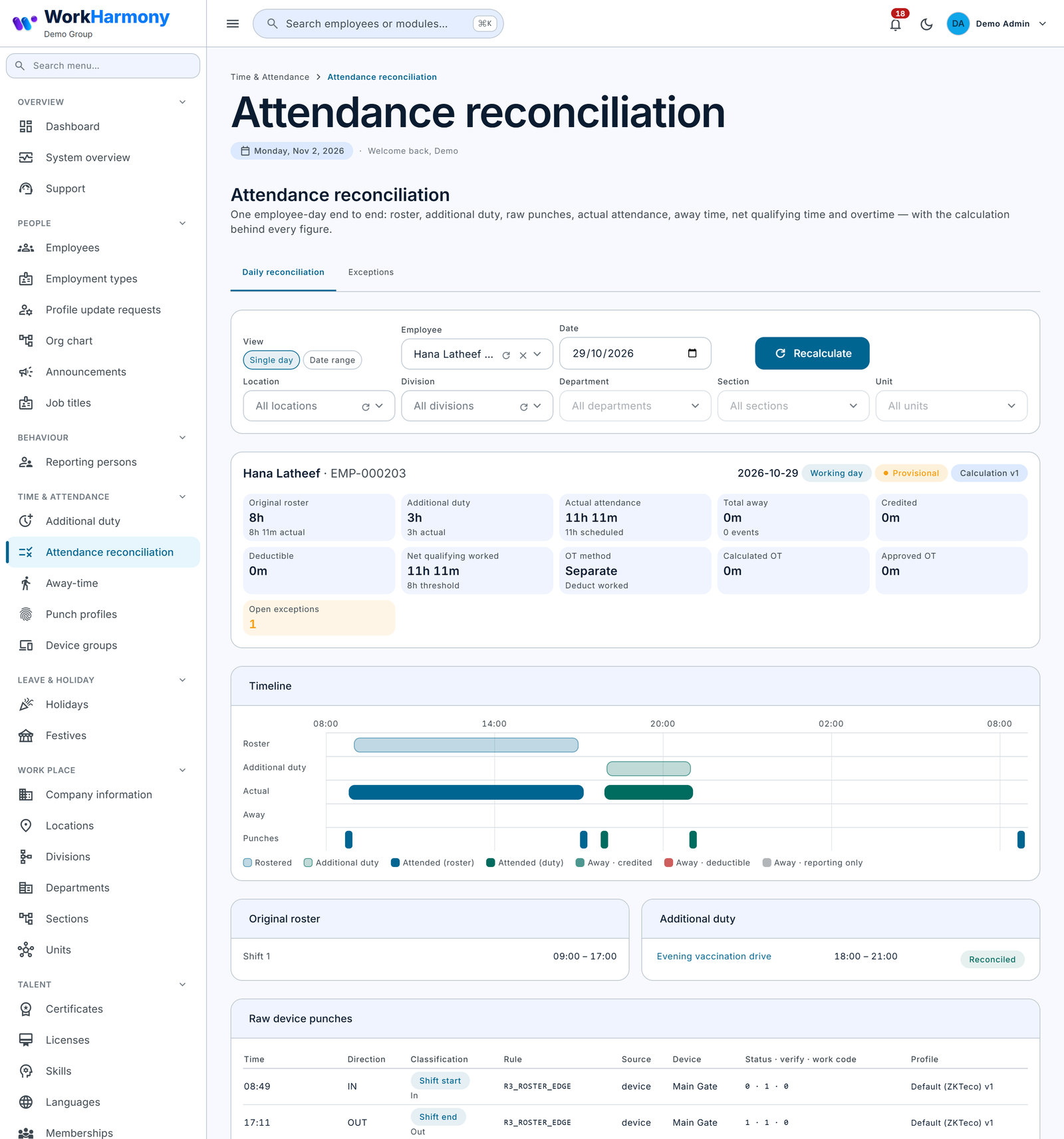
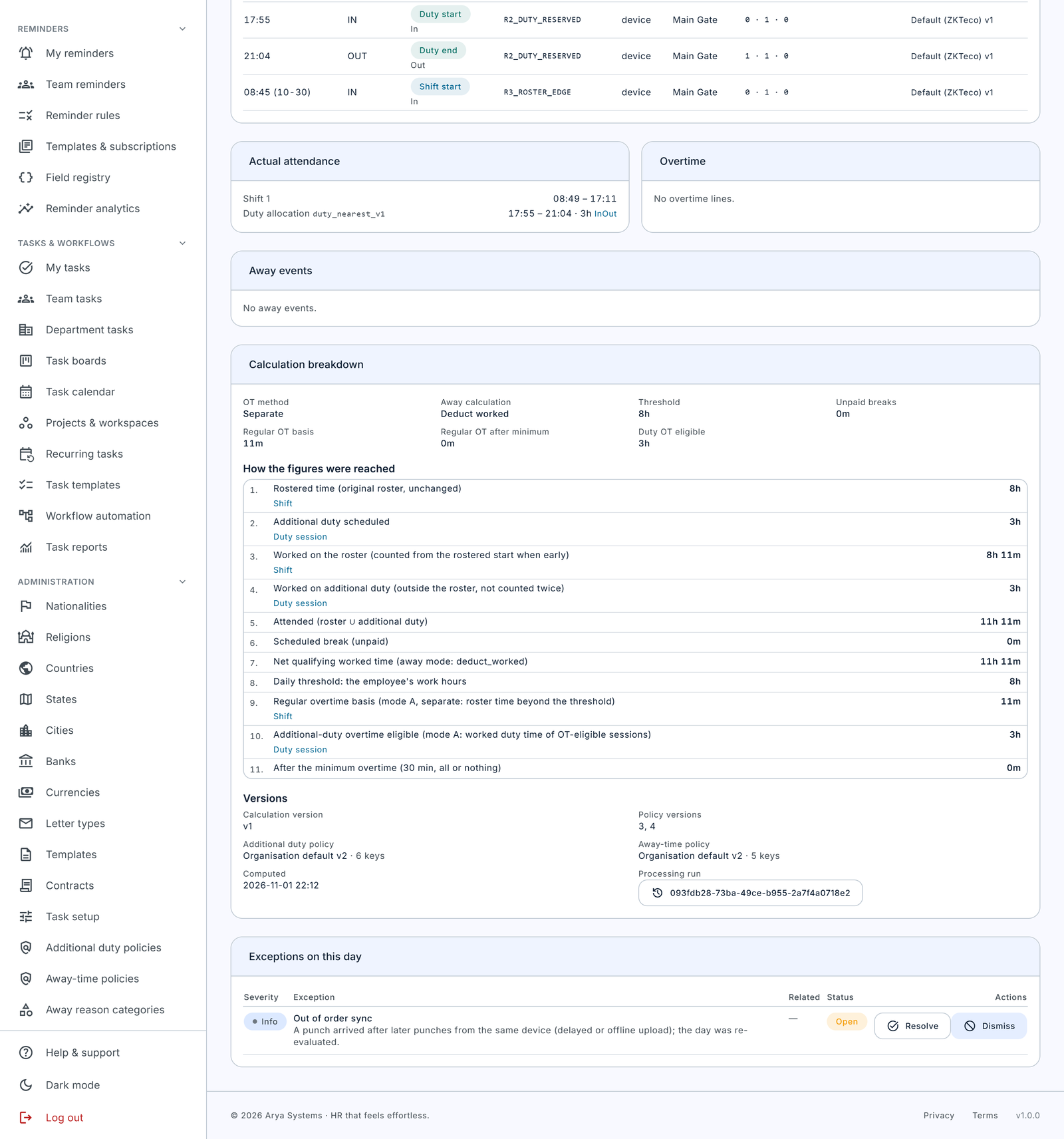
Open it from Time & Attendance › Attendance reconciliation, or from Daily reconciliation on a session. Pick an employee and a date. You see:
- Summary tiles: original roster, additional duty, actual attendance, away time (if Away-Time is used), net qualifying worked time, overtime method, calculated overtime, approved overtime and open exceptions.
- Timeline: lanes for the roster, additional duty, actual attendance and punches.
- Raw device punches, the duty allocations and the Overtime lines.
- Calculation breakdown: "How the figures were reached", step by step with minutes, for example rostered time, additional duty scheduled, worked on additional duty (outside the roster, not counted twice), daily threshold and overtime basis.
- Exceptions on this day.
Badges:
- Provisional: the day's payroll is not finalised, so the figures can still change.
- Pay period locked: the date is in a locked pay period and is never recalculated in place.
The Exceptions tab lists every reconciliation exception. The ones raised by Additional Duty are no-show, missing in, missing out, partial attendance, ambiguous session punch and reconciled session changed. Resolve needs a resolution note and Dismiss needs a reason.
Recalculate (with the Recalculate permission) reprocesses a date range for one employee, a set of org units or everyone, up to 31 days and 500 employees at a time. It first shows an estimate and the locked dates it will skip; you then confirm. Use it after a policy change if past open days should follow the new rules.
6. Employee experience
In the mobile app
Employees find their additional duty under More › Additional duty. When a session is coming up, the Home screen also shows a card headed "ADDITIONAL DUTY" with the Next session and, if needed, "Please acknowledge".
Employees only see sessions that have been assigned to them. Drafts and sessions still waiting for approval are not shown. If the feature is not switched on for them, the entry does not appear.
All times are company time. If the phone is in another time zone, the screen adds "Times are company time (…)."
The list
The Additional duty screen has two tabs:
- Upcoming: sessions that have not finished yet, soonest first.
- History: sessions that have finished, been cancelled or been declined, newest first.
Sessions can show these chips:
| Chip | Meaning |
|---|---|
| Acknowledge | The manager wants the employee to confirm they have seen it |
| Decline requested | The employee asked to be excused and is waiting for a decision |
| Overnight | The session ends the next day |
| Waiting to sync | A change made offline has not been sent yet |
Session details
Tapping a session shows:
- When, Location, Duration, Reason, Justification and Notes.
- Roster and duty: a timeline with the roster, the additional duty and the attended time on separate rows, the day type and the Total scheduled time, with the reminder "Your regular roster is unchanged. Additional duty is a separate session."
- Attendance: Not started, Checked in, Not checked in yet, Attended, Partly attended, No-show, or "Set by your manager" when the manager entered the times at reconciliation.
- Worked time (after the session): Scheduled, Worked and Short by.
- Overtime: "Counted separately" or "Counted with your day", or "Not overtime-eligible", with the Eligible, Requested and Approved minutes and the request status.
- History: assigned, acknowledged, asked to be excused, excused, asked to attend, cancelled, reconciled, and the approval steps.
Acknowledging
If acknowledgment is required, a box "Please acknowledge this duty" appears with an Acknowledge button. Pressing it tells the manager the employee has seen the session. Pressing it twice does no harm. It works offline and is sent when the phone reconnects.
Asking to be excused
If the policy allows it, the employee can press Ask to be excused and answer "Why can't you attend?". The screen reminds them: "Your manager decides. Until then the duty stays assigned to you." The manager is notified. The result shows as "Your manager excused you from this duty." or "Your manager asked you to attend this duty." Only one request can be waiting at a time. It works offline.
Notifications employees receive
| Notification | When |
|---|---|
| Additional duty assigned | A session was assigned (after approval, or at once if no approval is needed) |
| Please acknowledge additional duty | Acknowledgment is required |
| Additional duty changed | The session's times changed, or the manager decided an excuse request |
| Additional duty cancelled | The session was cancelled |
| Additional duty starting soon | The configured number of minutes before the start (60 by default) |
| Missed additional duty | No attendance was recorded by the no-show time |
| Additional duty approved / rejected | Sent to the requester when their requested duty is decided |
| Duty overtime recalculated | The eligible overtime of a reconciled session changed after a recalculation |
Tapping a notification opens the session.
Managers in the mobile app
Managers who have people reporting to them find Team additional duty under More and under Tasks › Team.
The list has the filters All, Needs acknowledgment, Excuse requests, In progress and To reconcile. Without a date, All shows from 7 days back to 30 days ahead.
To assign duty from the app:
- Press + (Assign additional duty).
- Pick one or more direct reports.
- Enter the date, start and end (an end before the start shows "Ends the next day (overnight)"), the reason, an optional operational justification, and whether the duty is overtime-eligible.
- Press Check for conflicts. Blocking conflicts must be fixed. Warnings need "I have reviewed these warnings".
- Press Assign duty (or Assign anyway with warnings).
The result is "Duty assigned to N employees" or "Duty submitted for approval". Any change after the check means the check must run again. The app has no drafts: assigning always submits.
On a team session the manager can:
- Excuse or Ask to attend for an excuse request (comment optional);
- Cancel session (reason required);
- Reconcile: Attended as recorded, Partly attended (with Attended from and Attended until), or Did not attend. A note is required unless attended as recorded. In separate mode the manager can choose to raise an overtime request; in combined mode the app explains that no separate request is raised.
Manager actions need a connection. Duty assignments and duty overtime requests also arrive in the normal Approvals inbox. Managers receive Additional duty declined (an excuse request to decide) and Additional duty no-show notifications for their reports, and for sessions they assigned.
7. Use cases and worked examples
All examples assume the default policy values unless stated, and that the employee's daily work hours are 8 (a 480-minute threshold on a working day).
Example 1: Weekend duty paid as overtime
Situation. A warehouse needs Priya, whose rest days are Saturday and Sunday, to work Saturday 14 November 08:00–14:00 (360 minutes) to clear a backlog.
Set-up. The Organisation default has "Allowed on rest days" off, so HR adds a Warehouse department override with "Allowed on rest days" on. Overtime calculation is separate, Overtime request on reconciliation is auto.
Steps.
- The rostering officer opens New additional duty, chooses Priya, enters 14 Nov, 08:00, 14:00, reason "Backlog clearance", Eligible for overtime on.
- Check conflicts shows "No conflicts found." (Without the override it would show the blocking "Rest day" conflict.)
- Submit. The assignment goes to the Additional Duty Approval workflow; the department head approves. Priya is notified and the session is Assigned.
- At 07:00 Priya receives "Additional duty starting soon".
- Priya punches in at 07:52 and out at 14:09. Because "Early start counts" is off, duty time counts from 08:00; time after 14:00 never counts. Worked = 360 minutes.
- After 14:00 the session becomes Completed. The supervisor reconciles it as Confirmed as recorded.
- A Pending overtime request for 360 minutes is raised. Payroll approves it on the Overtime Requests screen.
Result. The payslip shows Additional duty overtime of 6 hours at the off-day overtime rate. Her roster for Saturday still reads "Rest day".
If the company used combined mode instead: on a rest day there is no threshold, so all 360 minutes would count as attendance overtime for the day and flow through the normal attendance overtime request; no separate duty request would be raised.
Example 2: Duty that overlaps a rostered shift
Situation. Marco is rostered 14:00–20:00. His manager wants him to cover 18:00–22:00 at the front desk.
What happens. Check conflicts shows a blocking conflict: "Overlaps the roster — Overlaps the rostered shift 14:00–20:00." The default Conflict handling blocks roster overlaps, because the 18:00–20:00 part is already rostered time.
Option A: change the session. The manager changes the session to 20:30–22:30 (120 minutes). Marco punches out of his shift at 20:02, in for duty at 20:28 and out at 22:31.
- The 20:02 punch is closer to the roster end (20:00) than to the duty start (20:30), so it belongs to the roster. The 20:28 punch belongs to the duty.
- Duty worked = 20:30 to 22:30 = 120 minutes.
- Separate mode: regular overtime = 360 − 480 = 0; duty overtime = 120 minutes.
- Combined mode: 360 + 120 = 480, which equals the threshold, so 0 overtime.
Option B: allow overlaps. HR sets roster_overlap to warn in the front-desk unit's Conflict handling. The manager can then save 18:00–22:00 after ticking the warning acknowledgement. When the day is calculated, 18:00–20:00 counts only once, as roster time, and at most 20:00–22:00 (120 minutes) can become duty overtime. Payroll never pays more than these 120 minutes for the session. Because Marco is already at work at 18:00, he will usually not punch in for the duty, so the session may show a missing in-punch; the manager then reconciles it as Partially attended, 20:00–22:00, with a note.
Tip: Leave a gap between a shift and a duty session, and ask employees to punch out and in again between them. A punch that is exactly as close to a roster edge as to a session edge cannot be assigned with certainty and raises an "ambiguous punch" exception.
Example 3: An employee who did not turn up
Situation. Aisha has an approved duty session on Tuesday 18:00–21:00. No-show after is 30 minutes.
What happens.
- At 18:30 no punch has been recorded within the punch window. Aisha receives "Missed additional duty", her line manager and the person who assigned the duty receive "Additional duty no-show", and a no-show exception appears on the Attendance reconciliation Exceptions tab. The session stays In progress.
- At 21:00 the session ends with still no punch, so it becomes No-show and appears on the Reconciliation tab.
- The manager reconciles it as Did not attend, note "Called in sick, did not inform". Worked = 0; no overtime is raised. The no-show exception closes automatically.
Variation: she worked but forgot to punch. Aisha's supervisor confirms she worked 18:05–21:00. The manager reconciles as Partially attended with actual start 18:05 and actual end 21:00 and the note "Confirmed by shift supervisor; badge not working". Worked = 175 minutes. In separate mode with auto requests, a Pending overtime request for 175 minutes is raised.
Variation: she arrived late. Aisha punches in at 18:45 and out at 21:02. The session becomes Completed (attendance was found), worked = 18:45 to 21:00 = 135 minutes. Because that is more than 5 minutes short of the 180-minute session, a "partial attendance" exception is raised. The manager reconciles as Confirmed as recorded; 135 minutes become eligible.
Example 4: Bulk assignment for an event
Situation. A retailer runs its annual stock count. All 24 employees of the Riverside store must work Saturday 07:00–13:00 and Sunday 07:00–11:00, both rest days.
Set-up. HR adds a Location override for Riverside with "Allowed on rest days" on and Operational justification required on.
Steps.
- Open Bulk assignment. Under Employees, choose Location: Riverside. Add two time windows: Saturday 07:00–13:00 and Sunday 07:00–11:00.
- Enter the reason "Annual stock count" and the justification "Statutory year-end inventory".
- Check conflicts. The results, grouped by employee, show that two employees have approved leave on Sunday (blocking).
- Because one blocking conflict stops the whole bulk assignment, the officer clears the Location and instead picks the 24 employees by name, leaving out the two on leave. A second, individual assignment gives those two only the Saturday window.
- Submit. The 22 employees × 2 windows = 44 sessions form one assignment, approved once.
After the event. Each session is reconciled individually on the Reconciliation tab. In separate mode, each eligible session raises its own Pending overtime request: 360 minutes for each Saturday session and 240 minutes for each Sunday session worked in full.
Example 5: A correction after approval
Situation. Tom's session on Thursday 17:00–19:00 is approved and he has acknowledged it. The manager now needs him until 20:00.
Steps.
- Open the session and click Edit session. Change End to 20:00 and click Save changes.
- Because the times changed and approval is required, the session and its assignment go back to Pending approval and the approval workflow restarts. Tom's acknowledgment is cleared.
- The approver approves the change. The session is Assigned again and Tom receives "Additional duty changed". He acknowledges again.
If the change is rejected. The session ends Rejected with the new times, and the original 17:00–19:00 is not restored. The manager creates a new assignment for 17:00–19:00 if it is still needed.
If the policy does not require approval. The change takes effect immediately and Tom is notified.
Correction after reconciliation. A reconciled session is final and cannot be edited or reconciled again. If Tom's overtime was over-stated, the approver adjusts the approved minutes when deciding the overtime request on the Overtime Requests screen. If late punches arrive after reconciliation, a "reconciled session changed" exception is raised for review; nothing is overwritten.
Correction after payroll is finalised. If a recalculation shows that a finalised day should pay differently, the payslip is left as it is and a Pending payroll adjustment is created in the next open pay period, to be approved through the normal payroll adjustment workflow.
Example 6: Overnight call-out
Situation. Engineer Lena is rostered 08:00–16:00 on Monday and is called out for a repair 22:00–02:00.
Set-up. Her policy needs "Overnight sessions" on. Minimum rest is 660 minutes.
What happens. The session belongs to Monday, the date it starts. The conflict check shows a minimum-rest warning if her Tuesday shift starts at 08:00, because only 360 minutes separate 02:00 and 08:00: "Only 360 minutes of rest before the next working day (minimum 660)." With "Minimum rest breach" set to warn, the manager can continue after ticking the acknowledgement; set to block, the manager would have to move Tuesday's shift first.
If Lena works the full session: separate mode gives 240 minutes of duty overtime; combined mode gives 480 + 240 − 480 = 240 minutes of attendance overtime. Punches after midnight are matched to the Monday session.
Example 7: Authorising duty already worked
Situation. On Wednesday evening a supervisor, Sam, stayed 19:00–21:00 to deal with a system outage. On Thursday his manager wants to authorise and pay the time.
Set-up. "Retrospective authorisation" must be on in Sam's policy. Otherwise the session is blocked with "The session starts in the past and retrospective authorisation is not allowed."
Steps. The manager creates the assignment with Wednesday 19:00–21:00, ticks Retrospective authorisation (so it is tagged "Retrospective" in the lists), and submits. Once approved, the session moves through Completed (Sam's punches are found) to the Reconciliation tab within about five minutes, and is reconciled as usual.
8. Troubleshooting and FAQ
I cannot see Additional duty in the menu
Check, in this order: the company is licensed for Additional Duty; you have the Additional duty View permission; the master switch is on. If a screen says "Additional duty is not in your plan", ask your provider about the licence. If it says "Additional duty is switched off", turn on the master switch in Configurations.
The Additional Duty card is missing from Configurations
The card is shown only when the company is licensed. Ask your provider to add the Additional Duty add-on.
Saving says "Additional duty is not enabled for this employee's unit"
The employee's policy has "Additional duty enabled" off. Use Resolve preview on the Additional duty policies screen with that employee and the session date to see which scope sets it, and enable it in the right scope.
Every session is blocked as a rest day
A date with no rostered shift counts as a rest day. Check that the employee has a roster for that date. If the duty is meant to be on a day off, turn on "Allowed on rest days" for that scope.
The Save and Submit buttons are greyed out
Either there is a blocking conflict, which must be fixed, or there are warnings that have not been acknowledged. Tick "I have reviewed the warnings above and want to continue."
My bulk assignment included fewer people than expected
If you picked employees by name and also chose an organisation unit, only the named employees inside that unit are included. Bulk assignment also includes only employees active today, and at most 500.
I changed a policy but the figures did not change
Policy changes do not recalculate days already calculated. Run Recalculate on the Attendance reconciliation screen for the affected dates (it shows an estimate first). Existing sessions also keep the overtime method they were created with.
The employee cannot see the session in the app
Employees only see sessions that are Assigned or later. Check that the assignment was submitted and approved. The employee may also need to refresh the app or sign in again after the feature was switched on.
The employee cannot acknowledge or ask to be excused
"Employees may acknowledge" or "Employees may ask to decline" is off in their policy. A session can be acknowledged only while it is Assigned, and an excuse can be requested only while it is Assigned or Acknowledged and no other request is waiting.
A session shows a no-show although the employee was there
Their punches may be outside the punch window or may have been taken by the roster. Open the session's Daily reconciliation to see the punches. Reconcile as Partially attended with the real times and a note. If it happens often, consider a larger Punch window, or a gap between shift and duty.
Reconcile is refused with a pay period message
The session's date is in a pay period locked for attendance. Ask payroll to unlock the period if the session must be reconciled.
No overtime request was raised at reconciliation
Possible reasons: the session is not eligible for overtime; the policy uses combined mode (the time is in the day's attendance overtime instead); the outcome was Did not attend; or the overtime option in the Reconcile window (web) or the reconcile screen (app) was switched off. Raise it from Overtime review.
Overtime review skips some sessions
Skipped sessions are not reconciled, not eligible, in combined mode, have no eligible minutes, or already have a request.
The approved overtime on the payslip is lower than the request
Payroll caps duty overtime at the session's eligible minutes as calculated for that day. Minutes that overlap the roster or another session count only once, and deductible away time inside the session (if Away-Time is used) is removed.
Someone else changed this session
Another user changed the session while you were working on it. The latest version has been loaded; review it and try again.
Can additional duty change an employee's roster or cancel their leave?
No. The roster and leave are never changed. If duty is allowed on a leave day (Conflict handling leave set to warn), the leave stays approved.
Can a session be deleted?
Only a draft assignment can be deleted. Once submitted, cancel the session instead, with a reason. Cancelled sessions stay in History for audit.
Is duty time that is not overtime paid as normal hours?
No. Only approved duty overtime is paid. A session marked not eligible for overtime is reported but not paid.
Does the minimum overtime apply to duty?
In separate mode, no. In combined mode it applies once to the day's total.
9. Glossary
| Term | Meaning |
|---|---|
| Additional duty | Extra work on top of the roster, recorded beside it without changing it |
| Assignment | A request that groups one or more sessions with a shared reason, approved as a whole. Has a reference such as AD-20261102-00042 |
| Session | One block of additional duty for one employee: a date, start and end |
| Bulk assignment | One assignment giving the same time windows to several employees |
| Time window | In a bulk assignment, a date, start and end applied to every selected employee |
| Original roster | The employee's normal rostered shift for the day, shown separately and never changed |
| Work date | The date a session belongs to: always its start date, even for overnight sessions |
| Overnight session | A session that ends after midnight on the next day |
| Retrospective authorisation | Recording and approving duty that has already started or been worked |
| Conflict check | The check of a session against the policy, roster, other duty, leave, duty changes and rest |
| Blocking conflict | A conflict that must be fixed before saving |
| Warning | A conflict that allows saving once acknowledged |
| Minimum rest | The rest required between the end of one working day and the start of the next |
| Policy | The set of Additional Duty rules for the organisation or part of it |
| Organisation default | The policy that applies to everyone unless an override says otherwise |
| Override | A policy for one location, division, department, section, unit or employee that changes some settings |
| Scope | What a policy applies to: the organisation or one org unit or employee |
| Locked setting | A setting fixed on the organisation default that no override can change |
| Version | A dated copy of a policy. Saving always creates a new version |
| Resolve preview | A check of the settings one employee gets on one date |
| Acknowledgment | The employee confirming they have seen a session |
| Decline (excuse) request | The employee asking to be released from a session, which a manager accepts or refuses |
| Punch window | How far from a session's start or end a punch still counts for it |
| Allocation | The attendance assigned to a session, either matched from punches or set manually at reconciliation |
| No-show | A session with no attendance found |
| Reconciliation | A manager confirming what happened in a finished session |
| Separate mode (mode A) | Duty time worked is overtime on its own, raised as its own overtime request |
| Combined mode (mode B) | Duty time is added to the day's roster time, and overtime applies above the daily threshold |
| Daily threshold | The employee's daily work hours on a working day; zero on rest days and public holidays |
| Eligible minutes | The duty minutes that can become overtime for a session |
| Duty overtime request | A Pending overtime request raised for a session, approved on the Overtime Requests screen with Source "Additional duty" |
| Additional duty overtime | The payslip line on which approved duty overtime is paid |
| Exception | An item raised for review when the system cannot be sure, such as a missing punch or a no-show |
| Provisional | A day whose payroll is not finalised, so its figures can still change |
| Pay period locked | A day in a locked pay period, which is never recalculated in place |
| Payroll adjustment | A correction created in the next open pay period when a finalised day should pay differently |
Videos
Running a Report
Signed in to WorkHarmony? The same guide is in your workspace under Help.