

Time & Attendance
Away-Time
Record when employees leave the workplace during duty and come back, collect and approve the reasons, and decide what the time means for attendance, overtime and pay.
1. Introduction
What Away-Time is
Away-Time records the times an employee leaves the workplace during scheduled duty and comes back again. It also collects the reasons for those absences. WorkHarmony finds these absences mainly from the punches your biometric attendance terminals already send. It can also take them from the mobile app, where the employee taps Step out and I'm back, or from a supervisor who records them on the console.
Each absence becomes an away event. An event has a departure time, a return time (once known), a duration, the session it fell in (a rostered shift or an additional-duty session), the source that reported it, a reason, and a treatment. The treatment decides whether the time is only reported, counted as work, or deducted.
The problem it solves
Ordinary attendance looks at the first punch in and the last punch out. Whatever happens in between is invisible. An employee who punches out at 11:15 and back in at 11:45 still shows as present from 09:00 to 17:00, and nobody is asked why they left.
Away-Time reads the punches between the shift's start and end. It works out which ones are temporary departures and returns. It then asks the employee for a reason, and routes that reason to a supervisor for approval when your rules require it. Finally, it applies your company's policy to decide what the absence means for worked time and overtime.
Away-Time is cautious by design:
- It never changes a raw punch. The punch stays exactly as the terminal sent it, and WorkHarmony stores its own reading of the punch alongside it.
- It never invents a punch or a return time. If the punches do not show when someone came back, the event stays open or is flagged for a person to settle.
- When it cannot be sure what a punch means, it does not guess. It raises an exception for a person to review.
- Out of the box it deducts nothing. By default, away time is recorded and reported only.
Typical scenarios
- A staff member steps out for a cigarette or for prayers, using the terminal's break-out and break-in keys.
- A cashier leaves the branch for 40 minutes on a personal errand and punches out and back in at the main door.
- A driver is sent to the ministry on official business. The supervisor records the absence as official duty, so the time counts as work.
- An employee forgets to punch back in after a break, so the system has no return time.
- A terminal at a side gate sends punches with no in or out direction, so the system cannot tell a departure from a return.
- A canteen terminal records lunch punches that should be read as breaks, while the main-gate turnstiles record real departures.
2. Before you start
Nothing happens for any employee until three switches all say yes. Every one of them is off by default, so your attendance, overtime and payroll are unchanged until you deliberately turn the feature on.
| Layer | Who sets it | Where | Default |
|---|---|---|---|
| 1. Licence | Your WorkHarmony provider | The provider's admin portal (Away-Time is a paid add-on) | Not licensed |
| 2. Master switch | Your administrator | Administration › Configurations › Roster & Attendance › "Away-Time" card | Off |
| 3. Policy "Track away time" | Your HR administrator | Administration › Away-time policies | Off |
Licence
Away-Time is a licensed add-on. It is not part of any standard plan, including Enterprise. Ask your WorkHarmony provider to add it to your company.
Until the licence is in place:
- the Away-Time menus are hidden;
- the "Away-Time" card does not appear in Configurations;
- the feature cannot be switched on.
The licence also unlocks the Attendance reconciliation screen, which the Additional Duty licence unlocks too.
The master switch
The master switch is on the Configurations screen, inside the Roster & Attendance tab. It only appears once your company is licensed.
- Go to Administration › Configurations.
- Open the Roster & Attendance tab and find the Away-Time card.
- Turn on Away-Time enabled and save.
While the switch is off, the Away-Time screens answer that the feature is not enabled, and attendance is processed exactly as before. The mobile app shows the Away-Time screens after the employee's next sign-in or refresh.
Policies
The master switch alone does nothing for employees. The Away-time policy decides who Away-Time applies to and how it behaves. The organisation default policy is created with Track away time switched off. To start, either:
- switch it on in the organisation default, so that it applies to everyone; or
- leave the default off and add an override with Track away time on, for one location, division, department, section, unit or employee, as a pilot.
Chapter 3 explains every policy setting.
Devices and punch states
Away-Time depends on how your terminals report punches. Most terminals send a state with each punch, for example check-in, check-out, break-out or break-in. Some also send a work code that the employee keys in, for example "3 = official errand". WorkHarmony reads these through punch interpretation profiles. A default profile, "Default (ZKTeco)", is included and covers the common ZKTeco state numbers.
Important: Away-Time has not yet been tested on real terminals; it was verified with a terminal simulator only. Terminal models differ in the states and work codes they send. Before you switch Away-Time on for anyone, run a pilot on one device: collect a few days of real punches, check them with the profile Preview, adjust the profile, and only then enable the policy for that device's staff.
Punches recorded before the upgrade carry no state or work code. For those days the system can only use the in or out direction that was stored at the time.
Permissions
New permissions are not given to any role automatically. Grant them in Security › Roles. Console permissions apply across the whole organisation; every list then has organisation filters to narrow it. In the mobile app, managers see only the people who report to them, and employees see only themselves, without any of these permissions.
| Area | Actions | Typical holders |
|---|---|---|
| Away-time | View, Create, Edit, Approve, Reject, View reasons, Audit, Export | Supervisors (View, Approve, Reject); HR (View reasons) |
| Away-time exceptions | View, Resolve | Attendance officers |
| Away-time policies | View, Create, Edit, Audit | HR administrators |
| Away reason categories | View, Create, Edit, Delete, Audit | HR administrators |
| Punch profiles | View, Create, Edit, Delete, Audit, Preview | The administrator who looks after devices |
| Device groups | View, Create, Edit, Delete, Audit | The administrator who looks after devices |
| Away-time reports | View | HR, payroll |
| Attendance reconciliation | View, Recalculate, Resolve | Attendance and payroll officers |
What the key actions allow:
- Away-time › View opens the Away-time screens and the event details.
- Away-time › Create allows Record away event (supervisor entry).
- Away-time › Edit allows Close on an unclosed event.
- Away-time › Approve allows approving reasons and corrections, and asking for clarification.
- Away-time › Reject allows rejecting reasons and corrections.
- Away-time exceptions › View opens the Ambiguous punches tab. Resolve shows the Resolve and Dismiss buttons there.
- Punch profiles › Preview shows the "Preview against real punches" card in the profile editor.
Important: View reasons lets the holder read every reason note and document, including sensitive ones such as medical appointments. Give it to as few people as possible.
Suggested first rollout
- Have the licence added.
- Turn on the master switch.
- Set up one device group and check its punch profile with Preview.
- Add a policy override for one department with Track away time on. Keep Away calculation on "Reporting only".
- For a week, watch the Ambiguous punches tab and Attendance reconciliation › Exceptions.
- Review the reason categories and the register, then widen the scope.
3. Configuration
3a. The Configurations card

The Away-Time card holds one setting: the master switch. It is shown only when your company holds the Away-Time licence. To change it, open the card for editing, change the switch and save.

| Field | What it does | Values / default | Impact of the choice |
|---|---|---|---|
| Away-Time enabled | The company-wide on/off switch for Away-Time. | On or Off. Default Off. | On: the Away-Time menus and screens work, the mobile app offers Away time, and punches are classified for every employee whose policy has Track away time on. Off: punches are matched exactly as before; nothing is detected, nobody is asked for a reason, and nothing is deducted. Existing events, reasons and figures are kept, but no longer used. |
Turning the switch off is not destructive. Away events, reasons, calculation breakdowns and exceptions are all kept, and attendance and overtime go back to the existing rules. Approved overtime requests that were already raised stay as they are.
Note: While the switch is off but the licence remains, the nightly clean-up that removes old reason notes and documents (see Keep reason notes and documents) keeps running. It stops only when the licence is removed.
3b. The Away-time policy
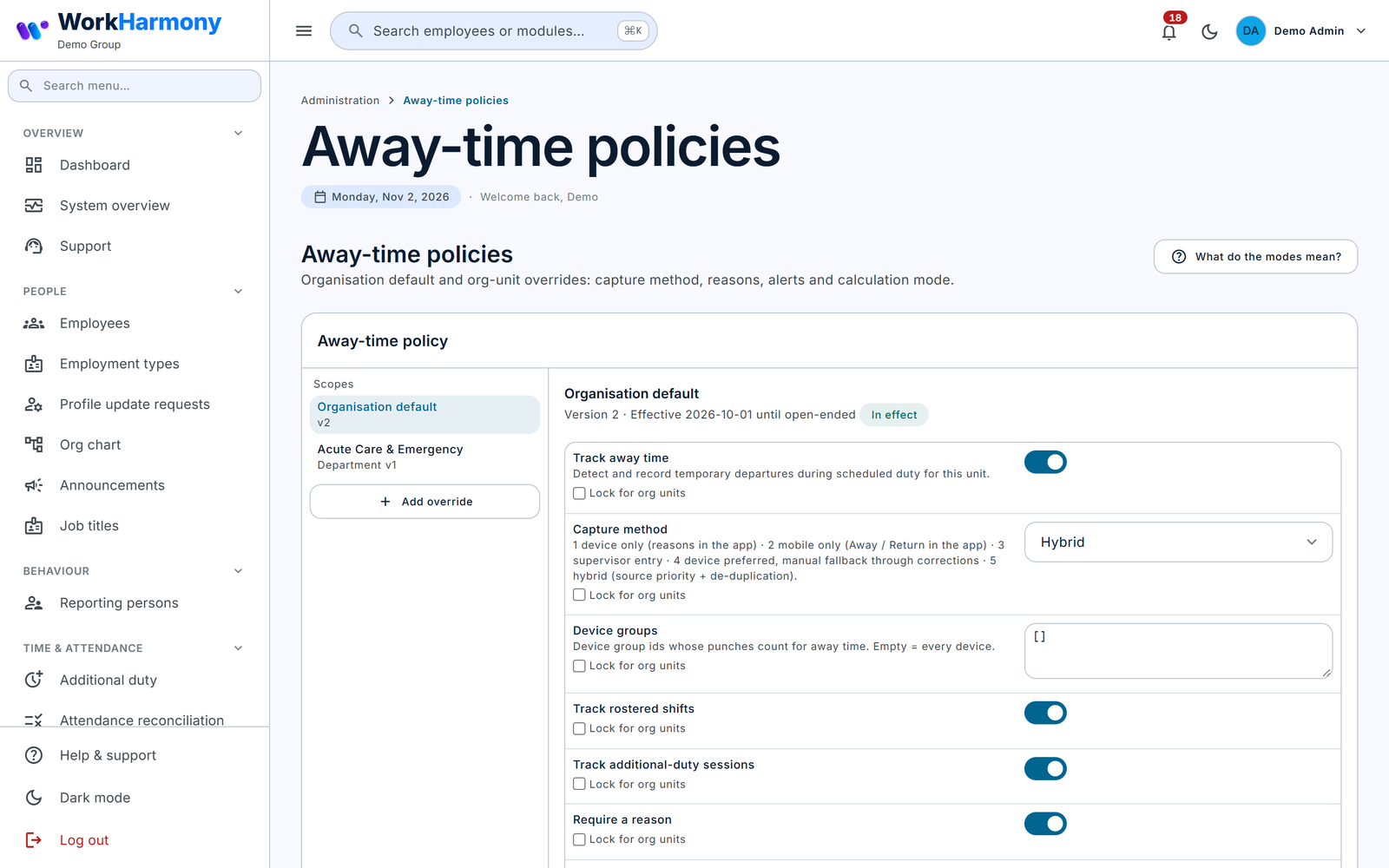
Open Administration › Away-time policies. Click What do the modes mean? at the top to see a short reference of the capture and calculation modes.
How scope and precedence work
A policy is built in layers. For each employee and date, WorkHarmony starts with each setting's built-in default, then applies these layers in order. A later layer wins over an earlier one.
- The Organisation default.
- An override for the employee's location.
- An override for their division.
- An override for their department.
- An override for their section.
- An override for their unit.
- An override for the employee personally.
An override holds only the settings it changes. Everything else is inherited from the layers above it. The employee's placement is taken from their department history on the date being calculated, so after a transfer the new unit's settings apply from the transfer date.
Two rules beat every override:
- Locked settings. On the organisation default, tick Lock for org units next to a setting. No override can change it while that version is in effect. Overrides show it as "Locked at organisation level".
- Organisation-only settings. Two away-time settings can be set only on the organisation default: Deduct away time from salary and Keep reason notes and documents. Below organisation level they show "Not overridable".
The editor
The left side lists the Scopes: the organisation default and every override.
- Click Add override. Choose Applies to (Location, Division, Department, Section, Unit or Employee) and Which one, then click Create override. A scope can have only one override.
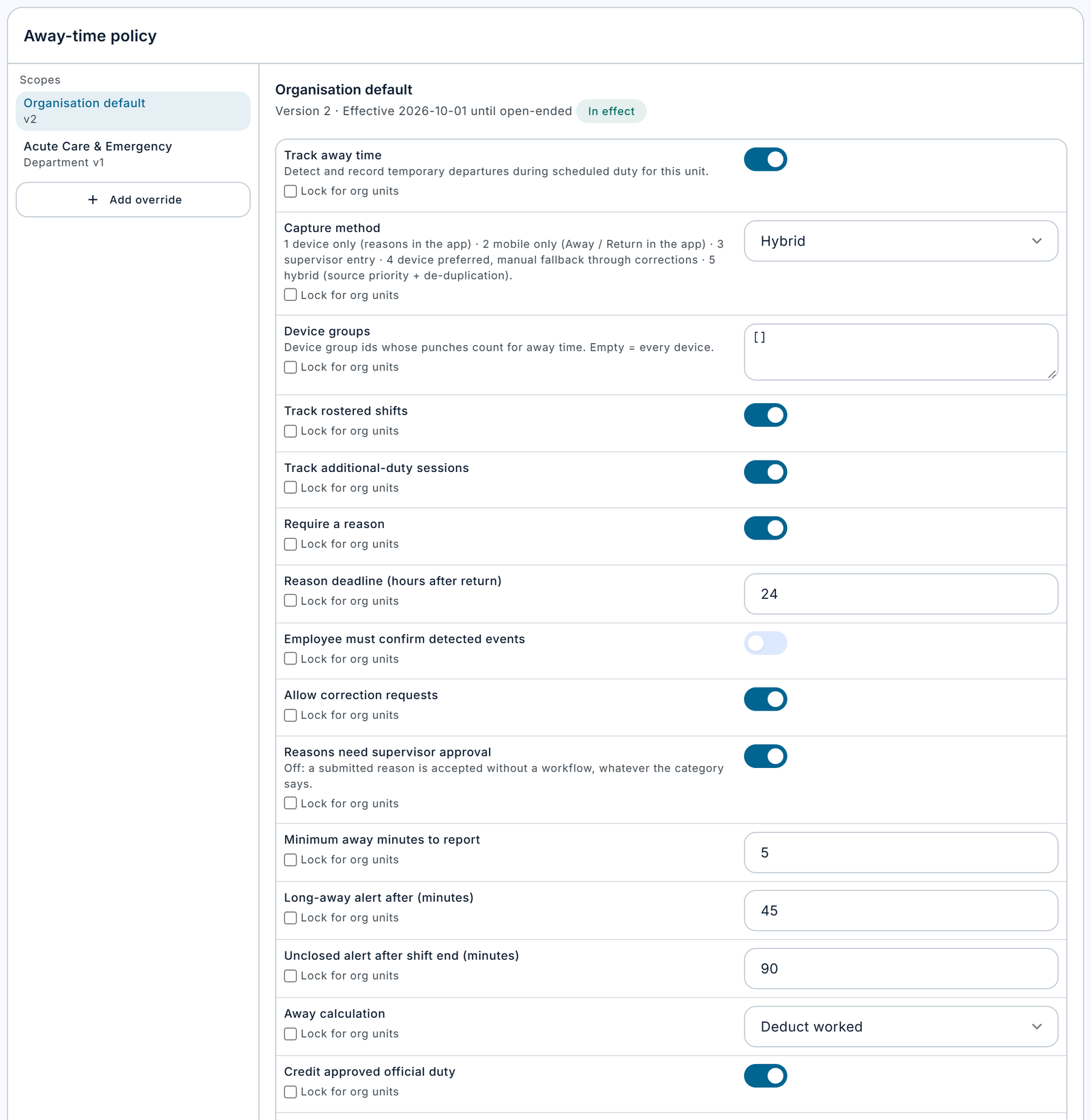
- On the organisation default, every setting is shown, each with a Lock for org units box (for settings that can be overridden).
- On an override, each setting has an Override box. Unticked settings show "Inherits value from Organisation default vN" (or "Default").
- Takes effect is the date the change starts.
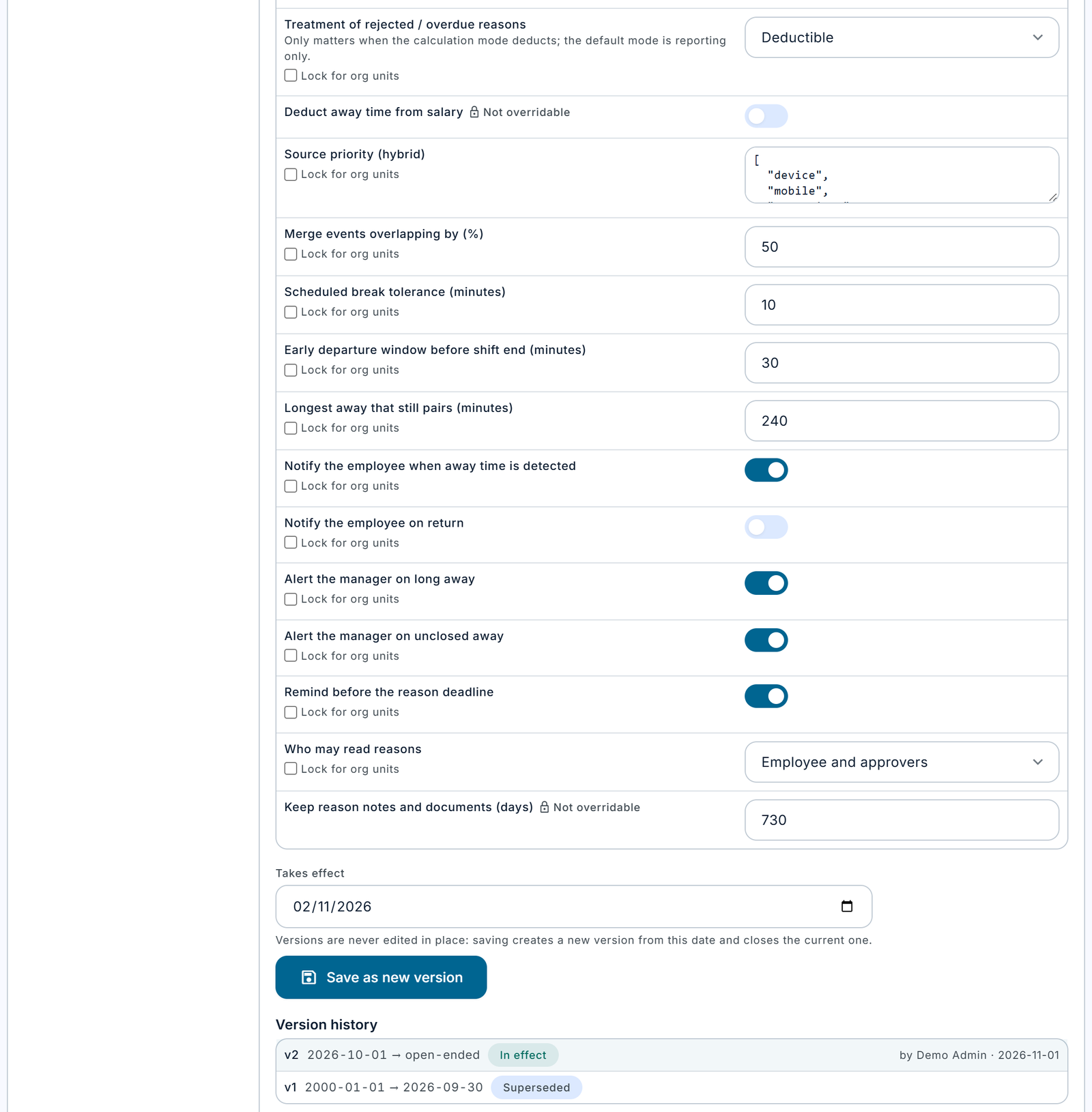
- Save as new version saves the change. Versions are never edited in place: saving creates a new version from the Takes effect date and closes the current one the day before.
- Version history lists older versions, which open read-only. Each shows its state (In effect, Scheduled, Superseded, Inactive) and who created it.
- Deactivate (overrides only) asks for the Last day in effect. From the next day the scope inherits from above again. The organisation default cannot be deactivated. To stop Away-Time everywhere, save a new organisation version with Track away time switched off.
- Resolve preview: choose an Employee and a Date, then click Resolve. You see every value that employee gets on that date, and the scope each value Comes from. Use it to check an override before you rely on it.
Rules about dates:
- A new version must start after the current version's start date. The seeded organisation default starts on 1 January 2000, so your first change can start today.
- A change cannot fall in a pay period that is locked for attendance; the save is refused.
- Nothing is recalculated automatically when a policy changes. Days already calculated keep their figures until they are processed again: when new punches arrive for that day, when attendance is regenerated (for example by payroll), or when you run Recalculate on Attendance reconciliation.
Who and what is tracked
| Field | What it does | Values / default | Impact of the choice |
|---|---|---|---|
| Track away time | Switches Away-Time on for the people in this scope (layer 3). | On or Off. Default Off. | On: punches of these employees are classified and away events are created. Off: nothing is detected for them, and they see "Away time is not used for you" in the app. Example: leave the organisation default Off and turn it On in an override for the Finance department to pilot with Finance only. |
| Capture method | Where departures and returns come from. | 1 Device only, 2 Mobile only, 3 Supervisor entry, 4 Device preferred, 5 Hybrid. Default 1 Device only. | 1 Device only: events come from terminal punches; employees give reasons in the app; the app shows no Step out button and supervisors cannot record events. 2 Mobile only: employees tap Step out / I'm back in the app (online only); terminal punches between shift start and end do not create events. 3 Supervisor entry: only supervisors record events on the console; no punch is created. 4 Device preferred: terminals first; a supervisor may record what they missed, and an entry that overlaps a device event is merged into it. 5 Hybrid: device, app and supervisor are all used; reports of the same absence are merged using Source priority and Merge events overlapping by. |
| Device groups | Limits which devices count for away time. | A list of device groups. Default empty (every device counts). | Empty: punches from every terminal are read. A list: punches from devices outside these groups are ignored for away time. Example: listing only "Main gate" means canteen punches never create away events. See the Important note below. |
| Track rostered shifts | Looks for away time inside rostered shifts. | On or Off. Default On. | On: absences inside a shift are detected. Off: shifts are not examined. Events already found inside shifts are withdrawn when the days are processed again, and the punches between shift start and end may then be reported as ambiguous. |
| Track additional-duty sessions | Looks for away time inside additional-duty sessions. | On or Off. Default On. | On: absences during an attended duty session are detected. Off: duty sessions are not examined. |
Important: The Device groups setting appears as a free-text list box and expects the groups' internal numbers, which the screens do not show. Until a group picker is added, leave it empty and control which devices matter through device groups and punch profiles instead.
Reasons and approvals
| Field | What it does | Values / default | Impact of the choice |
|---|---|---|---|
| Require a reason | Whether employees must explain an absence. | On or Off. Default On. | On: each event of at least the minimum length is created with the reason status "Required". Off: events are created with "Not required" and treated as reporting only, so they can never be deducted. |
| Reason deadline (hours after return) | How long the employee has to give a reason after returning. | 1 to 720 hours. Default 24. | Short (for example 4): reasons arrive the same day; more reasons go overdue. Long (for example 72): allows for weekends; deductions wait longer. A reminder is sent 2 hours before the deadline (if Remind before the reason deadline is on). After the deadline the reason becomes Overdue and the time takes the "Treatment of rejected / overdue reasons". The employee can still submit a reason for an overdue event. |
| Employee must confirm detected events | Intended to make employees confirm events the devices detected. | On or Off. Default Off. | Currently has no effect: the setting is shown but not used by the system. Leave it Off. |
| Allow correction requests | Whether employees may ask for an event to be corrected. | On or Off. Default On. | On: employees can request corrections and report missed absences in the app. Off: the app refuses with "Corrections are not accepted for your unit"; only supervisors can close events. |
| Reasons need supervisor approval | Whether a submitted reason goes to approval. | On or Off. Default On. | On: a reason goes through the "Away Reason Approval" workflow when its category also asks for approval. Off: every submitted reason is "Accepted" at once, whatever the category says, and takes the category's treatment straight away. |
| Who may read reasons | Who sees reason notes and documents besides the employee. | Employee and approvers, or Hr only. Default Employee and approvers. | Employee and approvers: the employee, the current approver and holders of View reasons see the reason. Hr only: approvers without View reasons see only that a reason was provided. Use it where reasons are very sensitive, knowing approvers then decide without reading the note. |
Thresholds and alerts
| Field | What it does | Values / default | Impact of the choice |
|---|---|---|---|
| Minimum away minutes to report | Absences shorter than this need no reason. | 0 to 240 minutes. Default 5. | 5: a 4-minute absence is recorded as "Not required" and reporting only; a 6-minute one needs a reason. 15: short smoke or prayer breaks need no explanation and can never be deducted. 0: every absence needs a reason. |
| Long-away alert after (minutes) | When an absence that is still open counts as long. | 1 to 1440 minutes. Default 60. | When an open event passes this length, the employee gets "Still away?" and, if Alert the manager on long away is on, the manager gets "Long time away". Closed events longer than this are flagged as long in their details. The Live tab's Long away counter uses the organisation-level value. |
| Unclosed alert after shift end (minutes) | When an open event counts as unclosed. | 1 to 1440 minutes. Default 90. | Once the shift end (or, with no roster, the departure) plus this many minutes has passed and the event is still open, an "Unclosed away" exception is raised. The employee is told "No return recorded" and, if Alert the manager on unclosed away is on, the manager too. Example: shift ends 17:00, value 90: alerts at 18:30. |
| Scheduled break tolerance (minutes) | How far outside the scheduled break a break punch still counts as the break. | 0 to 120 minutes. Default 10. | Break 13:00–14:00, tolerance 10: an out at 12:52 and an in at 14:08 are the scheduled break, not away time. An in at 14:15 is a Late return (recorded on the punch, no away event). 0: only punches strictly inside the break count. |
| Early departure window before shift end (minutes) | An out this close to the shift end, with no return, is an early departure, not away time. | 0 to 240 minutes. Default 30. | Shift ends 17:00, value 30: an out at 16:40 with no later in is an early departure. Larger (for example 60): fewer late-afternoon absences become away events. |
| Longest away that still pairs (minutes) | The longest gap between an out and the in that closes it. | 5 to 1440 minutes. Default 240. A punch profile can set its own value. | Value 240: an out at 10:00 and an in at 15:30 (330 minutes) do not pair; they are reported as ambiguous instead. Raise it for staff who make long site visits. |
Calculation
| Field | What it does | Values / default | Impact of the choice |
|---|---|---|---|
| Away calculation | What away time does to worked time and overtime. | Reporting only, Deduct worked, Deduct overtime only, Credited. Default Reporting only. | Reporting only: away time is recorded and reported; worked time and overtime are unchanged. Deduct worked: deductible away minutes are removed from qualifying worked time, and therefore from overtime too. Deduct overtime only: worked time is untouched; deductible minutes reduce the overtime basis only. Credited: approved credited away time (for example official duty) that falls outside the attended time but inside the scheduled shift is added to worked time. |
| Credit approved official duty | Whether reasons in "credited" categories are honoured. | On or Off. Default On. | On: an approved credited reason (such as Official duty outside workplace) has the treatment Credited. Off: it becomes Reporting instead, so nothing is credited. |
| Treatment of rejected / overdue reasons | What happens to time whose reason was rejected or never given. | Reporting or Deductible. Default Deductible. | Deductible: with a deducting calculation mode, unexplained time is deducted. Reporting: unexplained time is only recorded. This has no effect while Away calculation is Reporting only. |
| Deduct away time from salary | Lets deductible away time reduce pay. Organisation default only. | On or Off. Default Off. | Off: away time never reduces salary. On, and Away calculation is Deduct worked: payroll adds a "Deductible away time" deduction, at the employee's hourly rate, for the period's deductible minutes. The policy in effect on the last day of the pay period decides. Agree this with HR, payroll and legal advisers first. |
Several sources (hybrid and device-preferred)
| Field | What it does | Values / default | Impact of the choice |
|---|---|---|---|
| Source priority (hybrid) | Which source wins when two report the same absence. | An ordered list of device, mobile and supervisor. Default device, mobile, supervisor. | With the default, if the terminal says 11:15–11:45 and the app says 11:16–11:44, the device times are kept and the event notes it was "also reported by" mobile. Put mobile first only if your terminals are unreliable. |
| Merge events overlapping by (%) | How much two reports must overlap to be one event. | 1 to 100 %. Default 50. | The overlap is measured against the shorter of the two. 50: a supervisor entry of 11:20–11:50 merges with a device event of 11:15–11:45. 90: only near-identical reports merge, so more duplicates survive. 10: almost any overlap merges. |
Notifications and retention
| Field | What it does | Values / default | Impact of the choice |
|---|---|---|---|
| Notify the employee when away time is detected | Sends "Time away recorded" when an event is found. | On or Off. Default On. | Off: the employee is still told when a reason is needed ("Reason needed for time away"), but not about absences that need none. |
| Notify the employee on return | Sends "Welcome back" when the return is recorded. | On or Off. Default Off. | Only sent when no reason is needed (otherwise the reason request is sent instead). Turn it on for mobile capture so staff get a confirmation. |
| Alert the manager on long away | Sends "Long time away" to the employee's reporting person. | On or Off. Default On. | Off: only the employee gets "Still away?". |
| Alert the manager on unclosed away | Sends "Unclosed away time" to the reporting person. | On or Off. Default On. | Off: only the employee is told; the exception is still raised. |
| Remind before the reason deadline | Sends "Away reason due soon" 2 hours before the deadline. | On or Off. Default On. | Off: no reminder; the "Away reason overdue" notice is still sent when the deadline passes. |
| Keep reason notes and documents (days) | How long reason notes and attachments are kept. Organisation default only. | 30 to 3650 days. Default 730 (two years). | A nightly job removes older notes and documents. The minutes, the category and the treatment are kept, because payroll and reports need them. Shorter values reduce the personal data you hold. |

3c. Punch interpretation profiles
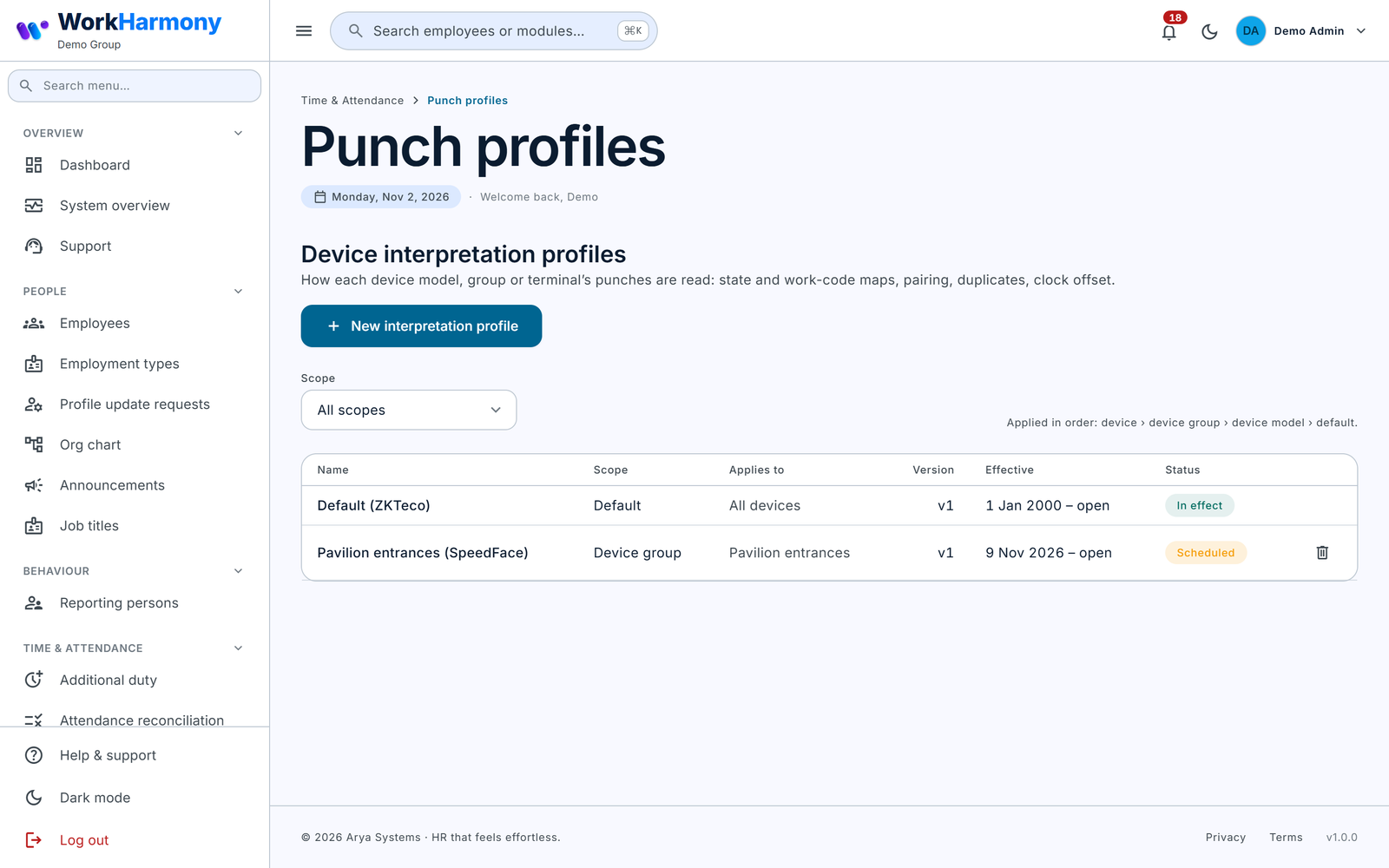
A punch interpretation profile tells WorkHarmony how to read one terminal's punches. Open Time & Attendance › Punch profiles. The list shows each profile's Applies to, Version, Effective dates and Status (In effect, Scheduled, Superseded or Inactive). Use Scope to filter. Click a profile to open it, or create a new one.
Which profile applies
For each punch, the first profile in effect on the punch date is used, in this order (the list says "Applied in order: device › device group › device model › default"):
- a profile for that one device;
- a profile for one of the device's device groups (if the device is in several groups that have profiles, the group created first wins);
- a profile for the device's model;
- the Default (all devices) profile.
The upgrade creates "Default (ZKTeco)", effective from 1 January 2000. Each scope can have only one active profile; to change it, add a version.
Versions
- A profile that is in effect cannot be edited or deleted. The editor shows the banner "This version is in effect". Enter New version effective from (tomorrow or later) and click Save as new version. The current version ends the day before the new one starts.
- A profile that has not started yet can be edited or deleted.
- Changing a profile does not reprocess past days by itself, even though the banner says "affected days are reprocessed". The new reading applies when a day is next processed. To apply a corrected mapping to past days, run Recalculate on Attendance reconciliation. Every punch keeps its reading history, so you can see before and after.
Profile and scope fields
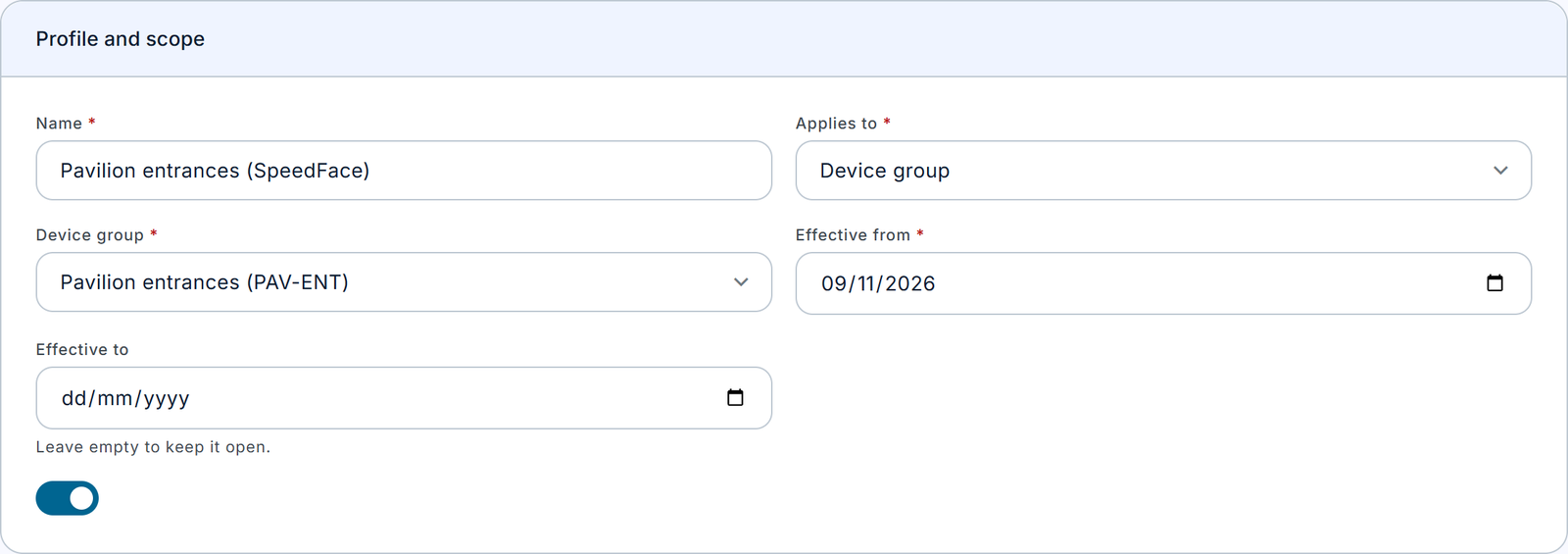
| Field | What it does | Values / default | Impact of the choice |
|---|---|---|---|
| Name | The profile's name. | Text. Required. | For your reference, and shown in each event's trace. |
| Applies to | The profile's scope. | Default (all devices), Device model, Device group, One device. | Default: "Used for any device without a more specific profile." Device model: every terminal whose Device Model matches. Device group: every terminal in the group. One device: one terminal only. Use the narrowest scope that covers the terminals that behave the same way. |
| Device model | The model name to match (Device model scope). | Text, for example SpeedFace-V5L. Not case-sensitive. | Must match the Device Model on the device record exactly (apart from capitals), or the profile never applies. |
| Device group | The group (Device group scope). | A device group. | All devices in the group use the profile, unless a device has its own. |
| Device | The device (One device scope). | A device. | That device only. |
| Effective from | The first day the profile applies. | A date. Required. | Punches before this date use another profile. |
| Effective to | The last day. | A date, or empty to keep it open. | After it, the next profile in the order applies. |
| Active | Whether the profile is used at all. | On or Off. Default On. | Off: ignored when profiles are chosen. |
Device states: how terminal states map to away events
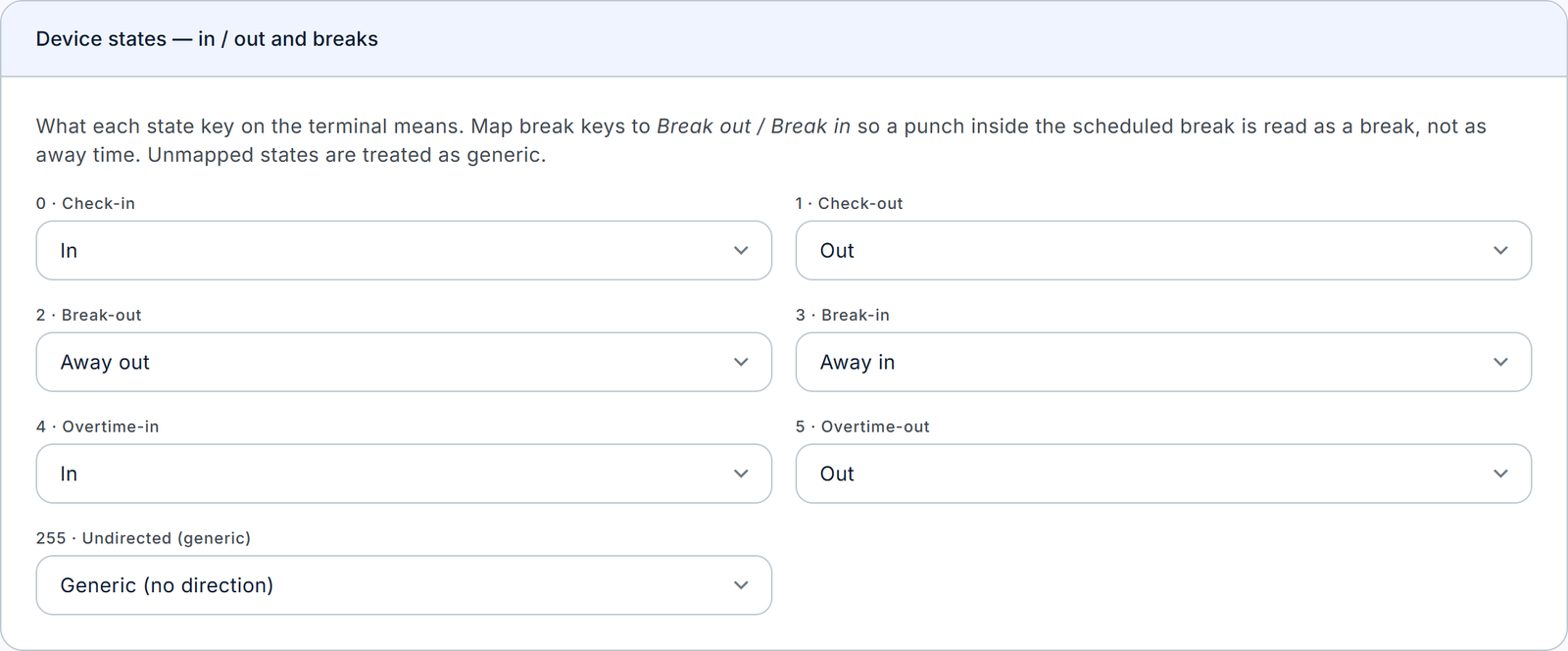
The card Device states — in / out and breaks lists each state number the terminal sends and what it means. The choices for each state are: In, Out, Break out, Break in, Away out, Away in, Generic (no direction), or "— Not mapped —". A state that is not mapped is treated as generic. States your terminal sends outside the standard list are kept and shown as "other".
| State (ZKTeco) | Default meaning | What it leads to |
|---|---|---|
| 0 · Check-in | In | Can start a shift or end an absence. |
| 1 · Check-out | Out | Can end a shift, start an absence, or be an early departure. |
| 2 · Break-out | Break out | Set aside before shift matching, so it is never taken as the shift end. Inside the scheduled break it is the break; outside it, an unscheduled break. |
| 3 · Break-in | Break in | Closes a break or unscheduled break. |
| 4 · Overtime-in | In | Read like a check-in. |
| 5 · Overtime-out | Out | Read like a check-out. |
| 255 · Undirected (generic) | Generic | No direction; handled by Generic (undirected) punches. |
The meanings lead to these results:
- In / Out. These are ordinary directions. The shift's actual in and out are chosen first by the normal attendance matching. An Out followed by an In inside the shift then becomes an absence.
- Break out / Break in. A break pair inside the scheduled break (plus or minus the tolerance) is the scheduled break and creates no away event. Outside it, the pair is an unscheduled break, handled by Unscheduled break punches.
- Away out / Away in. These are explicit absence keys. They are set aside before shift matching and always read as a departure and a return. Map a spare state or a work code to these if your staff should press a special key when leaving.
- Generic. The punch has no direction, so the handling rules below apply.
Tip: Map the break keys to Break out / Break in so that a punch inside the scheduled break is read as the break, not as away time.
Work codes
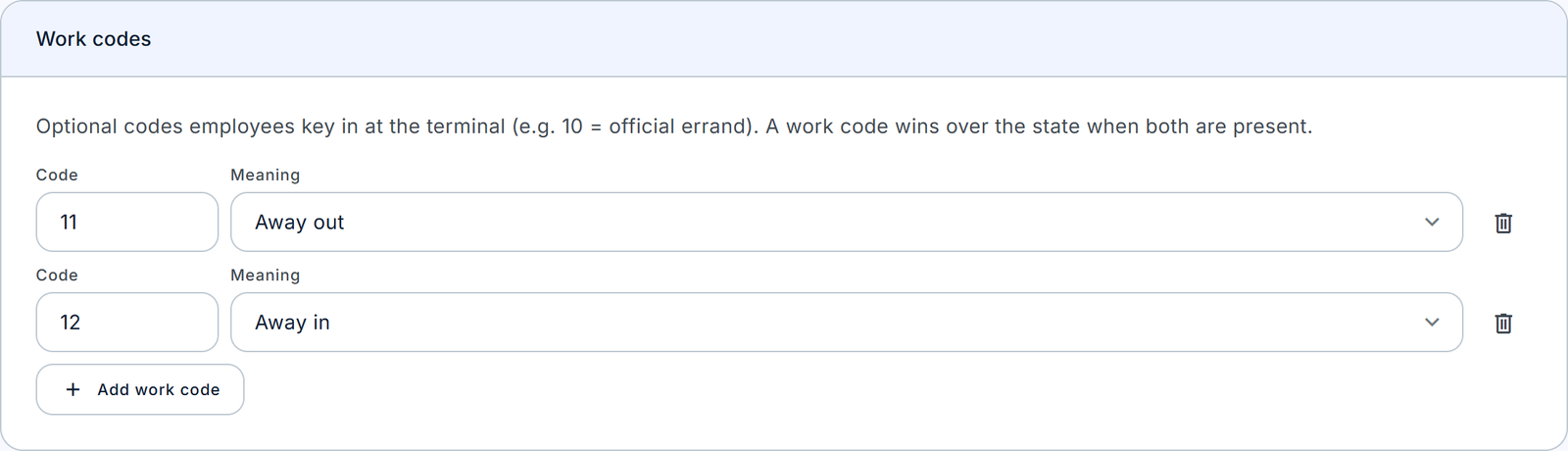
Work codes are optional codes the employee keys in at the terminal, for example "10 = official errand". Click Add work code, enter the Code and choose its Meaning (the same choices as for states). A mapped work code wins over the state when both are present. Code 0 and blank codes are ignored. Each code can be mapped once, and every code needs a meaning.
Example: map work code 3 to Away out and 4 to Away in. A cashier who presses check-out with work code 3 is read as leaving on an absence, even though the state says check-out. Because of that, the punch is never taken as the end of the shift.
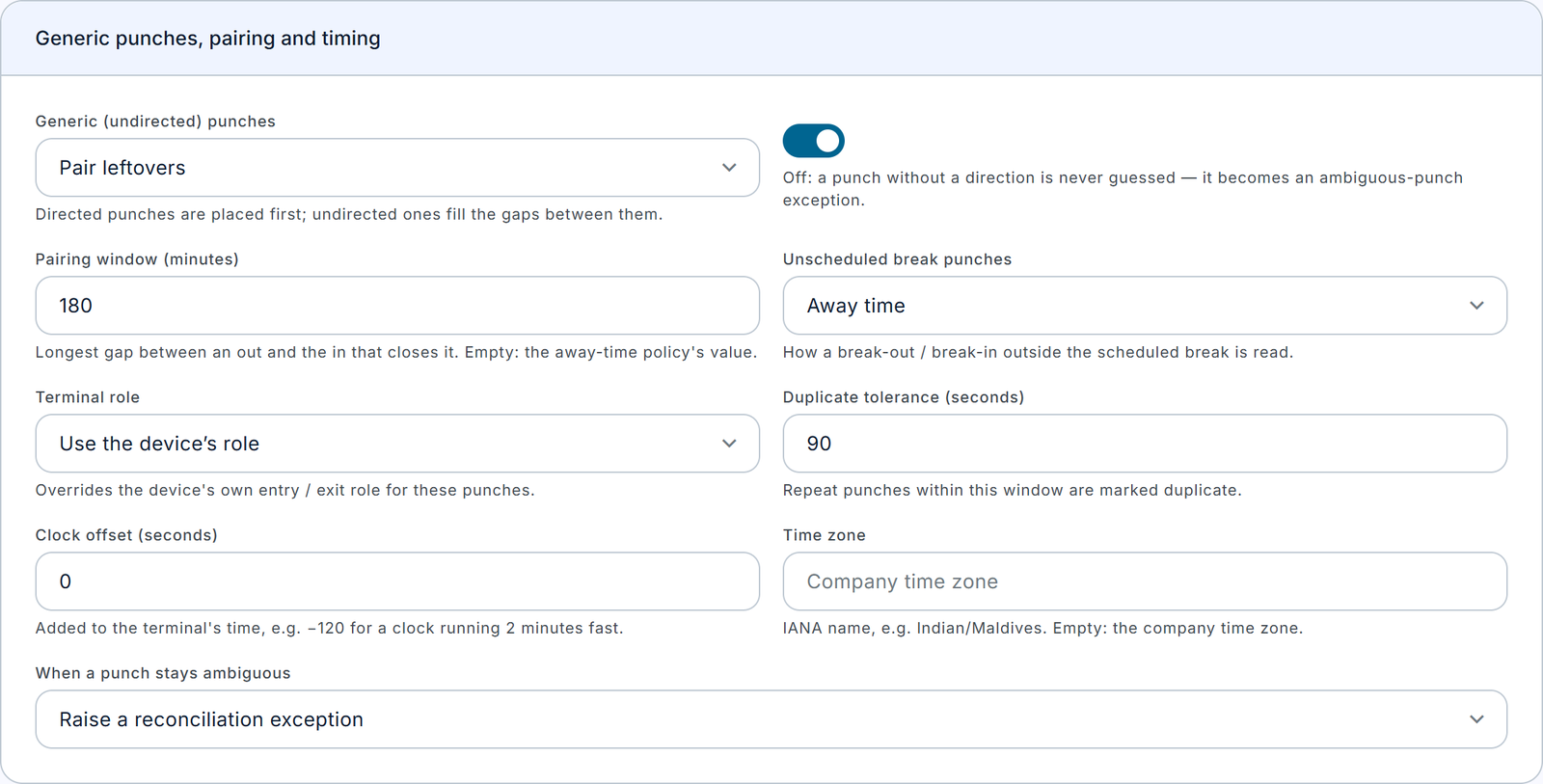
Generic punches, pairing and timing
| Field | What it does | Values / default | Impact of the choice |
|---|---|---|---|
| Generic (undirected) punches | How punches with no usable direction are read. | Alternate in / out, Pair leftovers, Treat as ambiguous. Seeded default: Alternate. New web profiles: Treat as ambiguous. | Alternate in / out: use the direction worked out when the punch arrived (alternating from the previous punch); flagged as "inferred". Needs Allow direction inference. Pair leftovers: after the shift's start and end are taken, the remaining punches inside the shift are paired out, in, out, in in time order. Treat as ambiguous: never guess; each such punch inside the shift becomes an ambiguous-punch exception. |
| Allow direction inference | Whether a guessed direction may be trusted. | On or Off. Seeded default: On. New web profiles: Off. | On: guessed directions are used, and any away time that relies on them raises an informational "Inferred direction" exception. Off: "a punch without a direction is never guessed — it becomes an ambiguous-punch exception." The editor will not save Alternate with inference off. |
| Pairing window (minutes) | The longest gap between an out and the in that closes it. | Minutes, or empty for the policy's "Longest away that still pairs" (240). | Empty: follows the policy. A value: overrides the policy for this terminal's punches. Example: 600 for a site office where staff leave for long client visits. |
| Unscheduled break punches | How explicit break-out / break-in punches outside the scheduled break are read. | Unscheduled break, Away time, Ignore. Default Unscheduled break. | Unscheduled break: classed as an unscheduled break and recorded as an away event (reason asked as usual). Away time: classed as an ordinary absence. Ignore: classed as an unscheduled break with no away event, so prayer or smoke breaks taken with the break keys are never questioned. |
| Terminal role | Overrides the device's own entry or exit role for these punches. | Use the device's role, Any (in and out), Entry only, Exit only. Default: the device's role. | Applies only to punches with no usable direction. Entry only: read as In. Exit only: read as Out. Use it for turnstiles that are entry-only or exit-only. |
| Duplicate tolerance (seconds) | Repeat punches in the same direction within this window count as one. | 0 to 3600. Default 60. | 60: a double tap at 08:56:10 and 08:56:40 counts once; the second is marked Duplicate. 0: only identical times collapse, so double taps may break pairing. Too high (for example 900): a genuine quick return may be swallowed. |
| Clock offset (seconds) | Added to the terminal's time when it is read. | −86400 to 86400. Default 0. | Use −120 for a clock running 2 minutes fast. The raw punch is not changed. Fix the terminal's clock when you can. |
| Time zone | The time zone the terminal clock runs in. | A time zone name such as Indian/Maldives, or empty for the company time zone. | Set it only for a terminal located in another time zone; otherwise every punch is shifted by hours. |
| When a punch stays ambiguous | What to do with a punch that still cannot be read. | Raise a reconciliation exception, or Ignore the punch. Default: raise an exception. | Exception: the punch is marked Ambiguous and listed under Ambiguous punches for review. Ignore: the punch is kept but not classified, with no exception. Use Ignore only for a terminal whose stray punches you never need to explain. |
Important: A new profile created on the web starts stricter than "Default (ZKTeco)": Generic punches is set to Treat as ambiguous and Allow direction inference is off. That is safe for an unknown terminal, but different from the default. Check the values before saving.
Preview against real punches

The Preview against real punches card is at the bottom of the editor. It needs the Punch profiles › Preview permission.
- Edit the settings. You do not need to save; the preview uses what is on screen, even for a new profile.
- Choose a Device and/or an Employee (at least one).
- Choose From and To, at most 7 days.
- Click Run preview.
With a device, the on-screen settings apply only to that device's punches, for up to 50 employees who punched on it. With only an employee, they apply to all of that employee's punches. For each employee and day, the preview shows:
- the away events it would create (for example "Away 11:15–11:45"), plus early departures, scheduled breaks and late returns;
- every punch, with its punched and effective time, state and work code, device, and how it was read (with "(inferred)" where guessed);
- the exceptions it would raise.
Nothing is saved.
Tip: For a new terminal model, start with Treat as ambiguous and inference off, preview a normal week, fix any wrongly read states or work codes, and relax the generic handling only if the terminal really sends undirected punches.
3d. Device groups
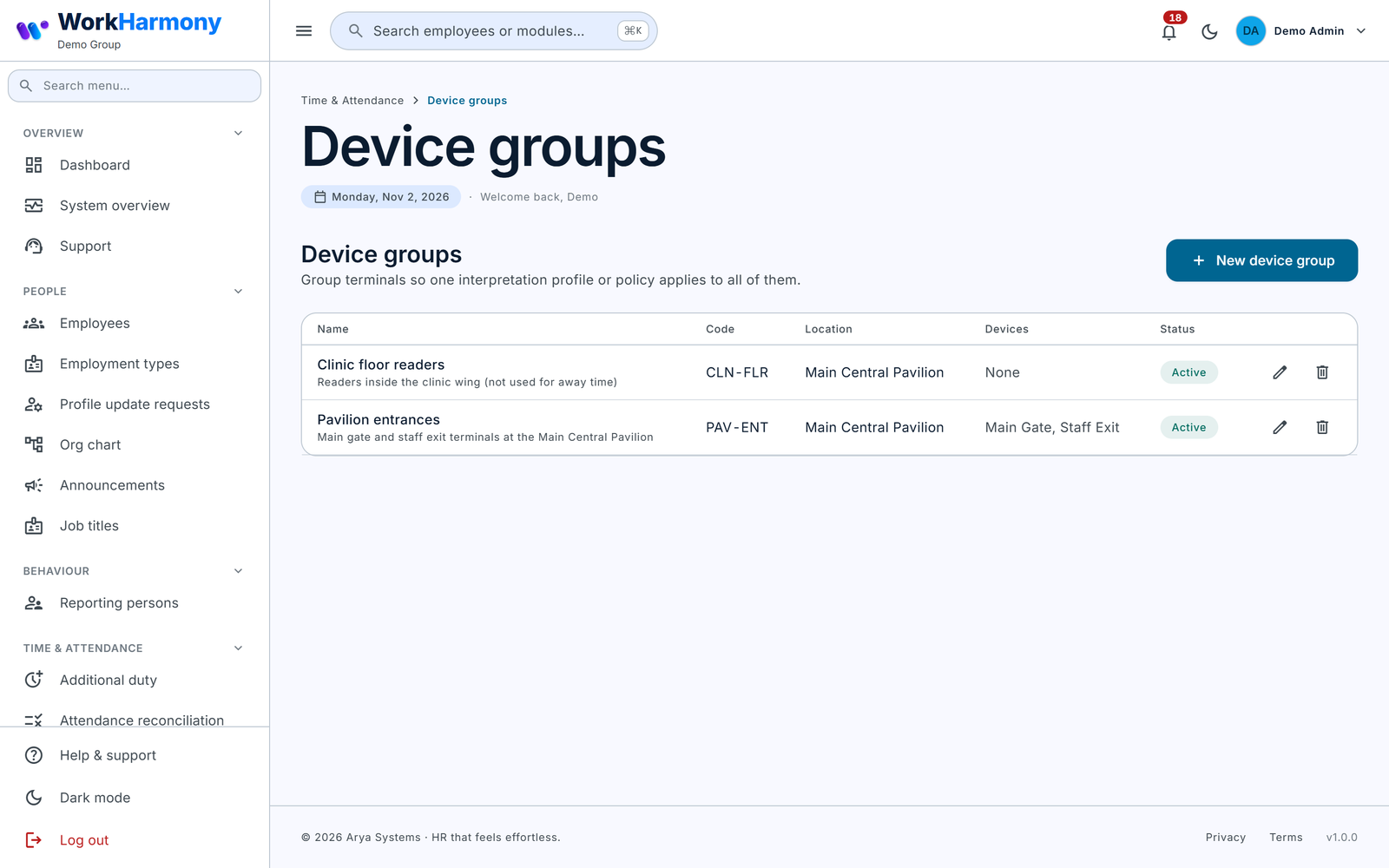
A device group lets one interpretation profile cover several terminals at once, for example "Main gate turnstiles" or "Canteen readers". Open Time & Attendance › Device groups. The list shows Name, Code, Location, Devices and Status.
- Click New device group.
- Enter the fields below and pick the Devices.
- Leave Active on and save.
| Field | What it does | Values / default | Impact of the choice |
|---|---|---|---|
| Name | The group's name. | Text. Required. | Shown when you choose a group for a profile. |
| Code | A short code. | Text, up to 40 characters. Optional. | Shown with the name, for example "Main gate (GATE)". |
| Location | The site the group belongs to. | A location. Optional. | For reference. Profiles have no location of their own: to apply a profile to a site, put that site's devices in a group and scope the profile to the group. |
| Description | Notes. | Text. Optional. | For reference. |
| Devices | The terminals in the group. | One or more devices. | A device can be in several groups. If more than one of its groups has a profile, the group created first wins. |
| Active | Whether the group is used. | On or Off. Default On. | Off: the group is ignored when profiles are chosen. Use it instead of deleting a group a profile depends on. |
A group cannot be deleted while a punch profile is scoped to it. Deactivate it instead. Deleting a group never deletes its devices.
Device fields used by Away-Time
Time & Attendance › Devices gains three fields, under "Punch interpretation":
| Field | What it does | Values / default | Impact of the choice |
|---|---|---|---|
| Device Model | The model as the terminal reports it, for example SpeedFace-V5L. | Text. | Model-scoped profiles match on it. |
| Terminal Role | Whether the terminal is an entrance or exit gate. | Any, Entry, Exit. Default Any. | On an entry-only terminal, a punch with no usable state is read as In; on an exit-only one, as Out. |
| Device Groups | The groups the device belongs to. | Device groups. | Shown and saved only while Away-Time is enabled and you can see device groups. |
3e. Away reason categories
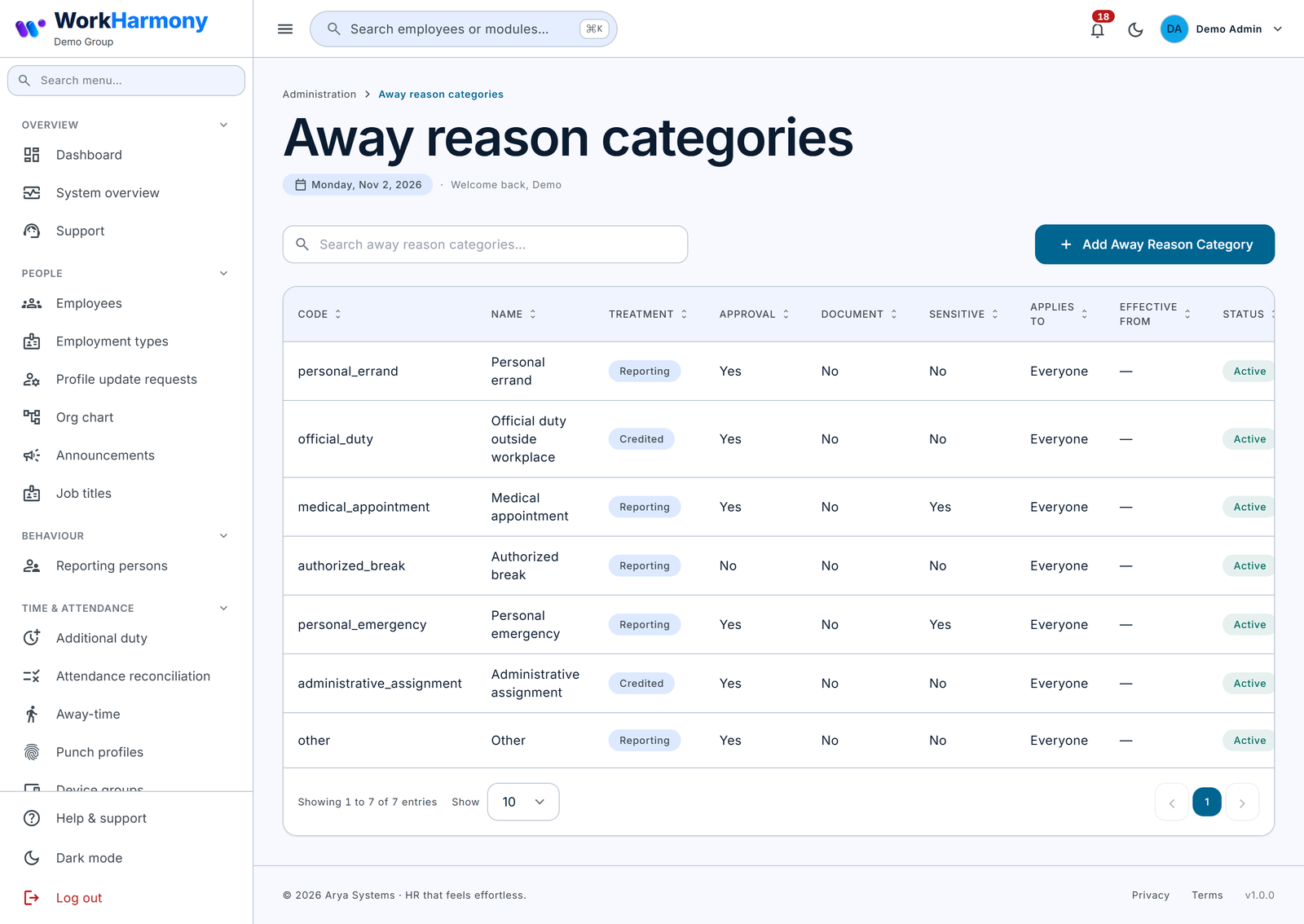
Open Administration › Away reason categories. The list shows Code, Name, Treatment, Approval, Document, Sensitive, Applies to, Effective from and Status.
Seven categories are created on upgrade. None of them is deductible: personal reasons are reporting only, clearly work-related ones are credited, and you decide the rest.
| Code | Name | Treatment | Approval | Sensitive |
|---|---|---|---|---|
| personal_errand | Personal errand | Reporting only | Yes | No |
| official_duty | Official duty outside workplace | Credited | Yes | No |
| medical_appointment | Medical appointment | Reporting only | Yes | Yes |
| authorized_break | Authorized break | Reporting only | No | No |
| personal_emergency | Personal emergency | Reporting only | Yes | Yes |
| administrative_assignment | Administrative assignment | Credited | Yes | No |
| other | Other | Reporting only | Yes | No |
The upgrade never re-creates a category you deleted, and never undoes your edits.
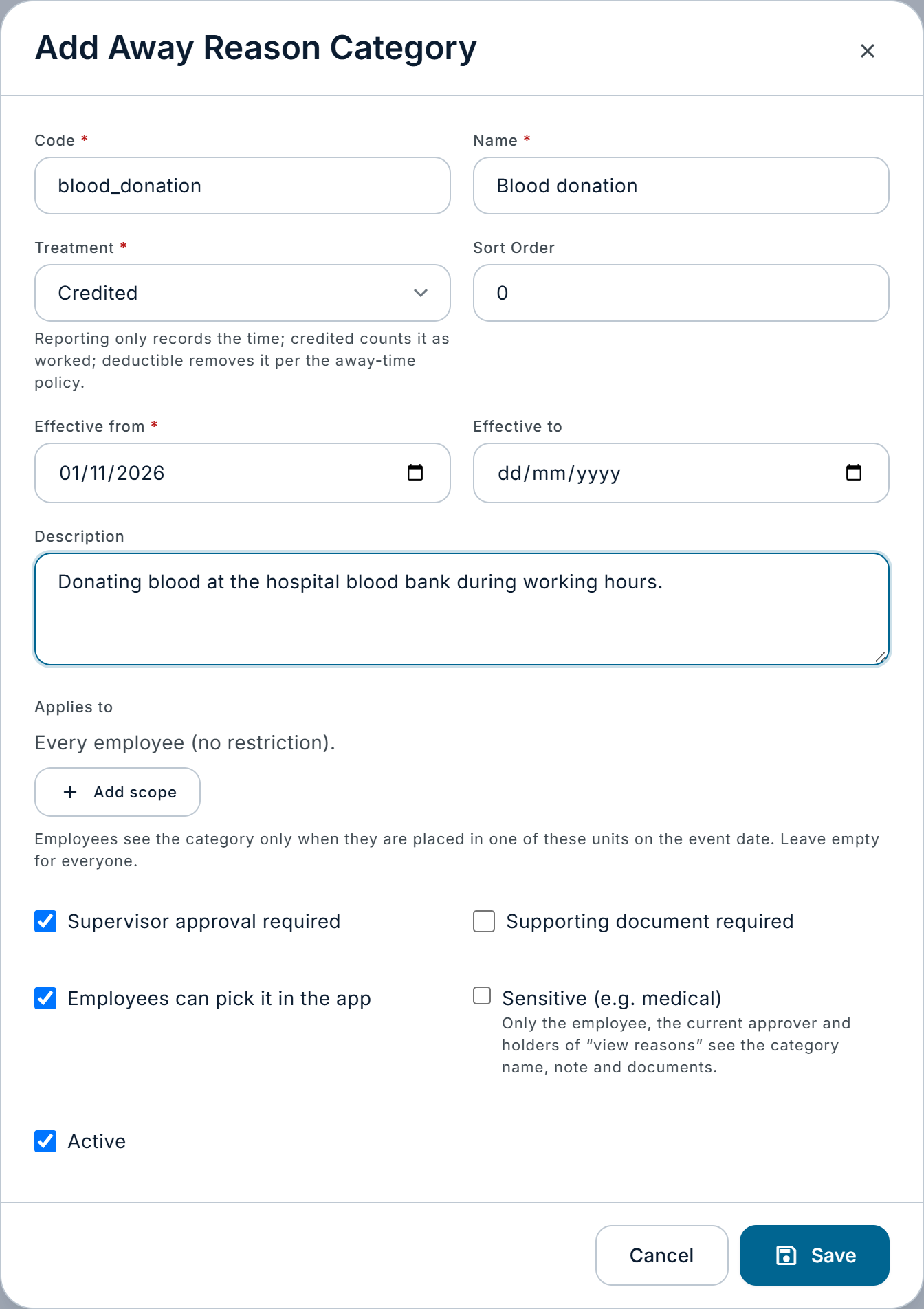
| Field | What it does | Values / default | Impact of the choice |
|---|---|---|---|
| Code | A unique short code. | Text. Required. | Used in reports. |
| Name | What employees and supervisors see. | Text. Required. | Shown in the app's "Why were you away?" list. |
| Treatment | What the time counts as once the reason is approved or accepted. | Reporting only, Credited, Deductible. Default Reporting only. | Reporting only: recorded only. Credited: counts as worked when the policy credits official duty and the calculation mode is Credited. Deductible: removed according to the policy's Away calculation; nothing happens while that is Reporting only. |
| Sort Order | Position in lists. | A number. Default 0. | Lower numbers appear first. |
| Effective from | First day the category can be used. | A date. Required. | Events dated earlier cannot use it. Seeded categories have no date, so the form asks for one when you edit them. |
| Effective to | Last day it can be used. | A date or empty. | After it, the category disappears from the app. |
| Description | An explanation. | Text. | Helps staff pick the right reason. |
| Applies to | Limits the category to parts of the organisation. | Rows of Whole organisation, Location, Division, Department, Section or Unit. Empty means everyone. | Employees see the category only when they are placed in one of these units on the event date. Example: a "Port clearance" category for the Logistics department only. Choosing Whole organisation in any row makes it apply to everyone. |
| Supervisor approval required | Whether a reason in this category goes to approval. | On or Off. Default On. | Off: the reason is accepted at once. The policy's "Reasons need supervisor approval" can also turn approval off for everyone. |
| Supporting document required | The employee must attach a document. | On or Off. Default Off. | The reason cannot be submitted without one (up to 5 files of 8 MB: PDF or photo). Documents need a connection in the app. |
| Employees can pick it in the app | Whether employees see the category. | On or Off. Default On. | Off: only supervisors can use it, for example when recording an event. |
| Sensitive (e.g. medical) | Hides the category name as well as the note and documents. | On or Off. Default Off. | On: "Only the employee, the current approver and holders of View reasons see the category name, note and documents." Others see "Restricted". |
| Active | Whether the category can be chosen. | On or Off. Default On. | Off: hidden from new reasons; past events keep it. |
A category that any away event already uses cannot be deleted. Deleting it deactivates it instead, and the screen says so. Unused categories are deleted.
Note: For every reason, not only sensitive ones, the note and documents are visible only to the employee, the current approver (unless the policy says Hr only) and holders of View reasons. Other console users see "Reason provided" in the lists.
4. How it works, end to end
The pipeline
Each time punches arrive for an employee, or a day is recalculated, WorkHarmony processes the day. When a terminal sends a punch, the previous day is processed again too, so overnight shifts are covered. The steps are:
- Shift matching. The normal attendance matching picks the shift's actual in and out, as it always has. Break-out, break-in and away keys (and the app's Step out and I'm back) are set aside first, so they are never taken as the start or end of a shift.
- Reading each punch. The applicable profile gives each punch an effective time (time zone and clock offset applied) and a meaning. App taps always mean away out and away in. After that, a mapped work code wins, then the state map. A punch with neither uses its stored direction. A generic punch takes the terminal role, or failing that a guessed direction marked "inferred".
- Classification. Rules run in a fixed order, and the first rule that matches decides the punch's class (table below).
- Away events. Each departure-and-return pair becomes an away event. The capture method decides which sources count, and duplicates from several sources are merged.
- Reasons. Events of at least the minimum length need a reason, due a set number of hours after the return.
- Approval and correction. Reasons go to approval when required. Employees can ask for corrections.
- Calculation. The day's figures are worked out, using the treatment of each closed event and the policy's calculation mode.
The same punches always give the same result, so reprocessing never doubles anything. Days in a pay period locked for attendance, or locked by payroll, are never changed. Late punches for such a day raise a "Late data in a closed period" exception instead.
Punch classes
| Rule | When it applies | Result |
|---|---|---|
| Device scope | The device is outside the policy's device groups (only when the policy lists groups) | Ignored |
| Duplicate | Same direction within the duplicate tolerance | Duplicate |
| Additional duty | The punch belongs to an additional-duty session | Duty start or end |
| Shift edge | Chosen by shift matching as the shift's actual in or out | Shift start or end |
| Early departure | The shift's out is before the shift end but within the early-departure window, or an out near the end with no later in | Early departure (not away) |
| Scheduled break | An out inside the scheduled break plus or minus the tolerance, with its in | Scheduled break; an in after break end plus tolerance is a Late return |
| Away pair | An out then an in inside a shift or duty session, within the pairing window | Away start and end; explicit break keys give an Unscheduled break instead |
| App pair | The app's Step out then I'm back | Away start and end |
| Open away | An out with nothing after it while the shift has no end punch yet | Away start of an open event |
| Ambiguous | Anything else inside the day | Ambiguous, plus an exception |
| Outside sessions | Outside every shift and session (rest day, no roster) | Ignored |
Things to know:
- Not every out is an absence. An out close to the shift end is an early departure, and an out inside the scheduled break is the break.
- A return with no departure, or a departure with no return before the shift-end punch, is ambiguous. A "Missing punch" exception is raised. No time is guessed.
- A late return from the scheduled break is recorded on the punch as Late return. It does not create an away event.
Tip: With terminals that send only ordinary check-in and check-out, the system cannot tell a mid-day check-out from the end of the shift until the later punches arrive. Such absences usually appear once the end-of-shift punch is received, and short-lived ambiguous exceptions during the day normally clear themselves. If you want people to show on the Live tab as away the moment they leave, have them use the break-out key, a work code mapped to Away out, or the app's Step out.
Event states
| State | Meaning |
|---|---|
| Open | A departure is recorded but no return yet. The duration shows as "so far". Open events count as events, never as minutes. |
| Closed | Departure and return are both known. Only closed events count in the calculation. |
| Voided | The event no longer applies. Either reprocessing no longer supports it (for example, a late punch changed the picture), or an approved correction said "not away", or it was merged into another event. Voided events are kept for the record, never deleted. |
"Unclosed" is not a separate state. It describes an open event that is still open after the shift end plus the unclosed alert time. "Ambiguous" describes punches, not events: an ambiguous punch creates no event until someone settles it.
Reason statuses
| Status (as shown on events) | Meaning |
|---|---|
| Required | A reason is needed. Filters show it as "Reason required". |
| Submitted | The employee gave a reason and it waits for approval. Filters show it as "Pending approval". |
| Approved | An approver approved it. The category's treatment applies. |
| Accepted | Accepted without approval (the category or policy needs none, or a supervisor recorded it). The category's treatment applies. |
| Rejected | An approver rejected it. The policy's "Treatment of rejected / overdue reasons" applies. |
| Clarification requested | The approver asked for more detail. The employee can update and resend it. |
| Overdue | The deadline passed with no reason. The "Treatment of rejected / overdue reasons" applies. A reason can still be given. |
| Not required | Shorter than the minimum, or the policy requires no reasons. Treated as reporting only. |
Treatments
| Treatment | Comes from | Effect |
|---|---|---|
| (none yet) | A reason that is still required or pending | Never deducted while pending. |
| Reporting | A reporting category, a short event, or unexplained time with "Reporting" | Recorded only. |
| Credited | A credited category, approved, with Credit approved official duty on | Counted as worked only in the Credited calculation mode, and only for the part outside attended time but inside the scheduled shift or duty. |
| Deductible | A deductible category, or unexplained time with "Deductible" | Removed per the calculation mode, but only inside attended time and outside the unpaid break. |
Effect on attendance and payroll
Away-Time does not change the punched in and out times, the daily status, or lateness on the attendance sheet. It changes the day's overtime basis, which the attendance sheet, the employee portal and payroll use while the feature is on.
- Reporting only (default): nothing changes.
- Deduct worked: deductible minutes come off net qualifying worked time and so off overtime.
- Deduct overtime only: deductible minutes come off the overtime basis only.
- Credited: credited minutes outside attended time are added.
A minute is never counted twice. Away time inside the unpaid break is not deducted again, and credited time inside time already attended is not added again.
Salary. By default, away time causes no salary deduction; this has been checked in the payroll calculation. A salary deduction happens only when both of these are true on the last day of the pay period: "Deduct away time from salary" is on (organisation default only), and Away calculation is "Deduct worked". Payroll then adds a deduction line "Deductible away time" (category Absence) at the employee's hourly rate.
Finalised payroll. A finalised payslip is never changed. If a later recalculation shows a day in a finalised period should pay differently, WorkHarmony creates a pending payroll adjustment in the next open period and raises an exception. The adjustment goes through the normal payroll adjustments approval; nothing is approved automatically.
A worked timeline
Roster 09:00–17:00 with an unpaid scheduled break from 13:00 to 14:00. The profile is "Default (ZKTeco)", the policy is the default except that Track away time is on, and the employee's daily work hours are 8.
| Punch | State | Read as | Class |
|---|---|---|---|
| 09:00:10 | 0 check-in | In | Shift start |
| 09:00:40 | 0 check-in | In | Duplicate (within 60 seconds) |
| 10:40 | 2 break-out | Break out | Unscheduled break out (outside the scheduled break) |
| 10:52 | 3 break-in | Break in | Unscheduled break in |
| 13:02 | 2 break-out | Break out | Scheduled break out |
| 13:58 | 3 break-in | Break in | Scheduled break in |
| 15:10 | 1 check-out | Out | Away start |
| 15:55 | 0 check-in | In | Away end |
| 17:00 | 1 check-out | Out | Shift end |
What happens:
- Two away events are created: 10:40–10:52 (12 minutes, flagged as an unscheduled break) and 15:10–15:55 (45 minutes). Both are over 5 minutes, so both need a reason. The first is due at 10:52 the next day, the second at 15:55 the next day.
- The employee gets "Reason needed for time away" for each.
- For the 10:40 event, the employee picks Authorized break. That category needs no approval, so the reason is Accepted at once with treatment Reporting.
- For the 15:10 event, the employee picks Personal errand. It goes to approval. The department head approves it, and the treatment becomes Reporting.
- Under the default "Reporting only", the day is unchanged: attended 480 minutes, unpaid break 60, net qualifying 420.
Now suppose HR had changed Personal errand to Deductible:
- Deduct worked: net qualifying becomes 420 − 45 = 375 minutes, and overtime is worked out from that.
- Deduct overtime only: worked time stays 420, but the overtime basis is 45 minutes lower.
- Salary: a deduction of 45 minutes at the hourly rate is taken only if "Deduct away time from salary" is on and the mode is Deduct worked.
If the employee had never given a reason, the 15:10 event would become Overdue at 15:55 the next day, and take the "Treatment of rejected / overdue reasons" (Deductible by default). That matters only in a deducting mode.
5. Screens and tabs
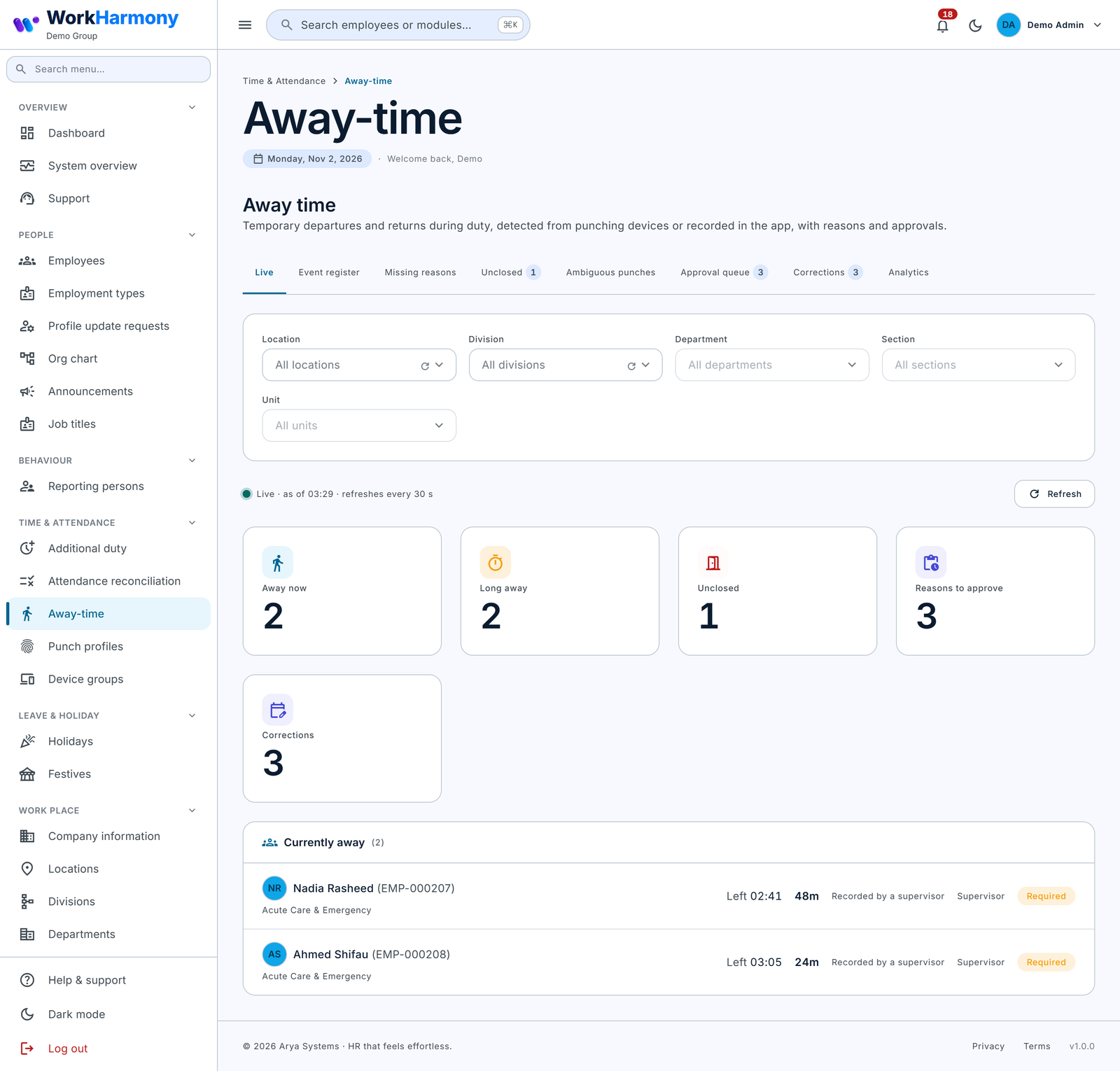
Open Time & Attendance › Away-time. The page has eight tabs. Badges on Approval queue, Unclosed and Corrections show how many items are waiting.
Live
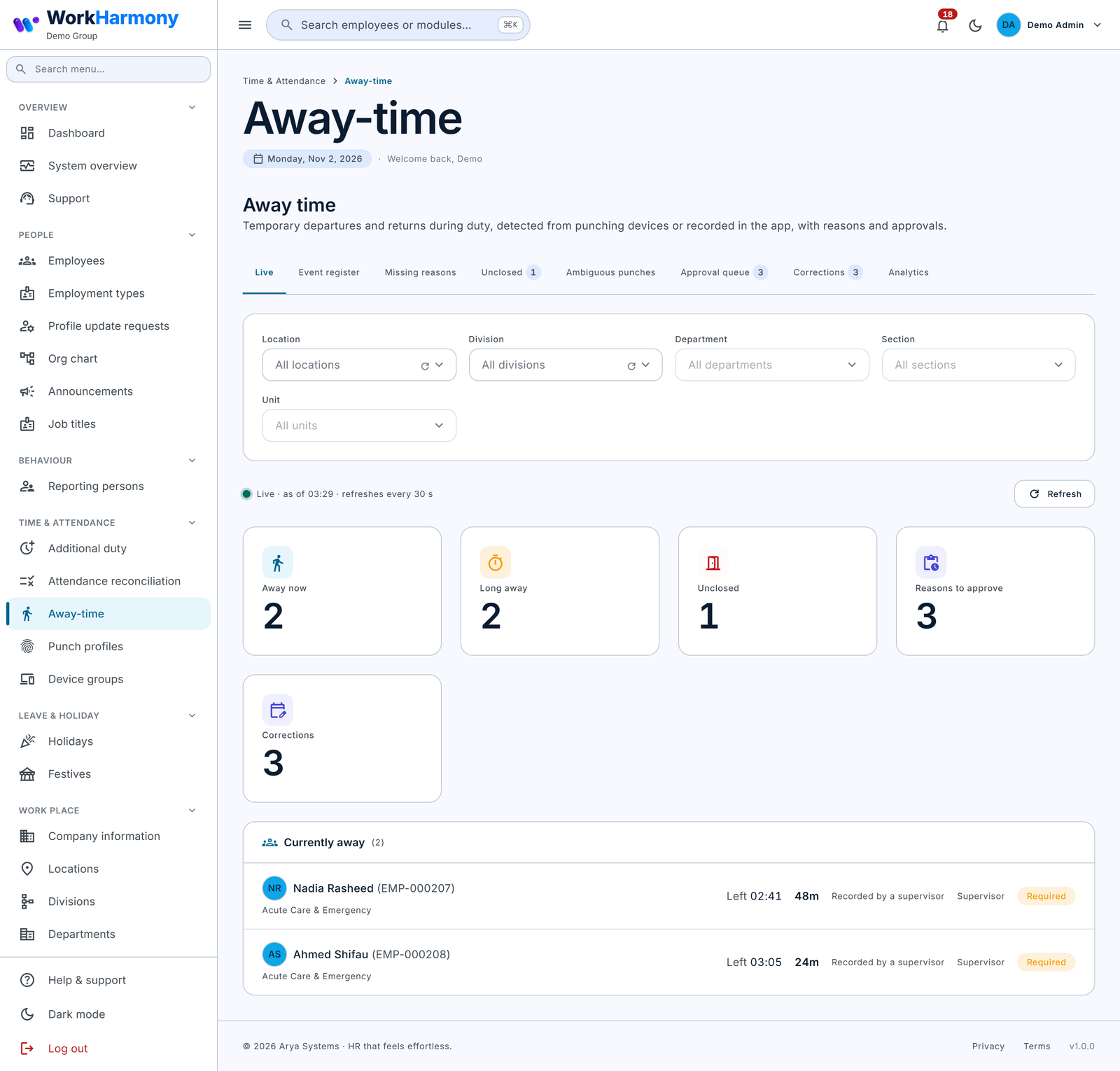
Purpose: see who is away right now.
- Filter by Location, Division, Department, Section and Unit.
- Tiles show Away now, Long away, Unclosed, Reasons to approve and Corrections. Click Unclosed, Reasons to approve or Corrections to jump to that tab.
- Currently away lists each open event: the employee, "Left" time, minutes away so far, session, device (or source) and reason status. Click a row to open the event.
- The tab refreshes every 30 seconds while it is visible ("Live · as of … · refreshes every 30 s"). Click Refresh to update at once.
"Nobody is away" means everyone on duty is at work.
Register
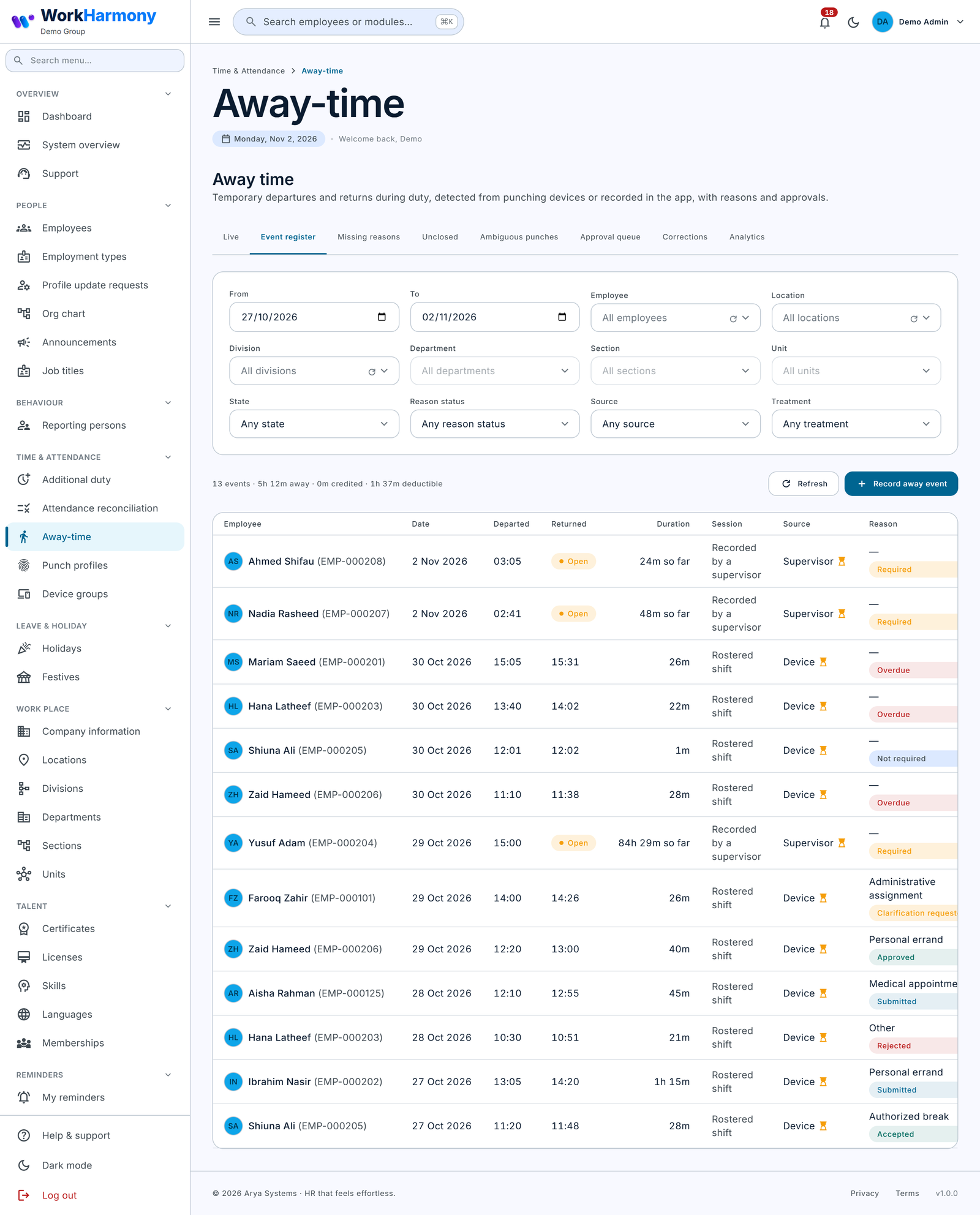
Purpose: search every away event. The tab is labelled Event register.
- Set From and To. The default is the last 7 days, and the maximum range is 93 days.
- Optionally filter by Employee, the org units, State, Reason status, Source and Treatment.
- Read the totals line: events, minutes away, credited and deductible.
- Click a row to open the event.
Columns: Employee, Date, Departed, Returned (or the state, for example Open), Duration ("so far" while open), Session, Source (an hourglass marks a provisional event), Reason (category and status) and Treatment.
Record away event opens the Supervisor entry modal (needs Away-time › Create).
Missing Reasons
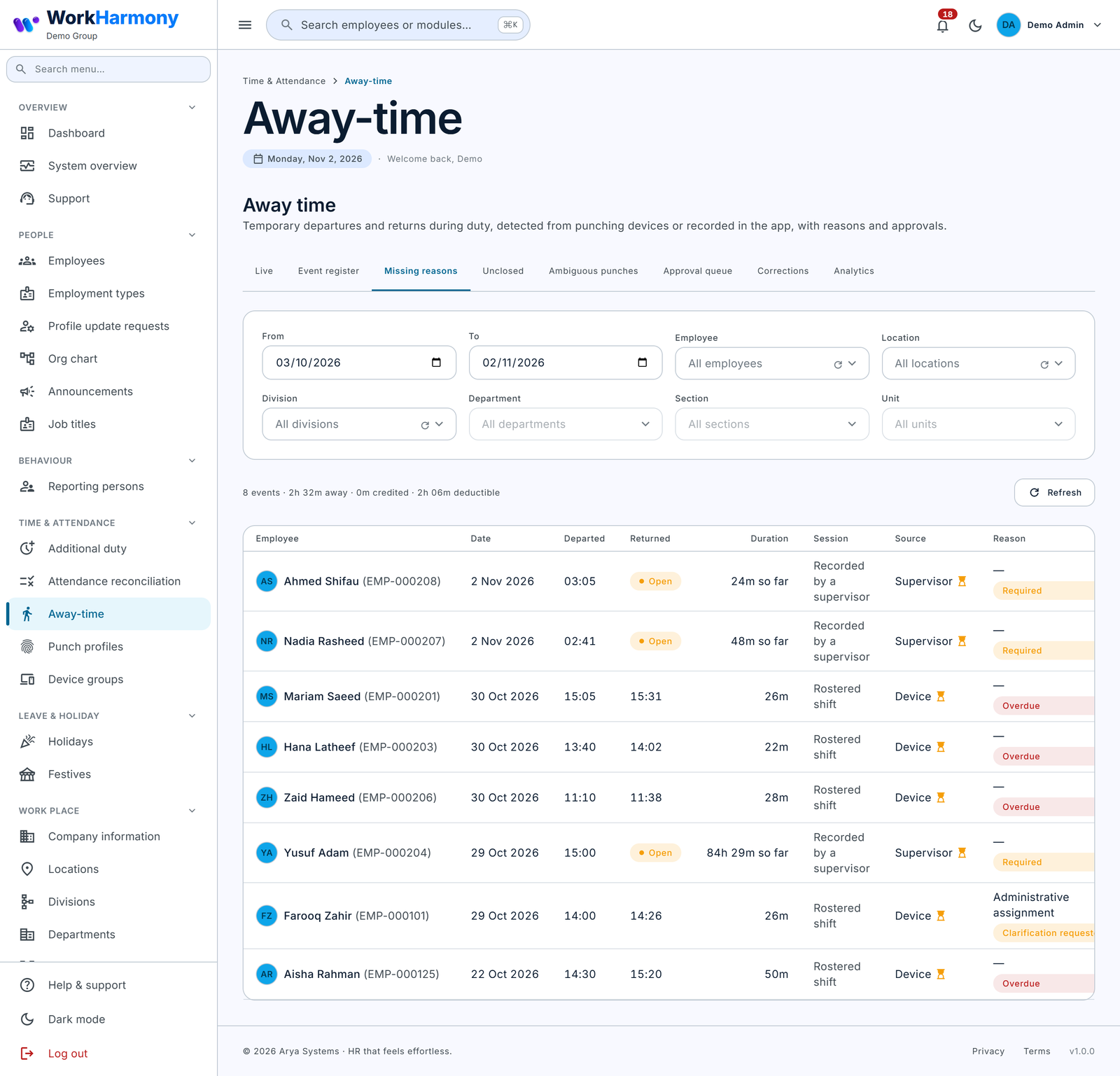
Purpose: follow up events that still need a reason, whether Required or Overdue. The default range is the last 31 days, and the maximum is 93. Remind the employees concerned, or open an event to see its deadline. An event leaves this list once a reason is given.
Unclosed
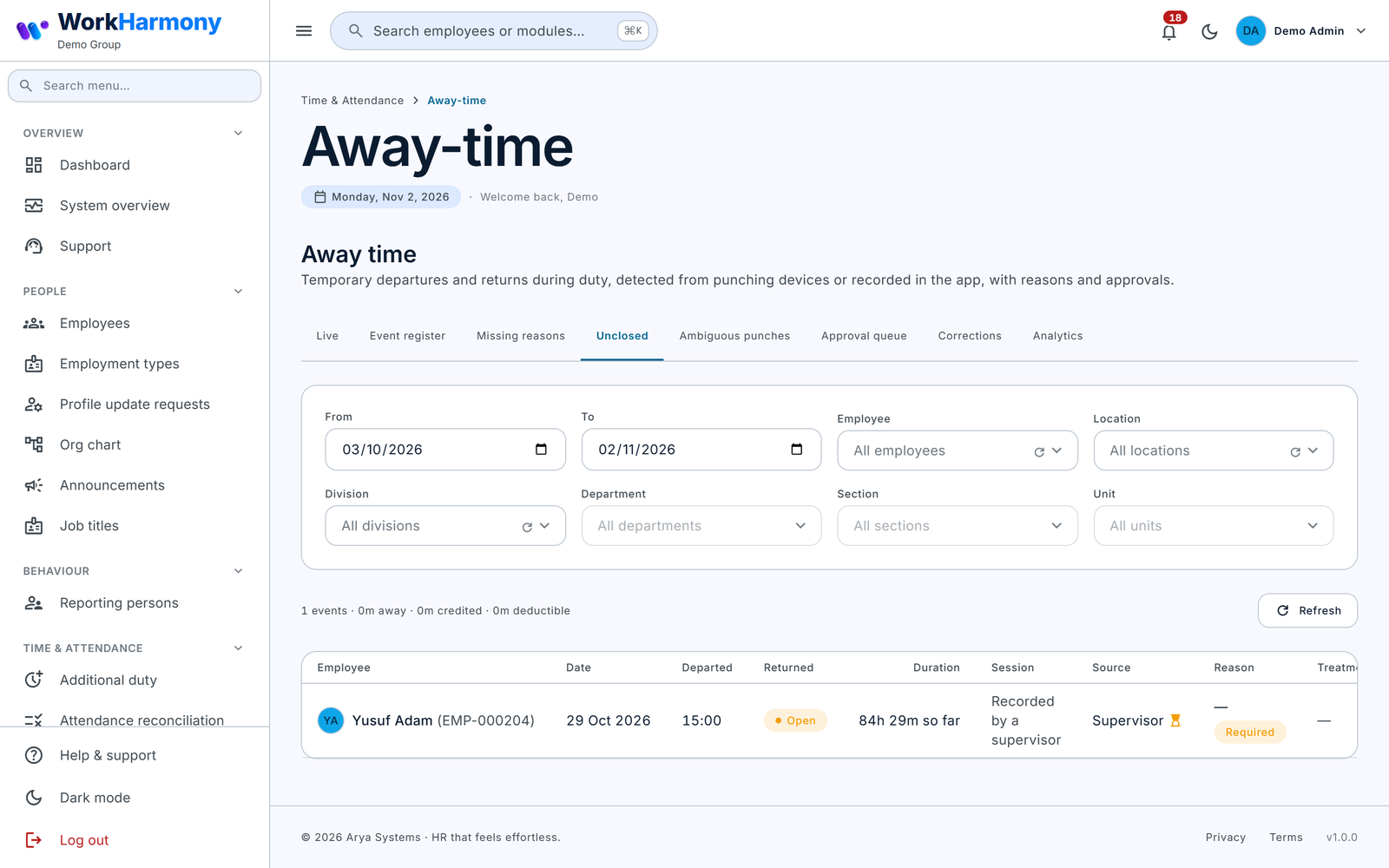
Purpose: settle departures that have no return. The default range is the last 31 days.
- Find the event.
- If you know when the person came back (for example, you confirmed it on site), click Close. You need Away-time › Edit.
- Complete the Close away event modal (below).
Leave events you cannot confirm open. A late punch from the terminal still closes them automatically.
Ambiguous Punches
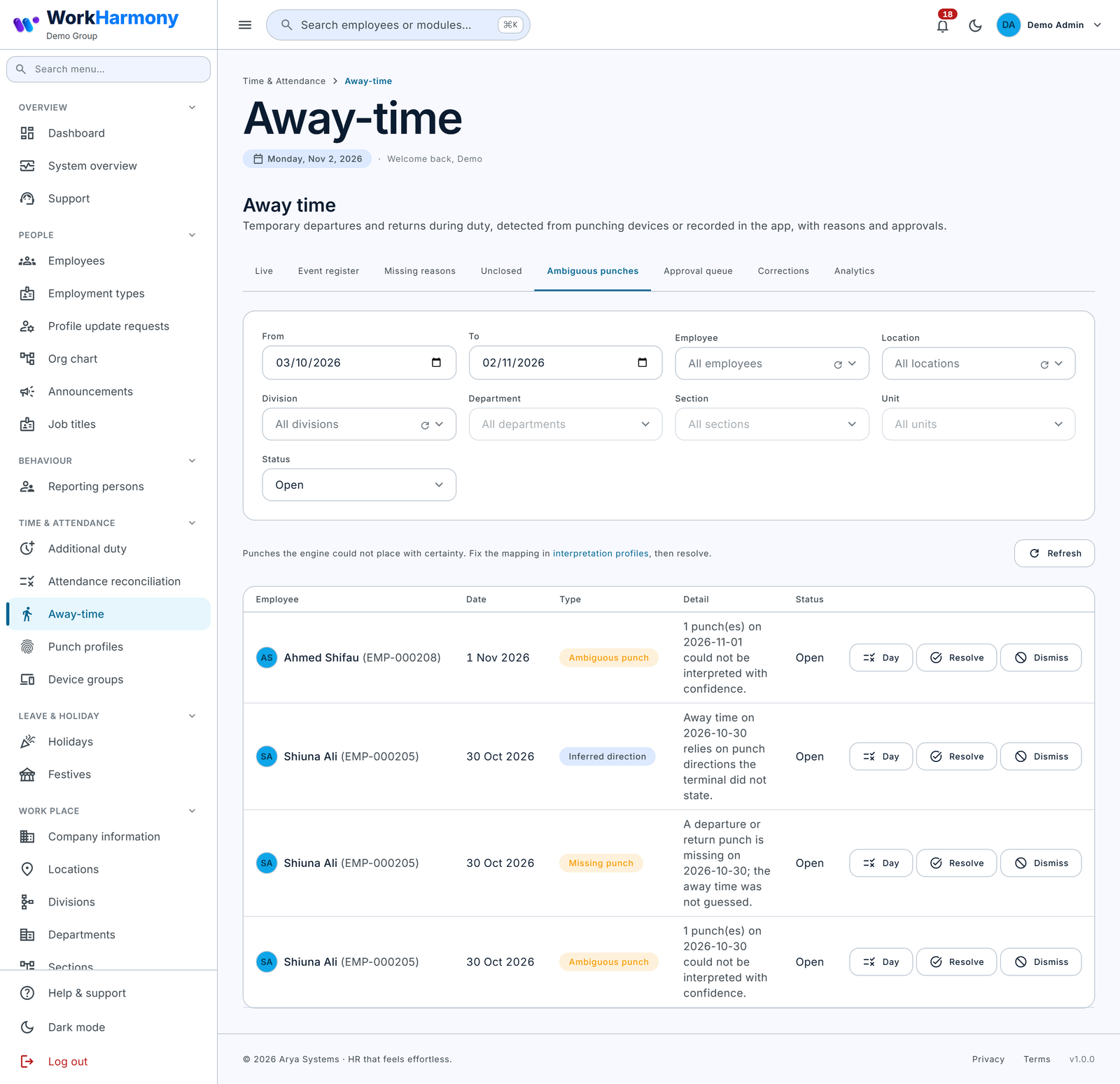
Purpose: review punches the system could not place with certainty. You need Away-time exceptions › View. The tab lists three kinds of exception, one per employee and day:
- Ambiguous punch: a punch that could not be read with confidence.
- Missing punch: a return with no departure, or a departure with no return before the shift ended.
- Inferred direction: away time that relies on a guessed direction (for information).
Filter by date range (default 31 days), Employee, org units and Status (Open, Resolved, Dismissed, Auto-resolved). The default is Open.
For each row:
- Click Day to open Attendance reconciliation for that employee and date, where each punch and its reading is shown.
- If the cause is a mapping problem, fix the punch profile, then recalculate the day.
- Click Resolve and record how it was settled (for example, "profile corrected and day reprocessed"). The Resolution note is required.
- Or click Dismiss and say why ("Why is it being dismissed?" is required). The punch stays classified as it is.
Most of these exceptions clear themselves (Auto-resolved) when a later reprocessing no longer finds the problem.
Note: Other device exceptions do not appear on this tab: Unclosed away, Away event voided with reason, Suspected clock offset and Out-of-order sync. Review those under Attendance reconciliation › Exceptions.
Queue
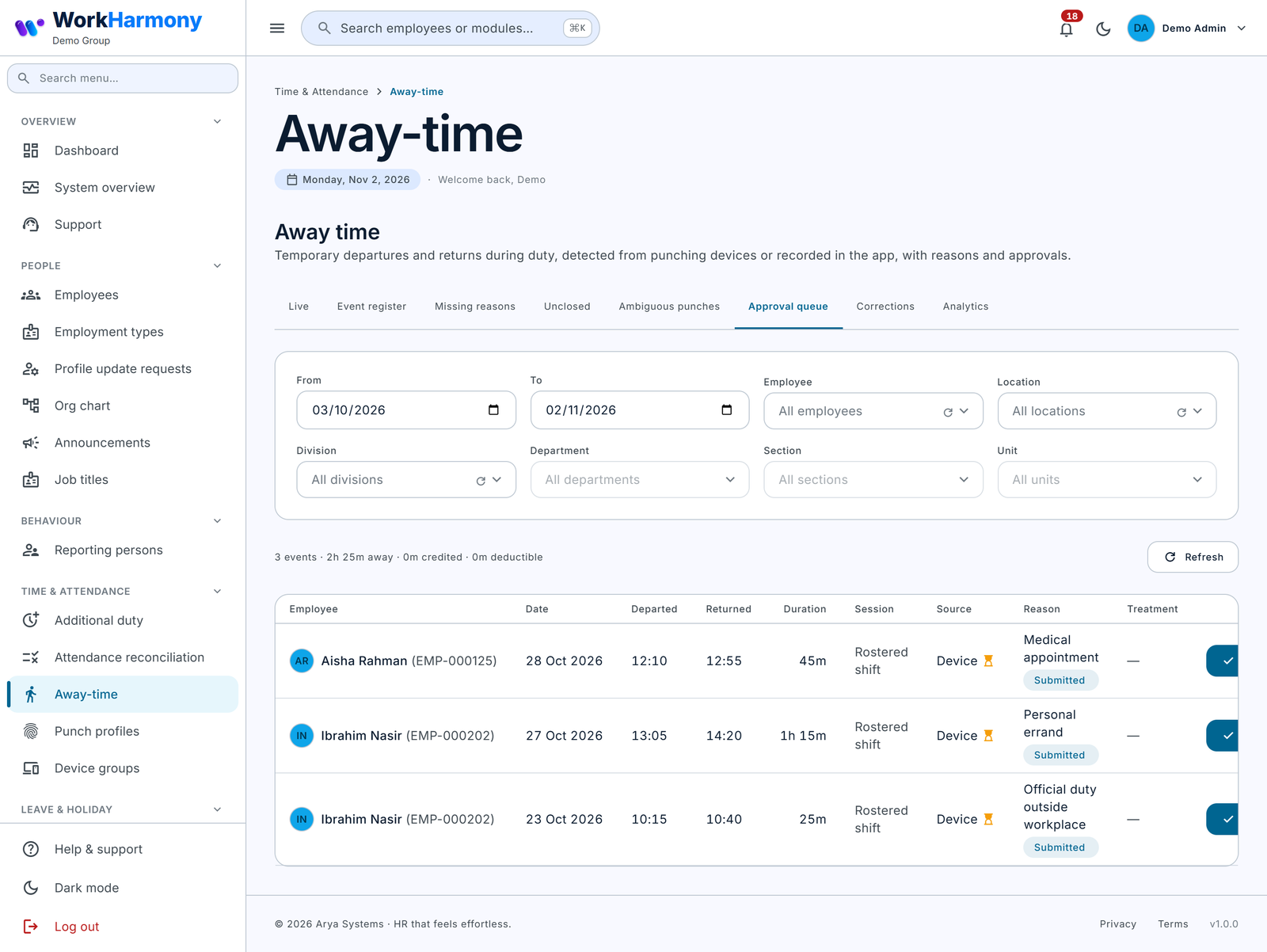
Purpose: decide reasons that are waiting for approval. The tab is labelled Approval queue, and its default range is 31 days. The buttons shown depend on your permissions and on whether the reason is waiting for you.
- Click a row to read the details, or act from the list.
- Approve: confirm "Approve away reason". A comment is optional.
- Clarify: "Request clarification". A comment is required ("What needs clarifying?"). The employee is notified and can update the reason.
- Reject: "Reject away reason". A comment is required; the employee sees it.
On approval, the category's treatment applies. On rejection, the policy's "Treatment of rejected / overdue reasons" applies. Decided reasons leave the queue. Approvers can also decide these items from the normal approvals inbox, on the web or in the app.
Corrections
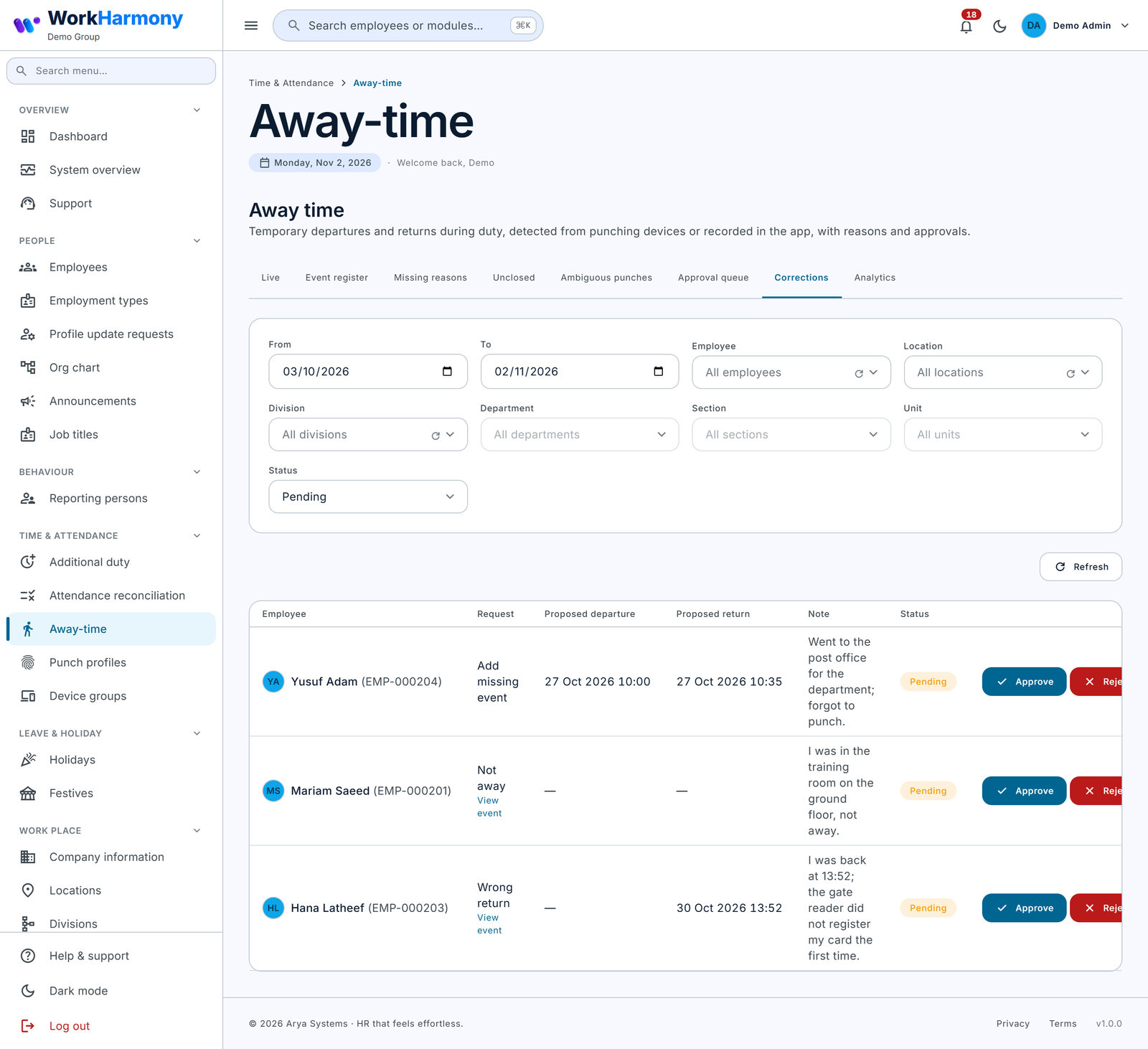
Purpose: decide employees' correction requests. The Status filter defaults to Pending; you can also choose Approved, Rejected or Any status. The default range is 31 days.
Request types:
| Request | What it asks |
|---|---|
| Missing return | Add the return time the device did not record. |
| Wrong departure | Change the departure time. |
| Wrong return | Change the return time. |
| Not away | Withdraw the event: the employee was not away. |
| Dispute classification | Withdraw it: the time was not away time (for example a scheduled break or official errand). |
| Add missing event | Create an event the device never saw ("Report a missed absence" in the app). |
To decide a request:
- Read the request, the proposed times and the note. Click View event to see the event.
- Click Approve. In the Approve correction modal you may adjust Departure and Return before approving, and add an optional comment. Click Approve correction.
- Or click Reject. A comment is required, and the device record stays as it is.
An approved correction changes the event, not the punches, and the event's times are then protected from reprocessing. "Not away" and "Dispute classification" void the event. "Add missing event" creates a new event with source Correction, which then needs a reason like any other.
Note: A correction is never approved automatically. If no approval workflow governs corrections, it waits as Pending until a manager of the employee, or a console user with Away-time › Approve, decides it.
Analytics
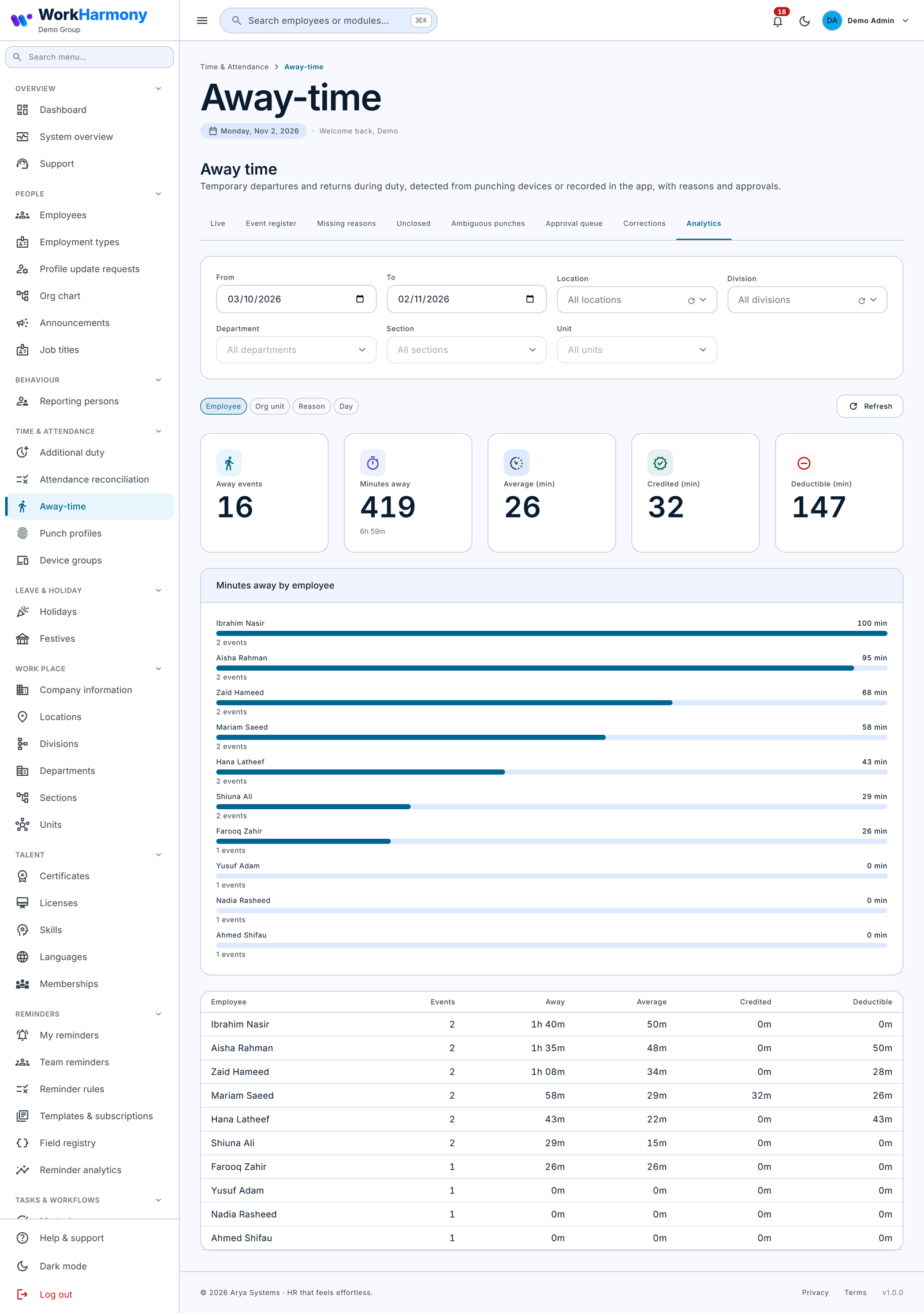
Purpose: see patterns of away time.
- Choose the date range (default 31 days, maximum 93) and any org filters.
- Pick Group by: Employee, Org unit, Reason or Day.
- Read the tiles: Away events, Minutes away, Average (min), Credited (min) and Deductible (min).
- Read the chart. Categories are shown as ranked bars (the top 11, with the rest folded into "Other"). Days are shown as minutes per day, plus a credited-versus-deductible chart.
- The table beneath gives Events, Away, Average, Credited and Deductible for each row.
Without View reasons, sensitive reasons are grouped as "Restricted".
Event detail
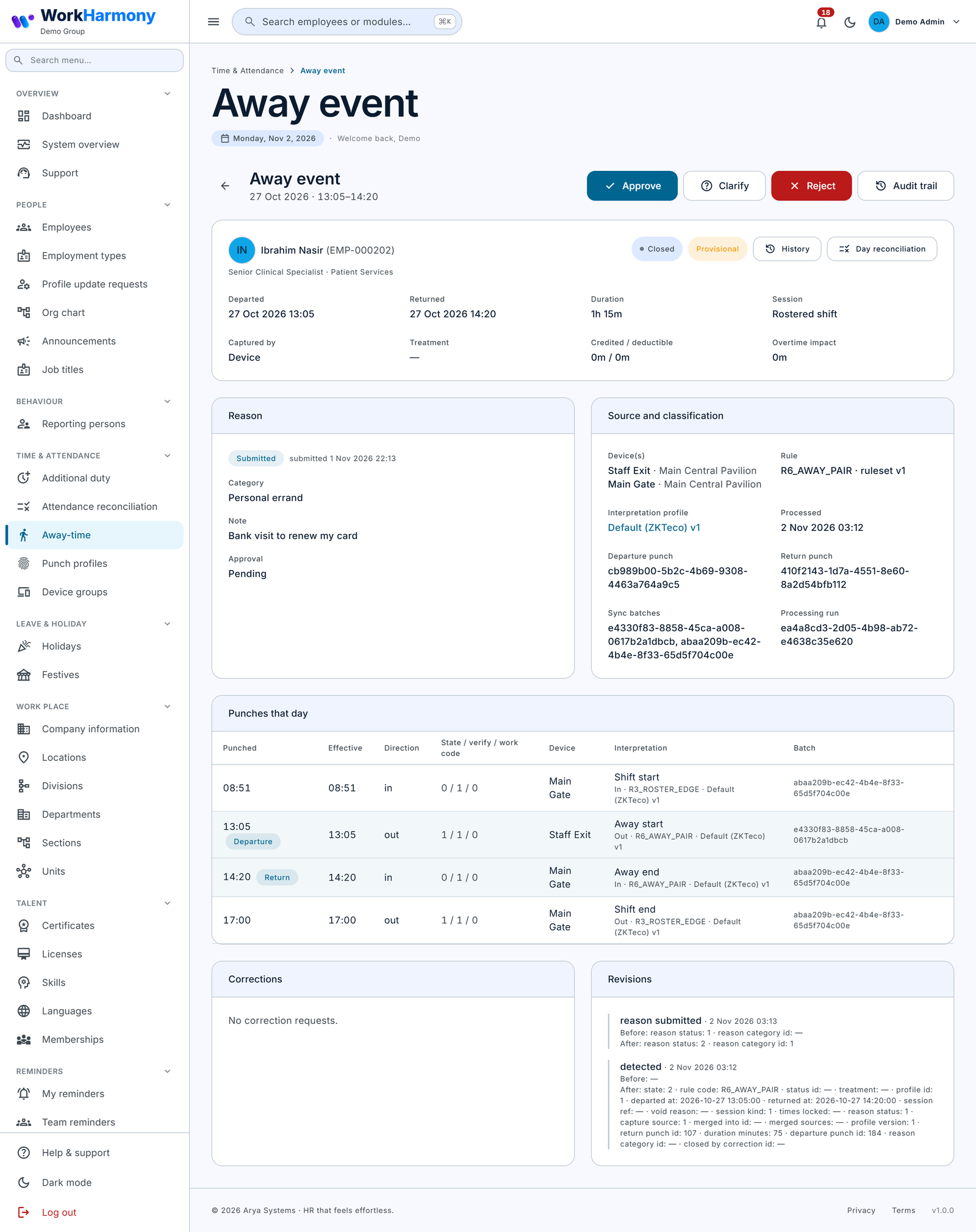
Purpose: see everything about one event. Open it from any list.
- Header: date and times. Depending on your permissions: Approve, Clarify, Reject, Close event (open events) and Audit trail.
- Summary: employee, state, a Provisional badge, History (Employee away history) and Day reconciliation. Fields: Departed, Returned ("Not yet returned"), Duration, Session, Captured by ("also reported by …" when merged), Treatment, Credited / deductible, and Overtime impact (the deductible minutes when the calculation mode deducts).
- Reason: status, due date or submitted date, Category, Note, Documents and Approval. If you may not see it: "Reason provided. The details are restricted to the employee, the current approver and authorised HR staff."
- Source and classification: Device(s), Rule and ruleset version, Interpretation profile and version (click to open), Processed, Departure punch, Return punch, Sync batches, Processing run, and "Voided because" where relevant.
- Punches that day: Punched, Effective, Direction ("(inferred)" if guessed), State / verify / work code, Device, Interpretation (class, meaning, rule, profile) and Batch. The departure and return punches are highlighted.
- Corrections and Revisions: every request and decision, and every change with before and after values.
Note: Every away event currently shows the Provisional badge. Read it as "may still change if punches arrive late or the day is recalculated". The Pay period locked badge on Attendance reconciliation tells you a day can no longer change.
Close event modal
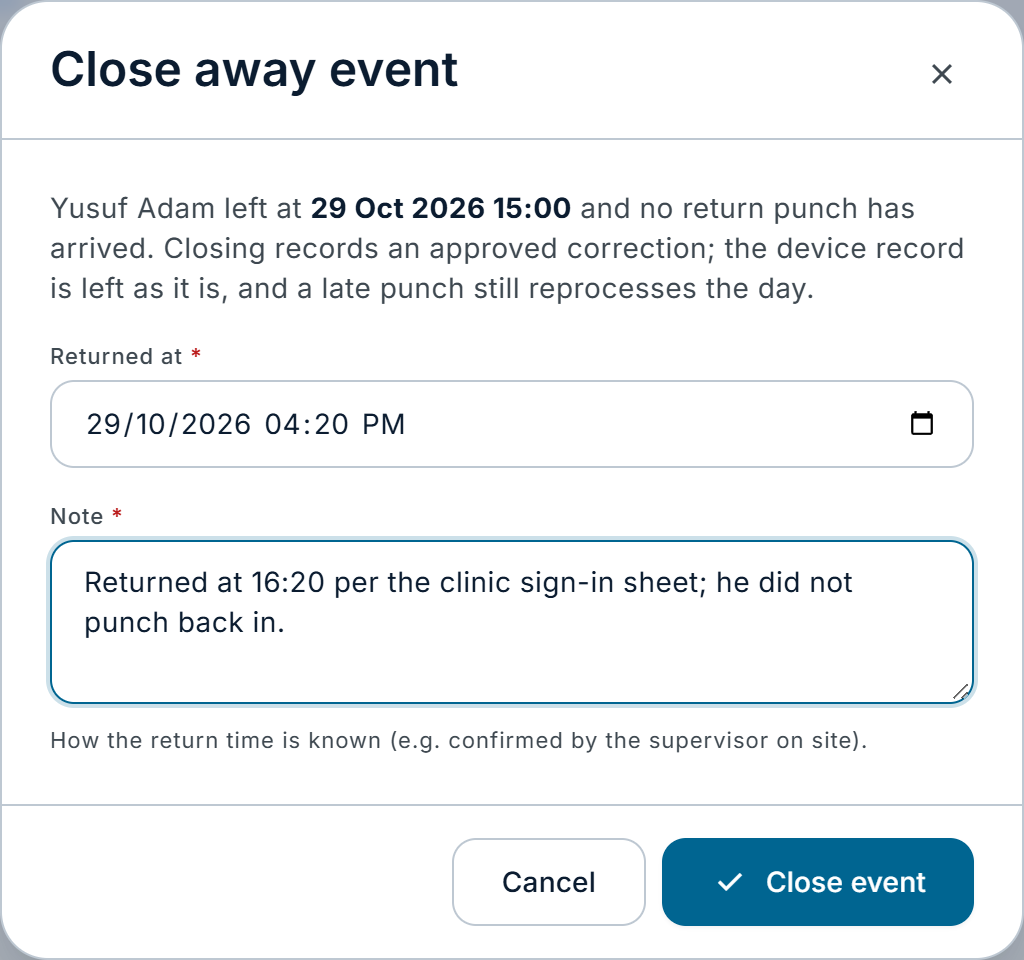
The modal explains: "Closing records an approved correction; the device record is left as it is, and a late punch still reprocesses the day."
| Field | What it does | Values / default | Impact of the choice |
|---|---|---|---|
| Returned at | The return time you know. | Date and time, after the departure. Required. Starts at the departure time. | Becomes the event's return; the duration is calculated from it and protected from reprocessing. |
| Note | How the time is known. | Text. Required. | Kept on the correction and shown in the event's history. For example: "Confirmed by the supervisor on site." |
Click Close event. Only open events can be closed. Do not close an event by guessing.
Supervisor entry modal
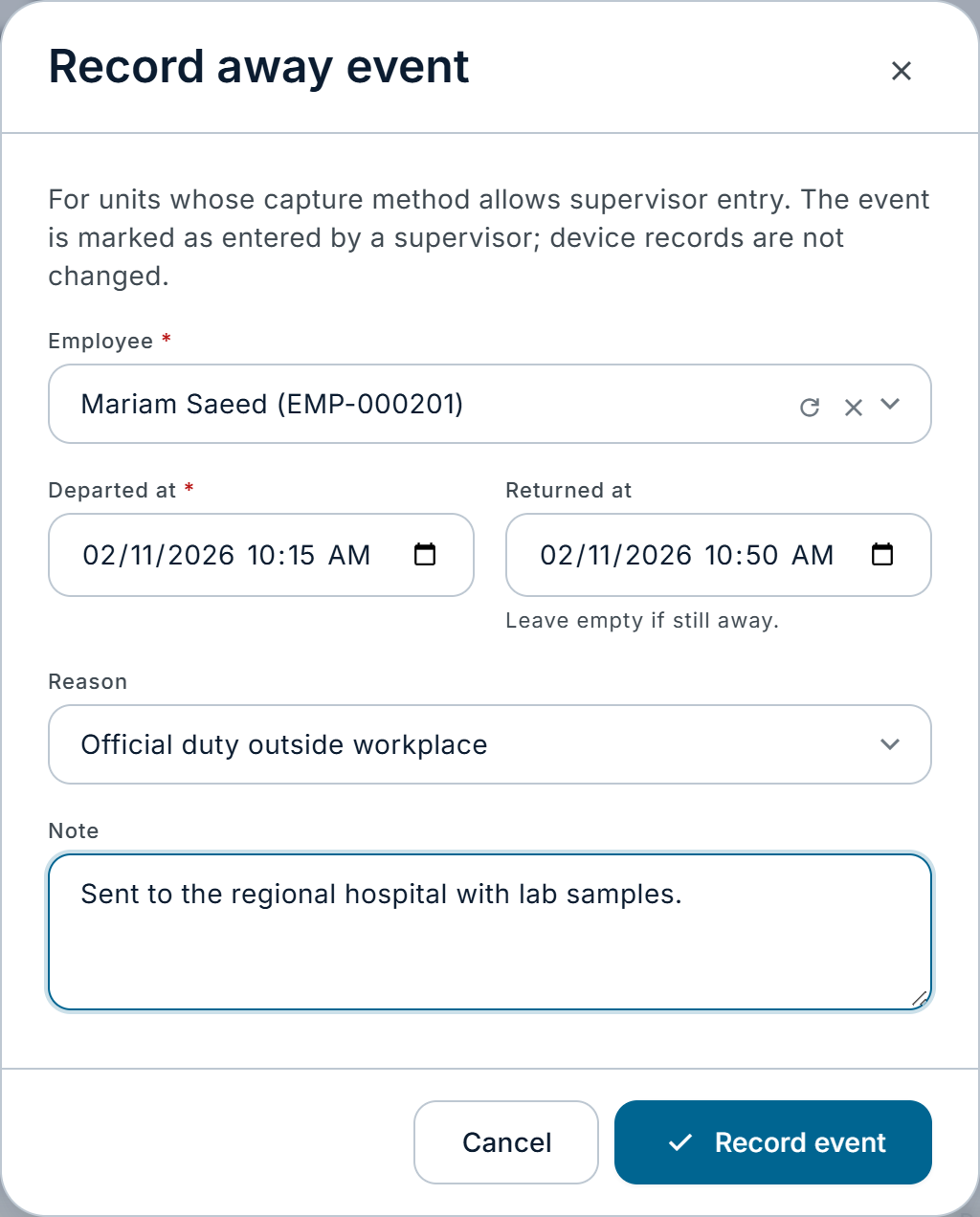
Record away event records an absence that no device or app captured. It needs Away-time › Create. It works only when the employee's capture method is 3 Supervisor entry, 4 Device preferred or 5 Hybrid. The button is shown regardless of the capture method, and the save is refused otherwise. No punch is created.
| Field | What it does | Values / default | Impact of the choice |
|---|---|---|---|
| Employee | Who was away. | An employee. Required. | Their policy decides whether the entry is allowed. |
| Departed at | When they left. | Date and time. Required. | Sets the event's date. Refused in a locked pay period. |
| Returned at | When they came back. | Date and time after the departure, or empty if still away. | Empty: the event stays open. Filled: the event is closed and, without a reason, due a reason after the deadline. |
| Reason | The reason category. | A category, or "— Not given yet —". | Chosen: the reason is Accepted at once, with that category's treatment (credited only if the policy credits official duty). Not given: the employee is asked for a reason as usual, unless the absence is under the minimum. |
| Note | Context. | Text. Optional. | Saved with the event and, with a category, as the reason note. |
In modes 4 and 5, an entry that overlaps an existing event by at least "Merge events overlapping by" is merged into that event instead of creating a duplicate.
Employee away history
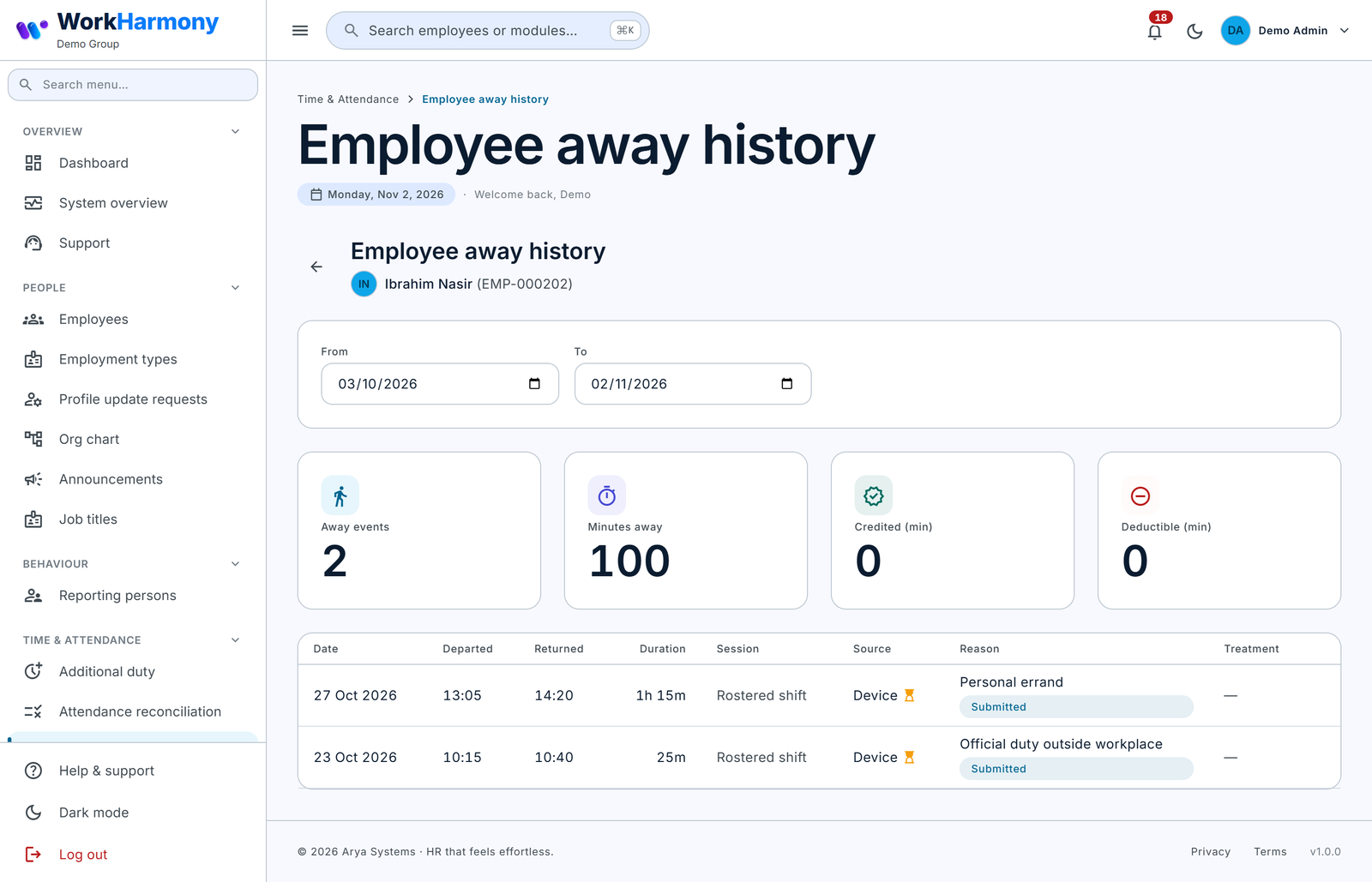
Purpose: one employee's events and totals. Open it from History on an event.
- Choose From and To (default 31 days, up to 366).
- Read the tiles: Away events, Minutes away, Credited (min) and Deductible (min).
- The table lists the events; click one to open it.
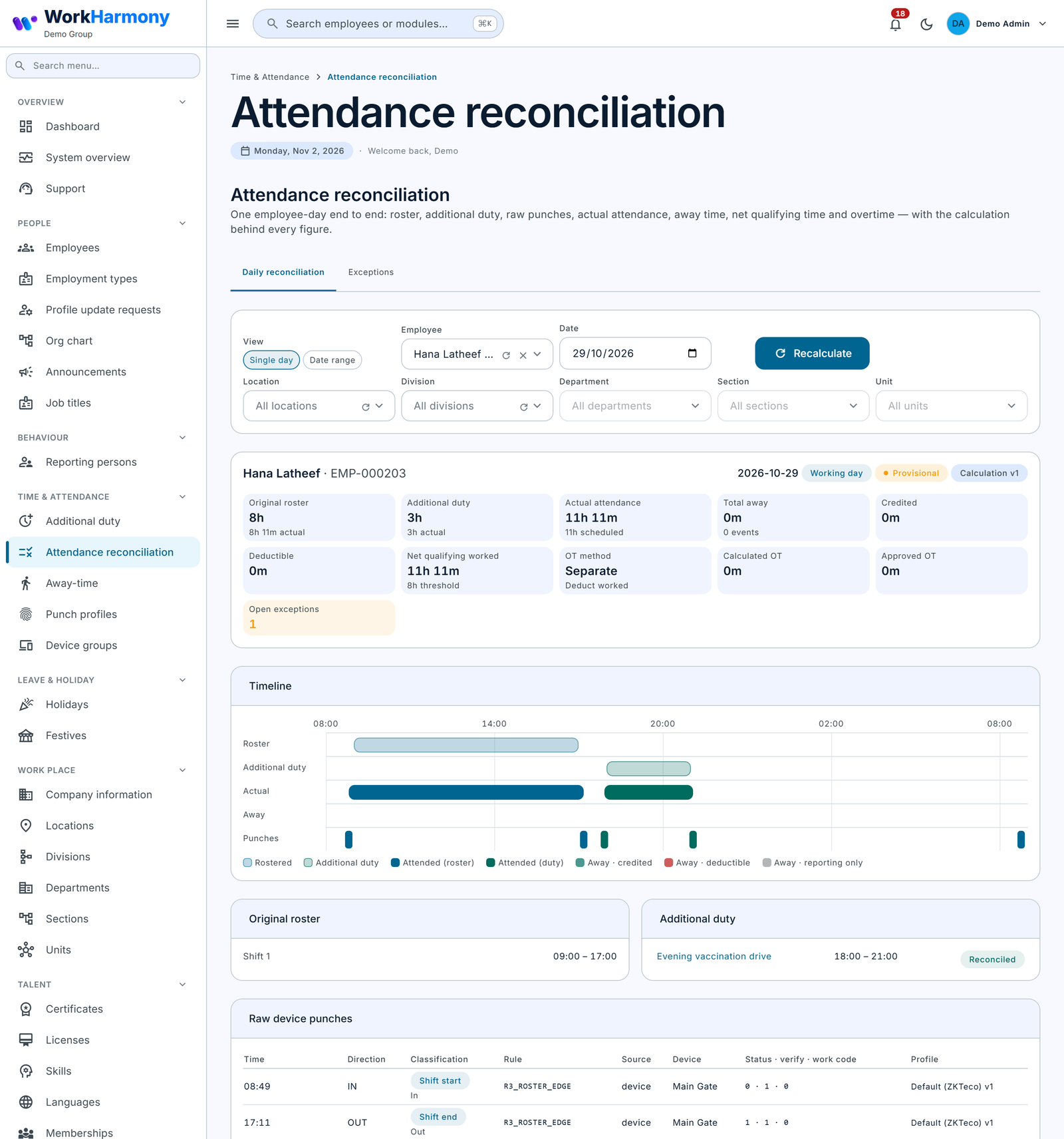
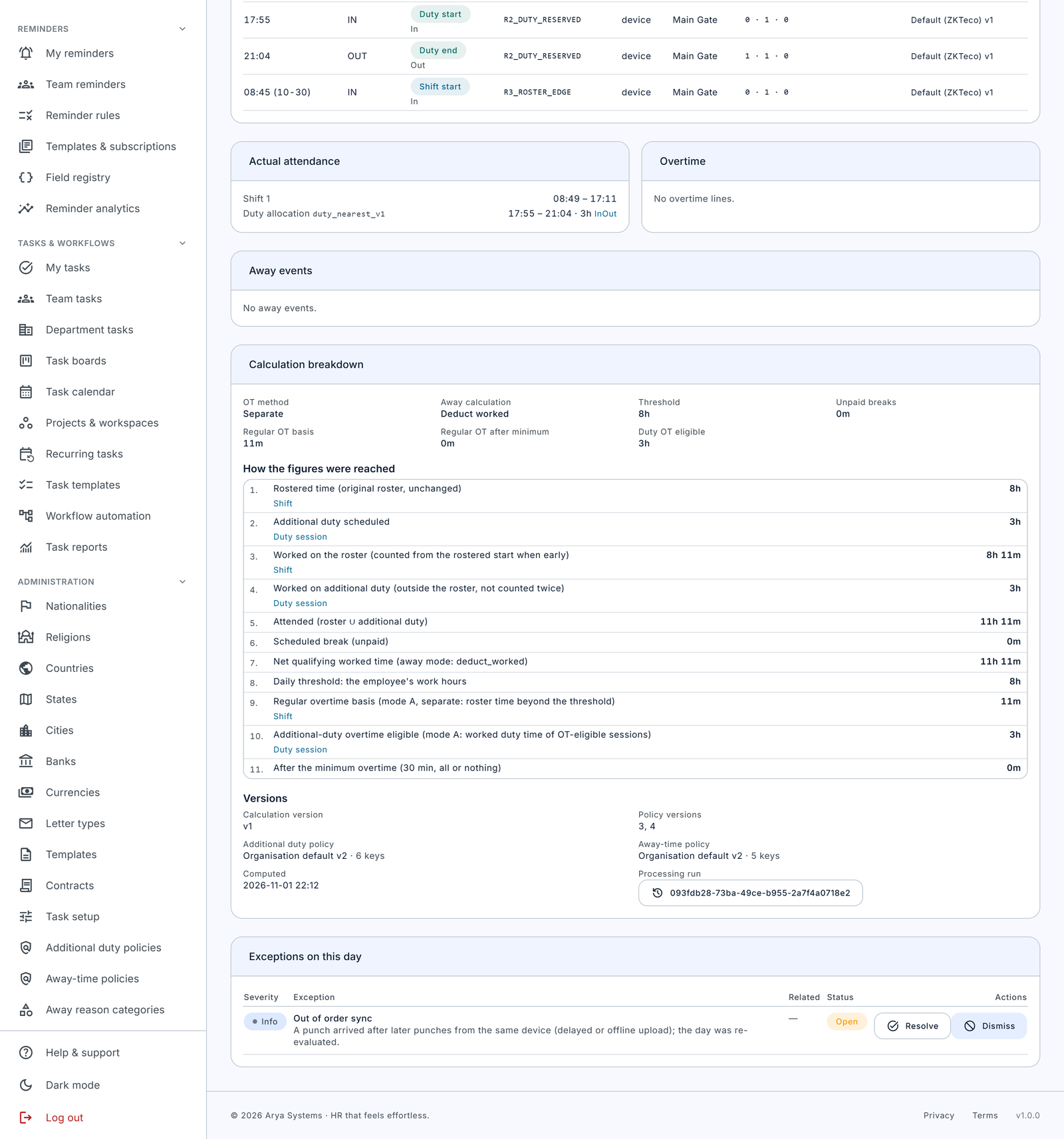
Attendance reconciliation
Time & Attendance › Attendance reconciliation shows one employee-day from end to end:
- roster, duty, actual attendance, away events (coloured by treatment) and punches on a timeline;
- every raw punch with its classification;
- the calculation breakdown, "How the figures were reached", step by step.
Its Exceptions tab lists every exception type. Recalculate reprocesses a date range for one employee, an org unit or everyone. It shows a dry-run estimate first, including the locked dates it will skip. Each run covers up to 31 days and 500 employees.
6. Employee experience
Where employees find it
| What | Where in the app |
|---|---|
| Away time | More › Away time. The Home screen shows an Away time card with the status and "N reasons needed". |
| Notifications | The normal inbox. Tapping one opens the event. |
All times are company time. If the phone is in another time zone, the screen says "Times are in company time (…)."
My status
The Away time screen shows MY STATUS: Working, Away, Off duty or Not clocked in. When away, it shows "Away since 11:15" and "Away for 25 min", and the current session. If Away-Time is not used for the employee's team, they see "Away time is not used for you".
The capture method decides what else appears:
- Mobile only or Hybrid: Step out and I'm back buttons. They need a connection; offline, nothing is recorded ("You are offline. Away and Return need a connection, so nothing was recorded."). A repeated press is never recorded twice. No location is recorded.
- Device: "Your departures and returns are recorded by the attendance devices. Add the reason here when asked."
- Supervisor: "Your supervisor records your time away. Add the reason here when asked."
Today lists the day's events with Total away, Credited and Deductible.
Giving a reason
- Open the event (from the notification, from Today, or from Away history › Needs reason).
- Tap Add reason.
- Choose Why were you away? Each category shows "Needs approval" or "No approval needed", and "Document required" where it applies.
- Add a Note if you want ("Only you, your approvers and HR can read this.").
- Add Documents where needed: up to 5 files of 8 MB each.
- Tap Submit reason.
Rules:
- The screen shows "Due by …". A reminder arrives 2 hours before the deadline. After the deadline the reason is Overdue, but it can still be given.
- Edit reason is possible while the reason waits for approval and no approver has acted yet.
- If the approver asks for more detail, the event shows Respond to clarification.
- A reason without documents can be saved offline and is sent later. A reason with documents needs a connection.
- If attendance is reprocessed and the event changes or is removed, the app says so ("This away event changed on the server…" or "This away event was removed…").
Corrections and missed absences
Employees cannot edit recorded times. They open the event and tap Request a correction, then choose what is wrong:
- My return was not recorded
- The departure time is wrong
- The return time is wrong
- I was not away
- This was not time away (dispute), via Dispute the classification
They propose the correct time and explain what happened ("Explain what happened" is required). For an absence nothing recorded, they use Report a missed absence on the Away time screen, with the date, departure time, return time and a note. Correction requests can be sent offline. If corrections are switched off for their unit, the app shows the server's message.
Away history
Away history has the filters Needs reason, Open and All. Each event shows:
- times, duration, what recorded it and which device;
- the reason and its status;
- the treatment and the credited, deductible and overtime-impact minutes;
- the day's punches, any corrections, and the Approval history.
Notifications
| Notification | When |
|---|---|
| Time away recorded | An event was detected (if the policy notifies on detection). |
| Reason needed for time away | An event needs a reason. |
| Welcome back | The return was recorded (only if the policy turns it on and no reason is needed). |
| Away reason due soon | 2 hours before the deadline. |
| Away reason overdue | The deadline passed. |
| Still away? | An open event passed the long-away limit. |
| No return recorded | An event is still open after the shift end plus the unclosed alert time. |
| Away reason approved / Away reason rejected / More information needed | The approver decided. The rejection or clarification includes the comment. |
| Away correction approved / Away correction rejected | A correction was decided. |
Managers receive "Long time away" and "Unclosed away time" for their reports, plus approval-required notices for reasons and corrections assigned to them. Notifications follow each person's preferences, and the same reminder is not sent twice.
Managers in the app
Team away time (under More, and under Tasks › Team) has the tabs Away now (refreshes every 30 seconds), Reasons, Long away, Unclosed and Corrections. Managers can Approve, Reject (comment required) or Ask for clarification (comment required) on reasons, and approve or reject corrections. Decisions need a connection. Restricted reasons are never shown in the app, and notes never appear in lists.
7. Use cases and worked examples
Example 1: A prayer or smoke break within the usual limit
WorkHarmony has no per-day "allowance" setting. You get the same effect with three tools:
- the Minimum away minutes to report;
- the Unscheduled break punches setting;
- a no-approval category such as Authorized break.
Setup: Minimum away minutes to report = 15. Profile: break keys mapped to Break out / Break in, Unscheduled break punches = Unscheduled break.
- Roster 08:00–16:00, scheduled break 12:00–13:00.
- 10:20 break-out (state 2), 10:32 break-in (state 3): an unscheduled break of 12 minutes. That is under 15, so the event is recorded as "Not required" and Reporting. Nobody is asked anything, and it can never be deducted.
- 14:40 break-out, 14:58 break-in: 18 minutes, so a reason is needed. The employee picks Authorized break, which needs no approval, so it is Accepted at once as Reporting.
If you never want to question breaks taken with the break keys, set Unscheduled break punches to Ignore: those punches are then classed as unscheduled breaks with no away event at all.
Example 2: An absence that runs long
Setup: Long-away alert after = 60, Away calculation = Deduct worked, Personal errand changed to Deductible, Treatment of rejected / overdue reasons = Deductible.
- Roster 09:00–17:00 (no scheduled break). The employee uses an Away out work code at 11:00, so the event opens immediately and shows on the Live tab.
- At 12:00 the event has been open over 60 minutes. The employee gets "Still away?" and their manager gets "Long time away". The Live tab counts them under Long away.
- At 12:35 the employee punches Away in. The event closes at 95 minutes, flagged as long, and the reason is due at 12:35 the next day.
- The employee chooses Personal errand. The supervisor rejects it with the comment "No permission was asked." The treatment becomes Deductible.
- Calculation: net qualifying worked time = 480 − 95 = 385 minutes, and overtime is worked out from that. No salary is deducted unless Deduct away time from salary is also on.
Example 3: A forgotten return punch
What happens depends on whether a later punch arrives.
Case A, no later punch:
- 09:00 check-in; 15:00 break-out (state 2); nothing more that day.
- The break-out is set aside from shift matching, so the shift has no end punch. The 15:00 break-out starts an open event.
- At 18:30 (17:00 + 90 minutes) the event is still open, so an Unclosed away exception is raised. The employee gets "No return recorded", and the manager gets "Unclosed away time".
- Next morning the supervisor confirms the employee came back at 15:40 and left at 17:00 by the side door, which has no reader. On the Unclosed tab the supervisor clicks Close, enters Returned at 15:40, and adds the note "Confirmed with the shift lead". The event becomes 40 minutes, and the times are protected from reprocessing. The employee then gives a reason as usual.
- Alternatively, the employee taps Request a correction › My return was not recorded, proposing 15:40, and the manager approves it.
- If the 15:40 break-in punch arrives late from an offline terminal, the event closes by itself with no action needed.
Case B, a later shift-end punch:
- 09:00 check-in; 11:15 check-out; 17:00 check-out.
- The system cannot tell when the employee came back. It creates no event. Instead the Ambiguous punches tab shows a Missing punch exception for the day.
- The employee uses Report a missed absence (11:15 to 11:45, "Forgot to punch back in"). Once a manager approves it, an event with source Correction is created.
- If the 11:45 punch later arrives from the terminal, the event is created automatically and the exception clears.
Example 4: An ambiguous punch sequence
Setup: a side-gate reader sends state 255 (undirected) for every punch. Its profile, created on the web, has Generic punches = Treat as ambiguous and inference off.
- 08:58 and 17:02 are taken by shift matching as the shift start and end.
- 10:05 and 10:30 are undirected punches inside the shift, so both become Ambiguous. One Ambiguous punch exception is raised for the day, and no away event is created.
- The attendance officer opens Day from the Ambiguous punches tab and sees that the reader is used for both leaving and entering.
- First fix option: set the device's Terminal Role, if it really is an exit-only reader.
- Second fix option: set Generic punches to Pair leftovers with direction inference on, so the leftover punches pair as out at 10:05 and in at 10:30.
- After saving a new profile version, the officer runs Recalculate for the affected days. The 25-minute event appears, with an informational Inferred direction exception. The ambiguous exception becomes Auto-resolved, or the officer clicks Resolve with the note "Profile corrected and days recalculated".
Example 5: An official errand recorded by the supervisor
Setup: Capture method = 5 Hybrid, Away calculation = Credited, Credit approved official duty = On.
Mid-shift errand:
- Roster 08:00–16:00. A driver punches out at 10:00 and back in at 11:30 at the gate, so the device creates a 90-minute event.
- The supervisor uses Record away event for 10:00–11:30 with reason Official duty outside workplace. The entry overlaps the device event, so it is merged: the device times are kept, the reason is attached as Accepted, and the treatment is Credited.
- The driver was clocked in throughout, so the 90 minutes already count as attended. Credited adds nothing extra, and nothing is deducted, even in a deducting mode.
Errand that ends the day:
- The driver leaves at 14:00 for the ministry and does not return. The 14:00 check-out is the shift end.
- The supervisor records 14:00–16:00 as Official duty outside workplace. Those 120 minutes fall outside attended time but inside the roster, so in Credited mode they are added to net qualifying worked time.
- In any other mode, the time is reported but not added.
Example 6: A gate terminal versus a canteen terminal
Setup:
- Group "Main gate" (two turnstiles) with a profile that maps states normally.
- Group "Canteen" (one reader), with its own profile: states 0 and 1 mapped to Break in and Break out.
- Scheduled break 12:30–13:30.
What happens:
- At the canteen, 12:35 out and 13:25 in are read as break keys. They fall inside the scheduled break (with tolerance), so they form the scheduled break and create no away event.
- At the canteen, 15:10 out and 15:25 in fall outside the scheduled break, so they form an unscheduled break. That is an away event under the default setting. Set Unscheduled break punches = Ignore on the Canteen profile if snack breaks should not be questioned.
- At the main gate, 11:00 out and 11:40 in are an ordinary absence, so the employee is asked for a reason.
Because both groups have their own profile, each terminal is read correctly. A device placed in both groups uses the profile of the group created first.
8. Troubleshooting and FAQ
Troubleshooting
| Symptom | Likely cause | What to do |
|---|---|---|
| No away events for anyone | Not licensed, master switch off, or no policy with Track away time on | Check the three layers in chapter 2. |
| No away events for one site | The policy lists device groups that do not include the site's devices | Empty the Device groups setting, or add the group. |
| Every mid-shift punch is ambiguous | The terminal sends no direction and the profile treats generic punches as ambiguous, or inference is off | Set the Terminal Role on gate devices, map the states or work codes the terminal does send, or allow Alternate or Pair leftovers with inference on. Preview first. |
| Lunch shows as away time | The break punch falls outside the scheduled break plus tolerance, or the schedule has no break | Widen Scheduled break tolerance, fix the schedule's break, or map the break keys. |
| Breaks taken with the break key show as away | Explicit break punches outside the scheduled break are recorded as away events | Set Unscheduled break punches to Ignore in the profile. |
| Leaving early shows as away | The out is earlier than the early-departure window | Raise Early departure window before shift end. |
| A long absence was not paired | The gap is longer than the pairing window | Raise Longest away that still pairs (policy) or Pairing window (profile). |
| Times are a few minutes out | The terminal clock drifts | Fix the clock, or set Clock offset. Watch for "Suspected clock offset". |
| Times are hours out | The terminal is in, or set to, another time zone | Set the profile's Time zone, or fix the terminal. |
| The same absence counted twice | Device and app both reported it | Check Merge events overlapping by and Source priority. |
| Punches missing for one person | The terminal user number does not match the employee's attendance code | Correct the code; held punches are matched on the terminal's next upload. |
| Changed a profile or policy, but old days are unchanged | Changes do not reprocess history by themselves | Run Recalculate on Attendance reconciliation. |
| "This version is already in effect" | You tried to edit a profile in effect | Save it as a new version from a future date. |
| Record away event is refused | The employee's capture method is not 3, 4 or 5, or the date is in a locked pay period | Change the capture method, or unlock the period. |
| Days before the upgrade never show away time | Those punches have no state or work code | Expected. |
| An employee says an event vanished | Reprocessing (for example a late punch) no longer supports it, so it was voided | Open the event detail ("Voided because"). If it already had a reason, an "Away event voided with reason" exception tells you. |
FAQ
Does away time reduce anyone's salary?
Not by default. Salary is reduced only if "Deduct away time from salary" is on at organisation level and Away calculation is "Deduct worked". Even then, only deductible minutes count, inside attended time and outside the unpaid break.
Is anything deductible out of the box?
No. None of the seven categories is deductible, and the calculation mode is Reporting only. Unexplained time is set to Deductible by default, but that matters only once you choose a deducting mode.
Can an employee edit their own times?
No. They request a correction, and an approver decides. The raw punch is never changed.
Does the system ever fill in a return time?
No. A person must state it, either through Close or an approved correction, or a real punch must arrive.
Who can read a medical reason?
The employee, the current approver (unless the policy says Hr only), and holders of View reasons. Everyone else sees "Restricted" or "Reason provided".
Does the app track location?
No. Step out and I'm back record only the time, and there is no continuous tracking.
What happens to old reason notes?
They are removed after "Keep reason notes and documents" (730 days by default). The minutes and the treatment are kept.
I changed a policy. Why have the figures not changed?
Policy and profile changes apply only when a day is processed again. Run Recalculate for the affected range, after checking the dry-run estimate.
What if the pay period is closed?
Locked days are never changed. Late data raises an exception. A difference in a finalised payroll period becomes a pending payroll adjustment in the next open period.
Can I turn Away-Time off again?
Yes. Untick Track away time in the policy, then turn off the master switch. Nothing is deleted.
What does "Employee must confirm detected events" do?
Currently nothing. The setting is shown in the policy but is not used. Leave it off.
9. Glossary
| Term | Meaning |
|---|---|
| Away event | One absence between a departure and a return, with its reason and treatment. |
| Open / Closed / Voided | An event with no return yet / with both times / withdrawn but kept for the record. |
| Unclosed | An open event still open after the shift end plus the unclosed alert time. |
| Capture method | Where events come from: device, mobile, supervisor, device preferred or hybrid. |
| Punch state | The code a terminal sends with a punch, such as 0 check-in or 2 break-out. |
| Work code | A code the employee keys in at the terminal; when mapped, it wins over the state. |
| Generic punch | A punch with no usable in or out direction. |
| Inferred direction | A direction the system guessed for a generic punch, flagged as such. |
| Punch interpretation profile | The rules for reading one device's, group's or model's punches. |
| Device group | A set of terminals sharing one profile. |
| Terminal role | Whether a device is an entry, exit or any-direction terminal. |
| Classification | The class given to each punch: shift start, away start, scheduled break and so on. |
| Ambiguous punch | A punch the system could not read with confidence; raised as an exception. |
| Missing punch | A departure without a return, or a return without a departure, that could not be paired. |
| Scheduled break | The break in the employee's schedule; punches inside it (plus tolerance) are not away time. |
| Unscheduled break | A break-key pair outside the scheduled break; recorded as an away event by default. |
| Early departure | An out close to the shift end with no return; not away time. |
| Late return | A return from the scheduled break after the break end plus tolerance. |
| Reason category | The list employees choose from, each with a treatment. |
| Treatment | Reporting (recorded only), Credited (counts as work) or Deductible (removed per policy). |
| Away calculation | The policy's mode: Reporting only, Deduct worked, Deduct overtime only or Credited. |
| Net qualifying worked time | Attended time minus the unpaid break, minus deductible away (Deduct worked), plus credited away (Credited). |
| Overtime impact | The deductible minutes when the calculation mode deducts. |
| Correction | An employee's or supervisor's request to change, withdraw or add an event. |
| Provisional | The figures may still change when punches arrive late or the day is recalculated. |
| Recalculate | Reprocessing a date range on Attendance reconciliation, with a dry run first. |
| Override | A policy layer for a location, division, department, section, unit or employee. |
| Lock for org units | An organisation-default setting no override may change. |
| Resolve preview | A check showing the settings one employee gets on a date, and where each came from. |
| Pay period lock | A closed period whose attendance is never changed in place. |
Signed in to WorkHarmony? The same guide is in your workspace under Help.