Mobile App
Simple Mode: a calmer app for deskless staff
Not everyone wants a full HR app on their phone. Simple Mode gives frontline staff four clear tabs over exactly the same data, requests and approvals.
WorkHarmony Product Team4 min read
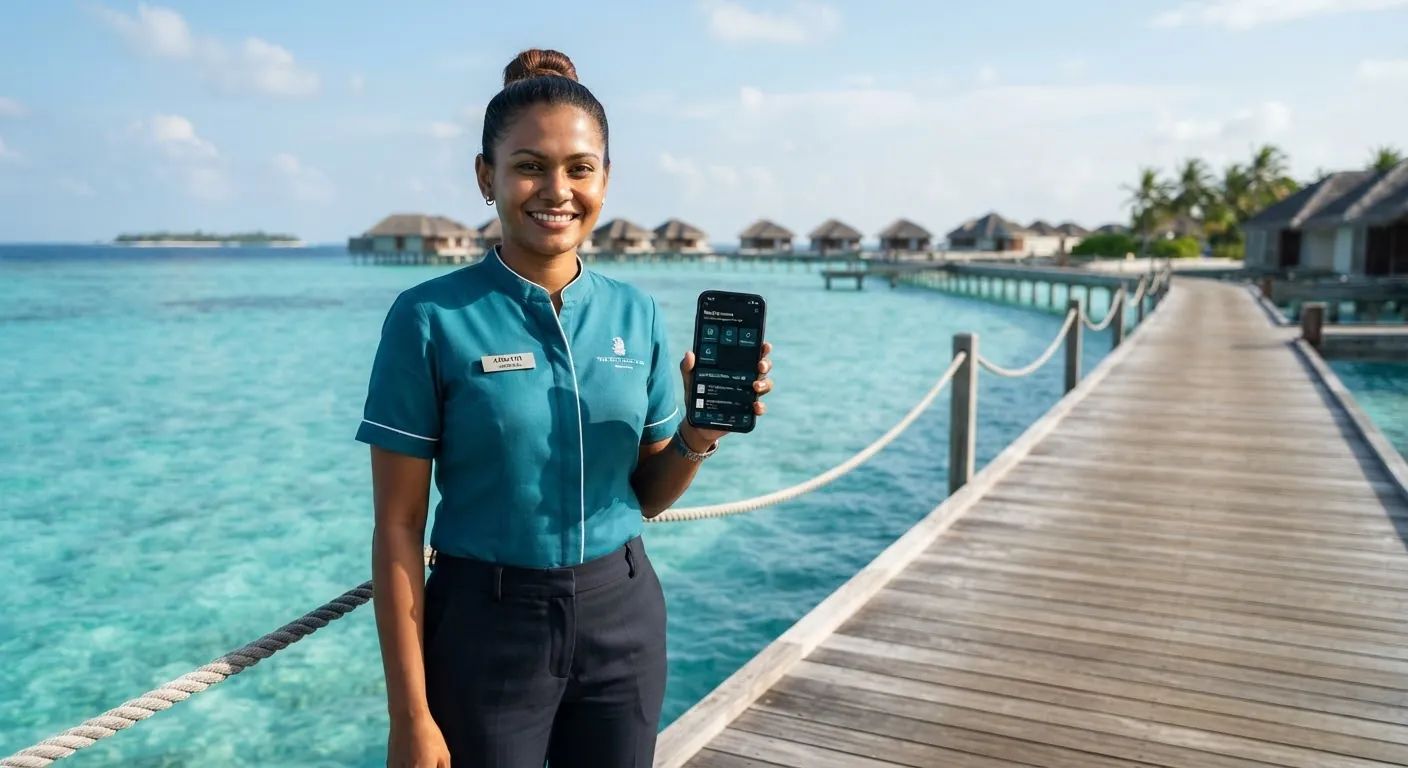
The WorkHarmony mobile app does a lot: clocking, attendance history, leave, requests, approvals, payslips, documents, policies, reminders and tasks. For an office manager that is useful. For a housekeeper, a driver or a warehouse picker who opens the app twice a day to clock in and out, it can be too much. Simple Mode is our answer.
What Simple Mode is
Simple Mode is another way of presenting the same app. It shows four tabs:
- Home — the day at a glance.
- Attendance — a large clock-in and clock-out button and the person's recent days.
- Requests — leave and the other requests the company uses, in one place.
- More — profile, payslips, documents, policies and settings.
The full interface is called Complete Mode. Its tab bar is Home, Attendance, Leave, Tasks and More.
What stays exactly the same
Simple Mode is presentation only. It was built under a firm rule: no separate logic, no separate data and no back-door permissions. In practice that means:
- The clock button uses the same code as Complete Mode, so geofence and company IP network checks apply in the same way.
- Every request form and every detail screen is shared. A leave request made in Simple Mode is identical to one made in Complete Mode, and it goes through the same approval workflow.
- Permissions are unchanged. An employee does not gain or lose access by switching mode.
- Notifications and links still open the right screen, even ones that live in a tab Simple Mode does not show.
Because nothing is duplicated, HR does not have to configure anything twice, and support teams do not have to learn two products.
How employees choose
After signing in for the first time, the app asks which mode the person would like. Complete Mode is listed first and preselected, and Simple Mode is one tap away. The choice is saved on that phone, separately from the light or dark theme, and the person can change it later.
There is no company-wide switch at the moment: each employee decides what suits them. In our experience, the people who benefit most choose Simple Mode themselves once they have seen it.
Who it is for
Shift and frontline teams
People who clock in, check their roster, ask for a day off and look at a payslip. Simple Mode puts those tasks on the first screen with large, clear targets.
First-time smartphone HR users
Staff who are new to self-service often find a five-tab app with many options intimidating. Fewer choices means fewer support calls to HR.
Shared or older devices
A shorter tab bar and larger controls are easier to use on small screens.
Getting your teams onto the app
Simple Mode works best when getting started is just as easy. Employees connect the app to your company by scanning the QR code HR shows them, choosing a QR image from their photos, typing the company code, or tapping the enrolment link in an email. They then register or sign in with their own employee account, which is separate from HR console accounts.
A practical rollout for a frontline site looks like this:
- Print or display the company QR code where people start their shift.
- Ask supervisors to help the first few people enrol and choose Simple Mode.
- Check the first week's attendance for any clock-in problems, such as a missing IP whitelist or geofence.
- Collect feedback after two weeks and decide whether to recommend Simple Mode for the whole team.
Managers are not left out
Managers who approve requests can use either mode. Approvals, team views and tasks remain fully available in Complete Mode, and a manager can switch whenever they need the extra screens.
- #mobile app
- #Simple Mode
- #frontline
- #self-service
More to read
Leave & Attendance
Setting up geofenced and IP-based clock-in on the mobile app
Decide where staff may clock in from their phones: inside a site's geofence, on the office network, or either. A practical setup guide, including the IPv6 detail that catches most people out.
Read more: Setting up geofenced and IP-based clock-in on the mobile app
Automation
Never miss a document expiry: a practical guide to Smart Reminders
Passports, licences, contracts and probation reviews all come with dates. Smart Reminders turns the dates you already hold into actionable reminders for the right people, by in-app notice, push and email.
Read more: Never miss a document expiry: a practical guide to Smart Reminders
Documents
Designing letters and certificates with the Document & Layout Designer
Build a letter once, fill it with live employee data, brand it for each part of the company and issue verifiable documents by download, print, email or straight to the employee's app.
Read more: Designing letters and certificates with the Document & Layout Designer